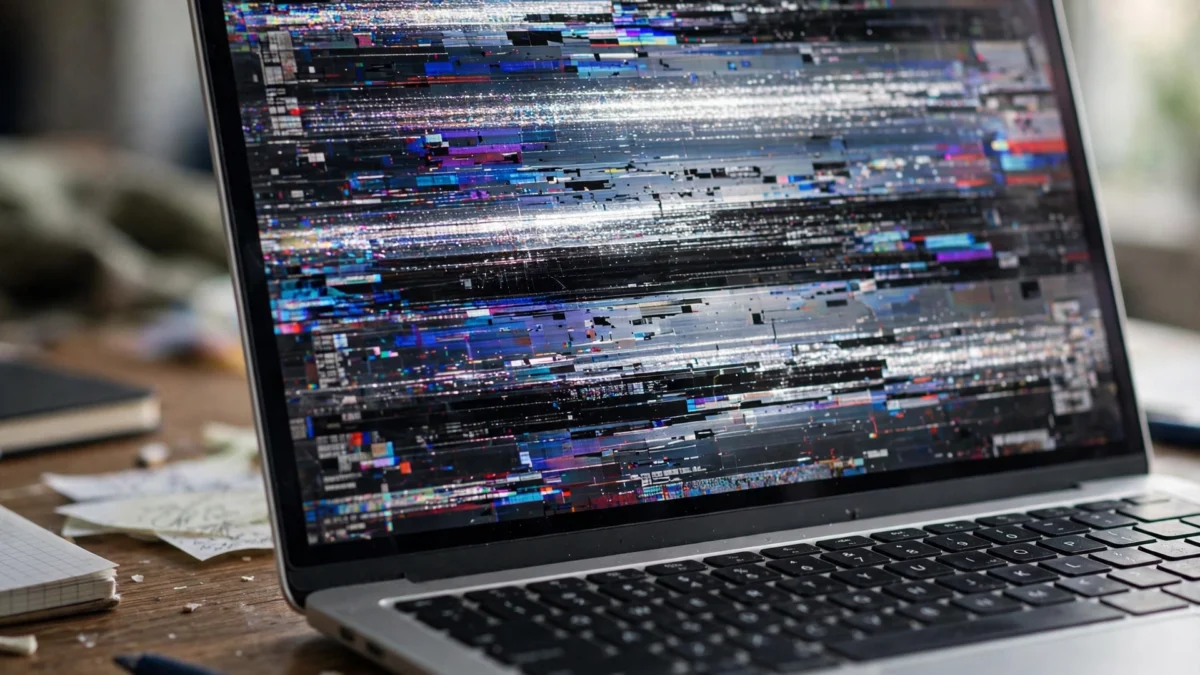
Laptop screen flickering Windows 11 problems are usually caused by a faulty display driver or an incompatible app — and a two-minute test tells you which one it is. Press Win + Ctrl + Shift + B to reset the graphics driver, then open Task Manager: if Task Manager flickers too, fix the driver; if it stays steady, an app is the culprit. Work through the fixes below in order, and most flicker is gone without opening the laptop.
This guide starts with that diagnosis, then gives 10 fixes from easiest to hardest — the display driver flickering fix, refresh-rate and HDR settings, laptop screen flickering after update rollbacks, and the external-monitor test that separates software from hardware faults.
Contents
- Why Is Your Laptop Screen Flickering?
- Diagnose It in 2 Minutes: The Task Manager Test
- What Laptop Screen Flashing On and Off Means
- 10 Fixes for Laptop Screen Flickering, Easiest First
- Laptop Screen Flickering After Update: What to Do
- Hardware Tests: External Monitor, Hinge and Cable
- When to See a Repair Shop
- Frequently Asked Questions
Why Is Your Laptop Screen Flickering?
A flickering screen means the picture reaching your display is being interrupted or redrawn badly, over and over. Four groups of causes cover almost every case:
- Display driver problems. The driver translates Windows into pictures. After a Windows or graphics driver update, or a corrupted install, that translation can stutter — the most common cause of laptop screen flickering Windows 11 users report, and one of the easiest to fix.
- An incompatible app. Screen recorders, GPU utilities, themes, overlays, and older antivirus tools can clash with how Windows 11 draws the screen. Flicker may appear only when that app is open, or only in one program such as a browser.
- Display settings. The wrong refresh rate, a dynamic rate that keeps switching, HDR on a panel that handles it badly, or adaptive brightness can all cause flicker. Flickering at low brightness is a classic sign of this group: fine at full brightness, shimmering when dimmed.
- Hardware faults. A loose or worn display cable through the hinge, a failing panel, or a failing graphics chip. Hardware flicker usually changes when you move the lid, survives Safe Mode, and shows on the built-in screen but not an external monitor.
Two details narrow it down fast: when did it start, and does it change? Flicker after an update points to drivers or settings the update reset; flicker that changes when you tilt the screen points to a cable or panel problem.
Diagnose It in 2 Minutes: The Task Manager Test
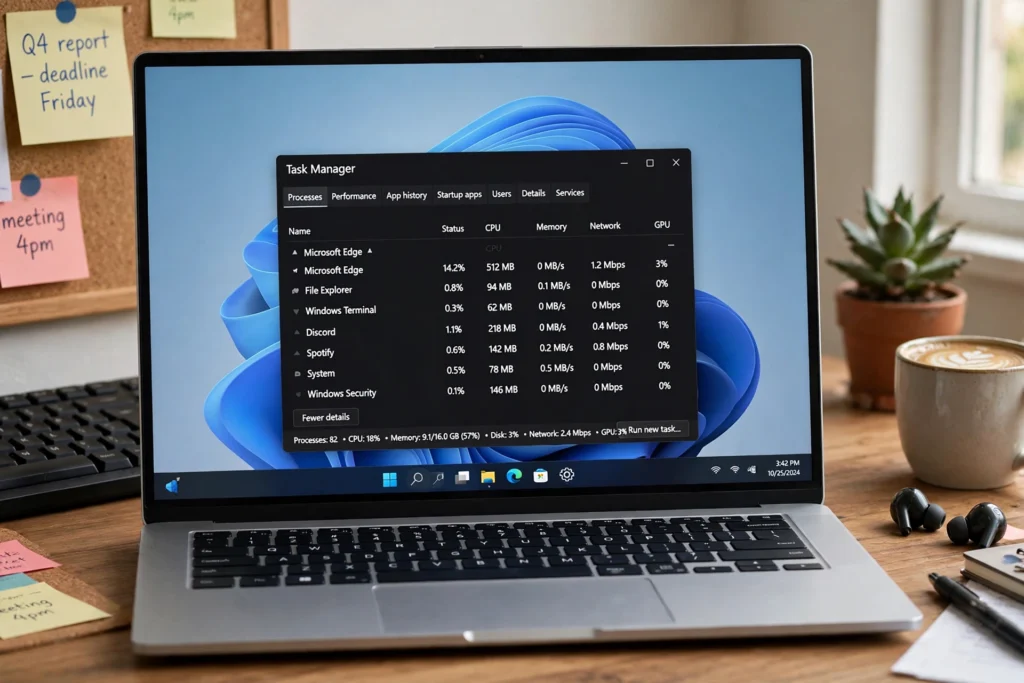
Do this test before any fix — it is the step Microsoft itself recommends. Press Ctrl + Shift + Esc to open Task Manager and watch its window while the rest of the screen flickers. If Task Manager flickers along with everything else, the display driver is the likely cause — go to Fixes 1 and 2. If Task Manager stays steady while the rest flickers, an app is the likely cause — go to Fix 3. Run the test twice if the flicker comes and goes. If you cannot see the screen well enough, boot into Safe Mode: flicker that disappears there points to a driver or app, while flicker that survives there points at hardware.
| What you see | Most likely cause | Go to |
|---|---|---|
| Task Manager flickers too | Display driver | Fixes 1–2 |
| Task Manager stays steady | Incompatible app | Fix 3 |
| Flicker only in one app | That app or its hardware acceleration | Fix 3 |
| Flicker only at low brightness | Adaptive brightness | Fix 5 |
| Flicker only after an update | Driver or setting changed by the update | Fixes 2 and 7 |
| Flicker changes when you move the lid | Display cable through the hinge | Hardware tests |
| Flicker on laptop screen only | Panel or internal cable | Hardware tests |
| Flicker on both screens | Driver or graphics chip | Fixes 1–2, then repair shop |
What Laptop Screen Flashing On and Off Means
The pattern of the flicker is a useful clue:
- Whole screen flashing black for a second, then back. Driver restarting or crashing, or a Windows display setting that keeps reapplying — most often a driver problem, so start with Fixes 1 and 2.
- Flickering lines or flickering bands across the screen. Often a cable or panel fault, or a refresh-rate mismatch — check Fixes 4 and 9.
- Flickering only in one app, or only in a browser. That app’s hardware acceleration or GPU setting is the suspect — turn off hardware acceleration in its settings or reinstall it (Fix 3).
- Flickering that appears after Windows updates. A new driver or a display setting the update reset is the prime suspect — Fixes 2 and 7.
If the screen stays black or shows permanent coloured lines, stop and skip to the hardware tests: that pattern usually needs a repair shop, and software fixes are unlikely to help.
10 Fixes for Laptop Screen Flickering, Easiest First
Fix 1: Reset the graphics driver with Win + Ctrl + Shift + B
Press Win + Ctrl + Shift + B — the screen will go black for a second, you will hear a beep, and the graphics driver restarts without a reboot. If the flicker stops, the driver had a transient glitch and nothing else may be needed. If the flicker comes straight back, the driver install itself needs attention.
Fix 2: Update, roll back, or reinstall the display driver
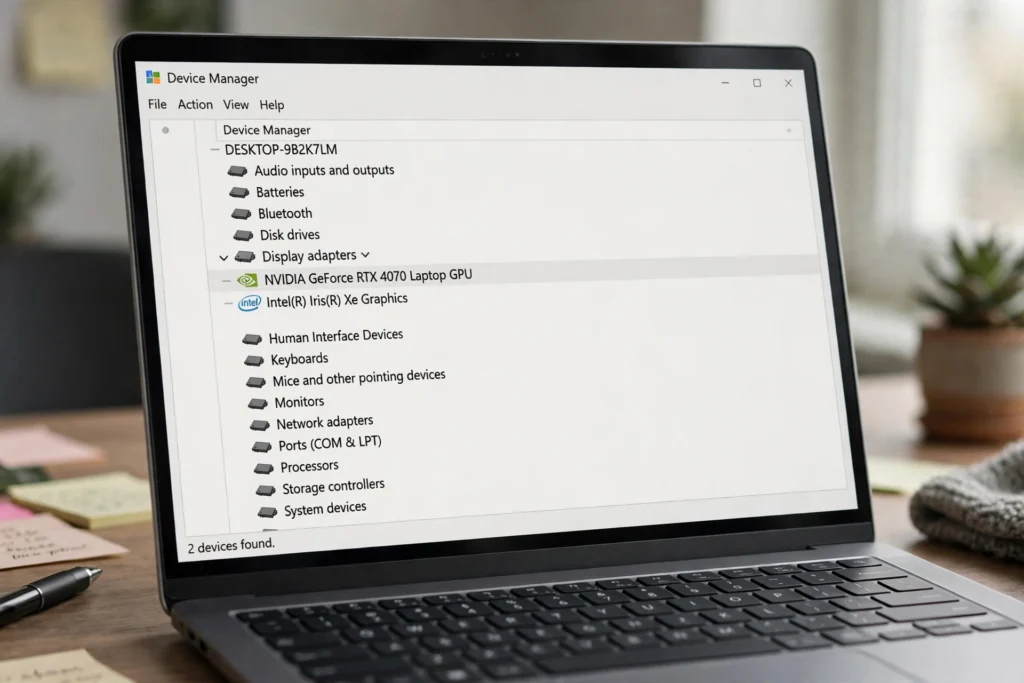
Open Device Manager > Display adapters, right-click your graphics device, and choose Update driver. If that does not help, return to the same place, choose Properties > Driver > Roll Back Driver if it is available — useful after an update caused the flicker — or choose Uninstall device, then restart and let Windows reinstall it. The most reliable route is a clean install from your laptop maker’s support site, not a generic Windows driver: download the latest graphics driver for your exact model, run it, and restart.
Fix 3: Find and remove the incompatible app
If Task Manager stays steady, the culprit is an app. Start by removing recently installed screen recorders, GPU utilities, themes, and overlays — these are the usual suspects. If the flicker only appears in one program, turn off hardware acceleration in that program’s settings or reinstall it. To find an unknown culprit, use a clean boot: press Win + R, type msconfig, select Services > Hide all Microsoft services > Disable all, and restart — if the flicker stops, re-enable services in groups until it returns and you have found the offender.
Fix 4: Set a stable refresh rate
Go to Settings > System > Display > Advanced display and choose a fixed refresh rate — 60Hz is the safest baseline for most laptop panels. If your panel offers 120Hz or 144Hz and the flicker only appears at a dynamic or high rate, a fixed lower rate often ends it. Avoid dynamic refresh rate for now: a rate that keeps switching between 60Hz and 120Hz can itself cause visible flicker.

Fix 5: Turn off HDR, adaptive brightness, and content-adaptive brightness
These three settings are common causes of flicker at low brightness. Turn off HDR in Settings > System > Display (or Windows HD Color settings on older builds). Turn off adaptive brightness in Settings > System > Display > Brightness and in the power plan’s advanced settings, and turn off content-adaptive brightness control in Settings > System > Display > Brightness and colour if it appears. Test at a fixed brightness level — if flicker only appears when the screen is dim, one of these settings was the cause.
Fix 6: Test on charger power and turn off Fast Startup
Some flicker appears only on battery, or only when the screen brightness shifts with power mode. Plug in the charger and set a fixed brightness: if the flicker stops, the power plan or battery saver was changing the display output. Next, turn off Fast Startup in Control Panel > Power Options > Choose what the power buttons do — Fast Startup can carry a bad driver state across restarts, and disabling it forces a clean driver load.
Fix 7: Check for Windows updates — and roll back a bad one if needed
Go to Settings > Windows Update and install any pending updates — Microsoft often ships display driver fixes this way. If flicker started right after an update, reverse it: Settings > Windows Update > Update history > Uninstall updates, remove the most recent quality update, and pause updates for a week. If a driver update caused it, use Device Manager to roll back the display driver as in Fix 2.
Fix 8: Test in Safe Mode and repair system files
Boot into Safe Mode (hold Shift while choosing Restart, then Troubleshoot > Advanced options > Startup Settings > Restart > Safe Mode). If the screen is steady in Safe Mode, a third-party driver or app is at fault — return to Fixes 2 and 3. While you are at it, repair system files: open Command Prompt as administrator and run sfc /scannow, then DISM /Online /Cleanup-Image /RestoreHealth if SFC reports problems it cannot fix.
Fix 9: Check the cable, dock, and external display
If you use a dock or an external monitor, disconnect them and test the laptop screen alone — a faulty dock cable or a bad HDMI/DisplayPort connection can make both screens flicker. Try a different cable and a different port, and check the external display’s own refresh rate and HDR settings. If the external screen is steady while the laptop screen flickers, the fault is in the laptop panel or its internal cable.
Fix 10: Update BIOS and firmware from the laptop maker
As a last software step, update the BIOS and display firmware from your laptop maker’s support site — not from a third-party updater. Follow the maker’s instructions exactly, keep the laptop plugged in throughout, and do not interrupt the update. BIOS updates can fix panel timing and graphics issues that no Windows setting touches, but a failed BIOS update can brick the machine, so only do this step if earlier fixes failed and the maker lists a relevant fix.
Laptop Screen Flickering After Update: What to Do
Laptop screen flickering after update is a special case, because the update may have changed three things at once: the display driver, a display setting such as refresh rate or HDR, and an app’s compatibility. Work through them in that order. First, roll back the display driver in Device Manager — if the update installed a new driver, the old one is usually still available. Second, re-check refresh rate, HDR, and adaptive brightness, because updates often reset them to defaults. Third, check for a further update: Microsoft and laptop makers often ship a fix within days of a bad update. If none of that helps, uninstall the most recent quality update as in Fix 7 and pause updates until a fixed version appears.
Hardware Tests: External Monitor, Hinge and Cable
Connect an external monitor. If the external screen is steady while the laptop screen flickers, the laptop panel or its internal cable is the fault. If both screens flicker, the driver or graphics chip is the fault. Next, slowly open and close the lid through its full range: flicker that changes with lid angle points to the display cable through the hinge — a common wear fault on laptops that are opened and closed many times a day. Check the pattern too: flicker that stays in the same place on the screen, or permanent lines, points to the panel itself.
Related guides: if heat is part of the problem, see how to fix laptop overheating; if noise accompanies the flicker, see how to fix a laptop fan making loud noise; and if the flicker started after an update, also check laptop battery draining fast after update, which covers update rollbacks in more detail. For general speed, see how to speed up a slow laptop; and if some keys stopped working after the same update, see our guide to fixing a laptop keyboard.
Further reading: troubleshoot screen flickering in Windows from Microsoft, TechBullish guide to fixing screen flickering, and best monitors if you need a reliable external display for testing.
When to See a Repair Shop
See a repair shop if flicker survives Safe Mode and a clean driver reinstall, changes with lid angle, appears only on the built-in screen, or comes with permanent lines or a screen that stays black. Those signs point to a panel, cable, or graphics-chip fault that needs parts and tools. Tell the shop what you have already tried — driver reinstall, Safe Mode test, external monitor test — so they start at the hardware diagnosis instead of repeating your work. A cable replacement is usually the cheapest hardware fix; a panel replacement costs more, and a graphics-chip fault on a soldered board may mean a board replacement, so get a quote before authorising work.
Frequently Asked Questions
Recommended Products
The hardware tests above call for these two items. They are for diagnosis only, not a fix in themselves:
- External monitor — search on Amazon — a diagnostic test, not a cure: if the external screen is steady, the laptop panel or its cable is at fault.
- HDMI cable — search on Amazon — a spare cable is needed for the test, and a faulty cable can itself cause flicker on an external display.
Why is my laptop screen flickering?
Usually a faulty display driver, an incompatible app, or a setting such as the wrong refresh rate, HDR, or adaptive brightness. Less often hardware: a loose hinge cable, a failing panel, or a failing graphics chip. Run the Task Manager test first — if Task Manager flickers too, suspect the driver; if it stays steady, suspect an app.
How do I stop screen flickering in Windows 11?
First press Win + Ctrl + Shift + B to reset the graphics driver, then open Task Manager to see whether the driver or an app is causing it. If it is the driver, update, roll back, or cleanly reinstall it from your laptop maker’s site. If it is an app, uninstall the suspect app or do a clean boot to find it. Then set a fixed, stable refresh rate and turn off HDR and adaptive brightness.
Can a driver cause screen flickering?
Yes — a display driver is the most common cause of screen flickering on Windows 11. A driver that is outdated, corrupted, or newly changed by a Windows update can make the whole screen flicker, flash black, or tear. If Task Manager flickers along with everything else, the driver is the prime suspect; updating, rolling back, or cleanly reinstalling it from the laptop maker fixes most cases.
Is a flickering laptop screen a hardware problem?
Not always — most cases are software (drivers, apps, or settings) and fixable at home. It is more likely hardware if flicker survives Safe Mode and a clean driver reinstall, changes when you move the lid, appears only on the built-in screen, or comes with permanent lines or a screen that stays black.


1 response