
If your laptop has a laptop black screen but fan running problem, do not panic: the machine is getting power, but the display is not starting. A hard reset, a display shortcut, or an external monitor test usually brings the picture back within minutes. Work through the fixes in order, stopping as soon as your screen returns.
Note the difference: this guide covers a laptop whose fan runs but whose screen stays black; if yours shows no lights at all, see the guide for a laptop won’t turn on with no lights.

Contents
- What It Means
- Diagnose by the Signs
- Fix 1: Hard Reset
- Fix 2: Brightness and Display Keys
- Fix 3: External Monitor Test
- Fix 4: Disconnect Peripherals
- Fix 5: Safe Mode, Driver Rollback
- Fix 6: BIOS Reset
- Fix 7: Reseat the RAM
- Fix 8: Flashlight Test
- Fix 9: Stop It Coming Back
- When to See a Repair Shop
- FAQs
What a Black Screen With the Fan Running Means
When a laptop turns on but screen black is the symptom, the key clue is what is working. Fan spinning and power light glowing mean the motherboard is receiving power, ruling out a dead battery or broken charger. The fault instead lies in a stuck power state, a display output problem, a driver or Windows fault, or hardware in the screen, memory, or motherboard.
A laptop power light on no display fault feels alarming because nothing appears at all, not even a logo. But it does not mean the whole machine has failed: Windows can get stuck resuming from sleep, a graphics driver can crash during start-up, or the laptop can be sending its picture to an unconnected output. Logo then blackness points to Windows; never seeing anything points to pre-Windows hardware or firmware.
Diagnose It by the Signs
Match your symptoms to the table first; it tells you which fix to try first.
| What you see and hear | Likely cause | Start with |
|---|---|---|
| Fan runs, power light on, no logo | Stuck power state or hardware fault | Fix 1, then 3 |
| Logo appears, then black screen | Driver or Windows fault | Fix 2, then 5 |
| Black after waking from sleep | Stuck sleep state, Fast Startup | Fix 1, then 9 |
| Black straight after a Windows update | Driver conflict | Fix 5 |
| Faint image with a torch | Backlight failure | Fix 8, then a shop |
| Picture on an external monitor | Screen, cable, or lid sensor fault | Fix 2 and 4, then a shop |
| Nothing on an external monitor either | Graphics, memory, or motherboard fault | Fix 6, then 7 |
| Caps Lock light toggles | Windows running behind black screen | Fix 2 |

Fix 1: Hard Reset the Laptop
A hard reset laptop black screen fix is the most effective first step, and it costs nothing. It drains leftover charge and forces every component to initialise from scratch, clearing the stuck sleep and power states behind many of these faults.
- Press and hold the power button until the laptop switches off completely (10 to 15 seconds), and wait until the fan stops.
- Unplug the charger and disconnect every peripheral: USB drives, mouse, external monitor, docking station, and printer.
- If your battery is removable, take it out. If it is sealed inside, skip this step.
- Press and hold the power button for 15 to 20 seconds with everything unplugged, to drain residual charge.
- Reconnect only the charger, then press the power button once.
If the screen comes back, you are done. If not, move on rather than repeating the reset. If your laptop also refuses to charge, our guide to a laptop plugged in but not charging covers charger and battery checks.
Fix 2: Brightness and Display Output Keys
Many “dead screen” reports turn out to be a display turned all the way down, or a laptop sending its picture to the wrong output. This is especially common on a laptop black screen windows 11 machine after an update, when display settings can be reset without warning.
- Press the brightness-up key repeatedly: usually F5, F6, or a sun symbol on the function row, sometimes combined with Fn.
- Press Windows + Ctrl + Shift + B to restart the graphics driver; you should hear a short beep as the screen refreshes. It loses no data, and it fixes driver crashes that leave the screen black while Windows keeps running.
- Press Windows + P, then arrow keys and Enter to choose “PC screen only” or “Duplicate”, forcing the picture back to the built-in display.
- If you have a display-toggle key (often Fn + F4, F5, or F8), press it a few times, waiting a few seconds between presses.
If the screen flickers back even briefly, the panel is probably fine and the fault is in the driver or output settings. If it returns but flickers, see our guide to a laptop screen flickering in Windows 11.
Fix 3: Test With an External Monitor
The external monitor test is the great divider in this guide: if an external screen works, only the laptop’s own display chain is broken; if it does not, the fault is deeper, in the graphics hardware, memory, or motherboard.
- Connect a TV or monitor with a known-good HDMI or USB-C cable.
- Switch the laptop on, then press Windows + P and choose “Duplicate”.
- Wait up to a minute; some laptops are slow to detect a new display.
If the external monitor shows a picture: Windows and the graphics chip are working. The fault is in the laptop’s own screen, ribbon cable, lid sensor, or backlight. You can keep using the laptop on the external screen while you arrange a repair.
If the external monitor stays black too: do not buy a new screen. The problem is upstream of the display, so continue to Fix 5 and Fix 6. A black external monitor proves the screen was never the problem.

Fix 4: Disconnect All Peripherals
A faulty USB device, docking station, or damaged cable can stop a laptop completing start-up, leaving the fan running and the screen black. Rule this out properly: unplug everything.
- Switch the laptop off, then unplug every USB device, memory card, external drive, and dock.
- Switch it on with nothing attached except the charger.
- If it boots, reconnect devices one at a time, rebooting after each, until the fault returns; the last device added is the culprit.
Pay special attention to USB hubs and docking stations, the most common offenders.
Fix 5: Safe Mode and Driver Rollback
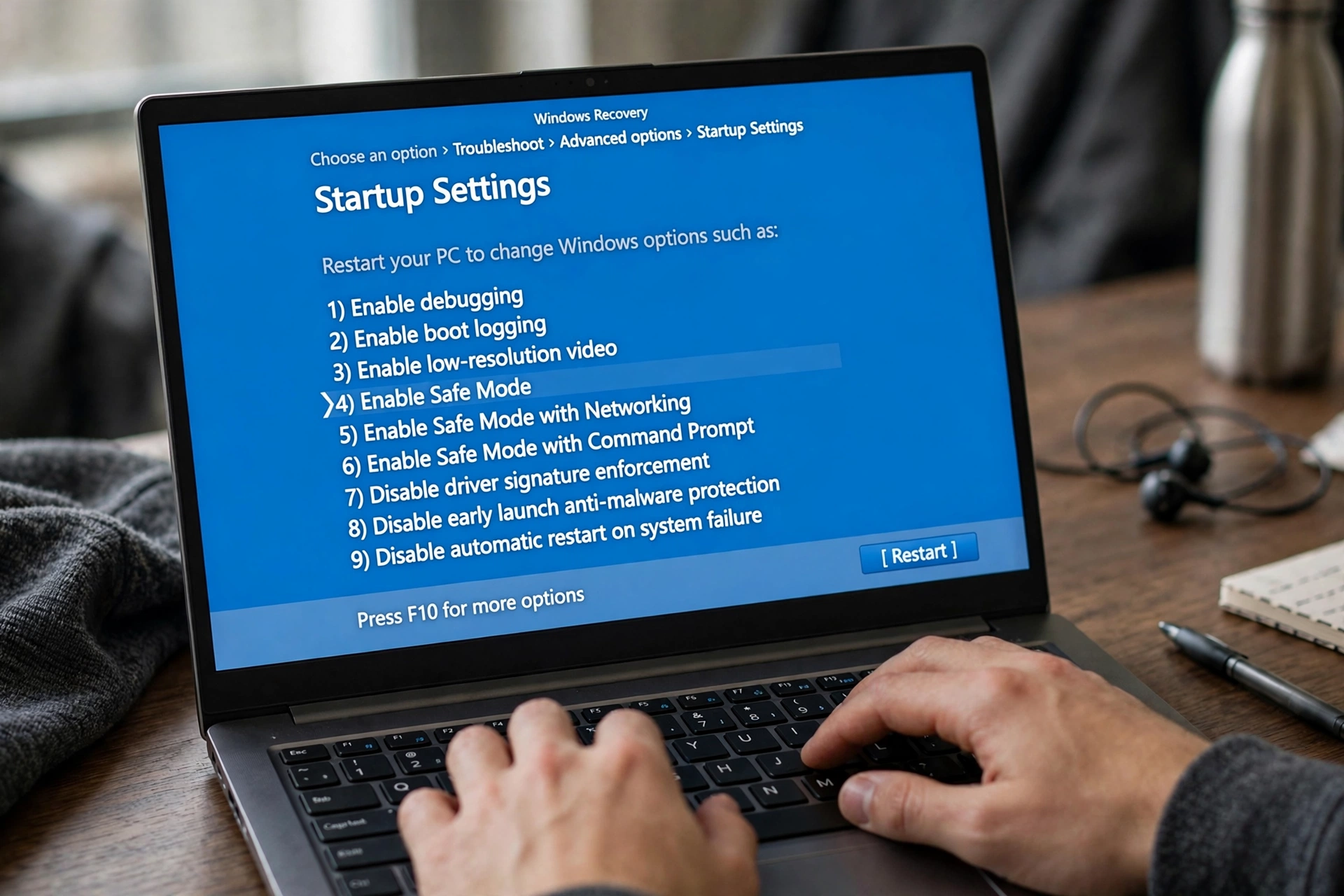
If the maker’s logo appears before the black screen, or the fault began after a Windows or driver update, Safe Mode is your way back in. It loads Windows with only essential drivers, so a broken graphics driver cannot black out the screen, and from it you can roll the driver back or reinstall it.
- Force Windows Recovery: switch on, and as soon as the logo appears, hold the power button to force it off. Repeat three times; on the third boot, Windows should enter Automatic Repair.
- Choose Troubleshoot, then Advanced options, then Startup Settings, then Restart.
- Press 4 or F4 for Safe Mode (or 5 / F5 for Safe Mode with Networking to download a driver).
- In Safe Mode, press Windows + X, open Device Manager, expand Display adapters, right-click your graphics card, choose Properties.
- On the Driver tab, click Roll Back Driver if available. If greyed out, choose Uninstall device, restart normally, and let Windows reinstall a clean driver.
- If the fault started after a specific Windows update, go to Settings, Windows Update, Update history, Uninstall updates, and remove the latest update.
Once back in Windows, install the graphics driver from your laptop maker’s own support site, not a generic driver updater. HP’s support threads recommend this sequence, as in this HP Support Community thread on a laptop screen staying black with the fan running.
Fix 6: Reset the BIOS
The BIOS (or UEFI) is the firmware that starts before Windows, and a corrupted display setting there can black out the screen first. A BIOS reset restores factory defaults, and on HP laptops a blind reset works even with a black screen.
- Switch the laptop off completely and unplug the charger.
- On an HP laptop, hold Windows + B, then hold the power button for 2 to 3 seconds. Release the power button but keep holding Windows + B a few more seconds. If a BIOS recovery screen appears, let it finish.
- On other brands, switch on and tap the BIOS key repeatedly (usually F2, F10, Del, or Esc) until setup appears. Choose Load Setup Defaults (F9), then Save and Exit (F10).
- If you cannot reach the BIOS screen at all, move to Fix 7; this points towards a hardware fault.
Never interrupt a BIOS update or recovery once it starts, and never flash a new BIOS just because the screen is black: a failed flash can turn a fixable fault into a dead motherboard. HP’s support replies for this symptom, such as this HP Support Community thread on a laptop fan running with a black screen, list the blind BIOS reset as an early step.
Fix 7: Reseat the RAM (With Care)
Loose or poorly seated memory is a classic cause of a laptop that powers on, spins its fan, and shows nothing: without working RAM the machine cannot complete start-up checks, so it stalls with a black screen. This fix involves opening the laptop, so read the warnings first.
Warnings: unplug the charger and, if possible, remove the battery. Work on a clean, non-static surface, and touch a metal tap first to discharge static. If your laptop is under warranty, opening it may void that warranty, so check first. If you are not comfortable with small screws and fragile ribbon cables, skip this fix and take the machine to a shop.
- Remove the bottom cover screws and lift the cover gently, keeping screws in order.
- Find the RAM modules, push the end clips outward, and lift the module out at an angle.
- Wipe the gold contacts with a dry cloth, and push the module firmly back in until both clips click.
- If there are two modules, try booting with one at a time. If one stick is faulty, the laptop will boot with the other.
- Refit the cover, reconnect the charger, switch on.
Also check no cable was knocked loose while the cover was off, especially the display ribbon cable near the hinge. If reseating the RAM changes nothing, refit everything and move on.
Fix 8: The Flashlight Backlight Test
This two-minute test separates a backlight failure from a truly dead screen. A screen has two parts: the panel that draws the picture, and the backlight that lights it. If the backlight dies, the picture is still there, just invisible.
- Switch the laptop on and wait a full minute for Windows to load.
- In a dark room, shine a torch or phone flashlight at the screen at a sharp angle, close to the glass.
- Look for a very faint image: a login box, desktop icons, or the mouse pointer.
If you can see a faint image, the panel and graphics are working and only the backlight, cable, or inverter circuit has failed: a cheaper repair than a full panel replacement, so tell the repair shop exactly what you found. If you see nothing even with the torch, the panel, cable, or motherboard output is at fault.
Fix 9: Stop It Coming Back
Once your screen is back, switch off Fast Startup: Control Panel, Hardware and Sound, Power Options, “Choose what the power buttons do”, “Change settings that are currently unavailable”, untick “Turn on fast startup”. Fast Startup saves a system snapshot instead of fully shutting down, and a corrupted snapshot is a known trigger for black screens after sleep.
Next, update the graphics driver from your laptop maker’s support site and install any pending BIOS update the maker recommends, one at a time, so a returning fault can be traced to one change.
General health helps too: a slow, overheating laptop is more likely to crash its driver, so see our guide on how to speed up a slow laptop once you are back in Windows. If the fault began after an update that also hurt battery life, our guide to a laptop battery draining fast after an update covers the rollback side.
When to See a Repair Shop
Book a repair if any of these apply: nothing appears on an external monitor and the BIOS reset and RAM reseat both failed; the flashlight test shows a faint image but you are not comfortable with a screen repair; the laptop smells of burning, has swelling, or makes clicking sounds; the fault returns within days of every fix; or the machine is under warranty.
Before you go, note what you tried and what each test showed, especially the external monitor and flashlight results. A shop that hears “black screen, fan running, external monitor works, faint image with a torch” can quote a backlight repair in minutes. Back up your data first if you can reach it through the external monitor, and log out of accounts first.
Frequently Asked Questions
Recommended Products
The external monitor test above is the centrepiece of this guide. These are the two items you need to run it:
- External monitor – search on Amazon. The test is the great divider in this guide — if the external screen shows a picture, the fault is in the laptop’s own screen or ribbon cable, not the whole machine.
- HDMI cable – search on Amazon. A known-good cable is all you need for the test in Fix 3, and a damaged cable can itself cause the black screen.
Why does my laptop turn on but the screen stays black?
Most often the laptop is stuck in a sleep or power state, its graphics driver has crashed, or it is sending the picture to the wrong output. Less often the cause is hardware: a failed backlight, loose display cable, poorly seated memory, or motherboard fault. The external monitor test tells these apart fastest, since a working external screen proves the laptop itself is fine.
How do I fix a black screen on my laptop?
Start with a hard reset: switch off, unplug everything, hold the power button for 15 to 20 seconds, reconnect only the charger, and switch on. Then try Windows + Ctrl + Shift + B, check brightness and display output keys, and test with an external monitor. If the logo appears first, boot into Safe Mode and roll back the graphics driver. If nothing works on an external monitor either, reset the BIOS, reseat the RAM, and see a repair shop if those fail.
Does a hard reset fix a black screen?
Often, yes. A hard reset clears stuck sleep and power states and drains residual charge, resolving many black screens, especially after sleep or a failed shutdown. It will not fix a failed backlight, broken screen cable, faulty memory, or motherboard fault, so if one careful hard reset changes nothing, move on to the display, external monitor, and driver steps rather than repeating it.
Is a black screen a sign of a dead motherboard?
Not usually. A dead motherboard is only one possible cause, and not the most common: driver crashes, stuck power states, and display output mistakes are all more likely and all free to fix. Suspect the motherboard only when the screen stays black on an external monitor as well, the BIOS reset and RAM reseat have both failed, and no logo ever appears. Even then, a repair shop should confirm it before writing the machine off.


1 response