
A laptop plugged in not charging usually means the charger is too weak, a charge limit is switched on, the battery driver has gone wrong, or the battery is worn out. In most cases the fix is free and takes under 20 minutes — start with the easy checks below, in order, and only suspect a dead battery once the software fixes have been ruled out.
This guide covers diagnosis first, then eight fixes from easiest to hardest — including the charge-limit features most guides skip, charger wattage checks, and a battery wear report.
Contents
- Why Is Your Laptop Plugged In but Not Charging?
- Diagnose It First: What the Signs Mean
- 8 Fixes for Laptop Plugged In Not Charging, Easiest First
- Laptop Not Charging on Windows 11
- Stuck at 60% or 80%? Check Your Charge Limit
- Check Battery Wear Before You Buy a Replacement
- When to See a Repair Shop
- Frequently Asked Questions
Why Is Your Laptop Plugged In but Not Charging?
Windows shows “battery plugged in not charging” when it can see the charger but the battery is not accepting charge. The charger may be working fine while something else blocks charging, or it may be powering the laptop while being too weak to charge the battery at the same time. The most common causes are:
- A charger that is too weak. A 45W phone charger will often run a laptop needing 65W or 90W, but cannot charge the battery while the machine is in use.
- A loose, damaged, or dirty connection. A cable not fully seated, a bent connector, lint in a USB-C port, or a frayed cable can interrupt charging while the charger light still comes on.
- A charge limit switched on. Lenovo Conservation Mode, HP Battery Health Manager, and ASUS Battery Health Charging cap charging at 60% or 80% to slow wear. To a new owner, that looks exactly like a fault — it is not.
- A corrupted battery driver. After a Windows update, the driver that lets Windows talk to the battery can get stuck, and Windows reports the battery as not charging even though the hardware is fine.
- Overheating. Laptops pause charging when the battery or machine gets too hot, as a safety measure.
- A worn-out battery. A battery that has lost a third or more of its original capacity may refuse to charge or drop from 40% to zero in minutes.
- A BIOS charge setting. Some laptops let you set a custom charge threshold in the BIOS; if one was set, the laptop stops at that percentage until you change it.
Diagnose It First: What the Signs Mean
Before you change any settings, spend two minutes on the clues your laptop is already giving you:
| What you see | Most likely cause | Start with |
|---|---|---|
| Charging stops at exactly 60% or 80% every time | Charge limit or BIOS threshold | Fix 5 |
| Laptop charger light on but not charging, percentage falls while plugged in | Underpowered charger or damaged cable | Fixes 1 and 2 |
| Message appeared right after a Windows update | Corrupted battery driver | Fixes 3 and 4 |
| Charging stops when hot, resumes when cool | Overheating safety cutoff | Fix 1 |
| Battery drains in under an hour unplugged, or jumps between percentages | Worn battery | Wear check, then Fix 8 |
| No charger light, laptop dies when unplugged | Dead charger, outlet, or port | Fix 1 |
Also note the percentage when the problem appears. A laptop at 95% saying “not charging” is often behaving normally — many laptops wait until the charge drops a few percent before topping up. A laptop stuck at 20% and not charging is a real problem.
8 Fixes for Laptop Plugged In Not Charging, Easiest First
Fix 1: Check the outlet, cable, and port properly
Unplug the charger from both the wall and the laptop, then plug it back in firmly at both ends — a USB-C plug that looks seated can still be a millimetre short. Try a different wall outlet, tested with another device. Inspect the cable for frays and the brick for damage or a burning smell; if anything looks damaged, stop using it. Blow lint out of a USB-C port with short bursts of compressed air, never a metal object. If your laptop has more than one USB-C port, try another — on many models only one supports charging.
Fix 2: Check the charger wattage — the USB-C trap
Read the wattage printed on your original charger brick, then compare it with the charger you are actually using. A laptop that shipped with a 65W charger will often run — but not charge — on a 45W phone charger, and a gaming laptop needing 120W or more will slowly lose charge under load even on a 90W charger. For USB-C, the cable matters as much as the brick: a basic cable
may be limited to 60W even with a 100W brick, so use the cable that came with the laptop or one explicitly rated for your laptop’s wattage. If you use a dock or hub, plug the charger directly into the laptop instead.

Fix 3: Restart, then reinstall the battery driver
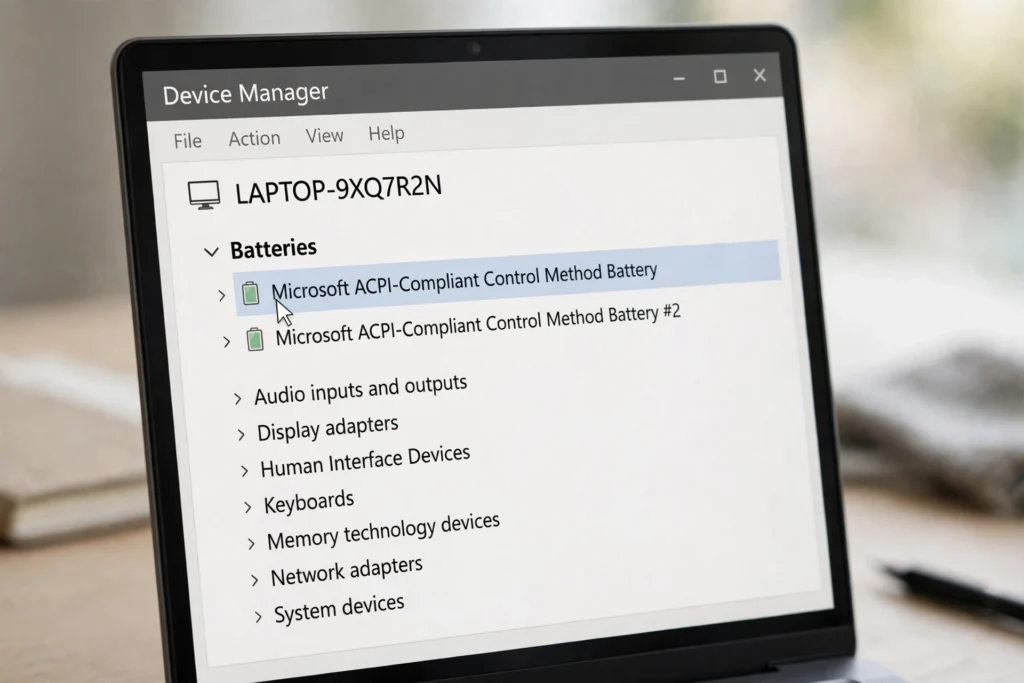
A plain restart fixes many charging glitches, because it clears a stuck power state after an update or a sleep-wake cycle. Restart — do not just shut down and power on, which on Windows 11 may only hibernate — and check the battery icon again. If the message survives, reinstall the driver: right-click Start, open Device Manager, expand Batteries, right-click “Microsoft ACPI-Compliant Control Method Battery” and choose Uninstall device, then restart. Windows reinstalls the driver automatically on boot. This step resolves most cases of a laptop not charging windows 11 after an update, where the hardware is fine and Windows has simply lost track of the battery.
Fix 4: Reset laptop battery power state with a hard reset
When you reset laptop battery behaviour with a hard reset, you drain leftover charge from the motherboard and force the charging circuit to re-detect the battery. With the laptop switched off, unplug the charger. If the battery is removable, take it out, press and hold the power button for 30 seconds, refit the battery, plug in, and switch on. If the battery is sealed inside, unplug the charger, press and hold the power button for 30 seconds, then plug in and switch on. Several makers also provide a pinhole battery-reset button on the base; if yours has one, press it with a paperclip for 5 seconds.
If the laptop shows no signs of life at all — no lights and no fan — follow the separate guide for a laptop won’t turn on with no lights.
Fix 5: Switch off a charge limit in your maker’s app or the BIOS
If charging always stops at the same percentage — 60%, 80%, or a custom figure — a limit is almost certainly switched on. Open your maker’s utility: Lenovo Vantage (Conservation Mode), HP Battery Health Manager, ASUS MyASUS (Battery Health Charging), Dell Power Manager, or Acer Care Center. Set it to full charge or switch the limit off, then unplug and replug the charger. If no app shows a limit, check the BIOS: restart, enter setup with your maker’s key (F2 on Dell and ASUS, Esc then F10 on HP, F1 on Lenovo), and set any charge threshold to 100% or Disabled.
Fix 6: Update Windows, the BIOS, and the maker’s utilities
Charging bugs are a known side effect of some Windows and BIOS releases. First install pending Windows updates at Settings > Windows Update, then restart. Next, check your maker’s support page for your exact model and install any BIOS update and any battery utility update it lists; get BIOS updates only from the maker, and keep the laptop plugged into mains power throughout — losing power mid-update can brick the machine. After updating, repeat Fix 3 if the driver was touched, and recheck the charge-limit setting in Fix 5.
Fix 7: Run the maker’s battery diagnostics
Before you buy anything, let the laptop test itself. Lenovo Vantage, HP PC Hardware Diagnostics, Dell SupportAssist, ASUS MyASUS, and Acer Care Center all include a battery test that checks the battery, charger, and charging circuit and reports a pass, fail, or warning code. Run it with the charger plugged in, and write down any error code. Windows also has a power troubleshooter at Settings > System > Troubleshoot > Other troubleshooters > Power, though it catches fewer hardware faults than the maker’s tool.
Fix 8: Test with a known-good charger, then decide on a battery
This fix separates a charger problem from a battery problem. Borrow or buy the exact charger for your model — same wattage, same connector — and test it for a full hour, not five minutes: a weak charger can look fine at idle and fail under load. If the laptop charges normally with the borrowed charger, replace your charger with a manufacturer-approved one. If it still will not charge with a known-good charger, and the wear check below shows heavy degradation, the battery is the remaining suspect. Buy only a manufacturer-approved battery for your exact model.
Laptop Not Charging on Windows 11
Most reports of a laptop not charging windows 11 trace back to three causes: a driver left in a bad state by an update, a charge limit reset by an update, and a Fast Startup quirk. First, do a full restart — Fast Startup means “shut down” often hibernates the kernel instead of clearing it, so a restart is the real reset. Second, reinstall the battery driver as in Fix 3. Third, recheck your maker’s charge-limit app, since major updates have been known to reset it. Fourth, try switching Fast Startup off at Control Panel > Power Options > Choose what the power buttons do, then restart once more.
Stuck at 60% or 80%? Check Your Charge Limit
This is the most misdiagnosed “fault” in laptop charging, and most generic guides bury it or skip it. The idea is identical across brands: keeping a lithium battery at 100% all day, while hot, wears it out faster, so the maker lets you cap it. Lenovo Conservation Mode caps at around 55–60%, HP Battery Health Manager offers an 80% health mode, and ASUS Battery Health Charging offers 60% or 80% caps. The tell-tale sign is precision: the battery stops at the same round number every time, while the laptop runs perfectly on mains power. That is not a fault, and replacing the battery will not change it — only switching the setting off will.
Check Battery Wear Before You Buy a Replacement
A battery report turns a guess into a number, and it takes two minutes. Open Command Prompt as administrator, type powercfg /batteryreport, press Enter, and open the HTML file it creates — usually in your user folder. Find Design Capacity and Full Charge Capacity. Divide full charge by design capacity: above 80% is healthy, 70–80% means noticeable wear but the battery should still charge, and below 70% means it is heavily worn and a replacement is sensible. A battery that drops from 50% to 5% in minutes has usually lost the ability to hold a charge regardless of the headline percentage. If the report looks healthy but charging still fails, keep hunting in the charger, port, and driver fixes. Safety note: if the battery is swollen or the case bulges, stop using the laptop and do not try to remove the battery yourself.

When to See a Repair Shop
Book a repair if any of these apply:
- The laptop still will not charge with a known-good original charger after Fixes 1 to 7.
- The battery report shows wear below 70%, or the battery is swollen.
- The charging port is loose or damaged, or the charger only works when held at an angle.
- The maker’s diagnostics report a battery or charging-circuit failure code.
- The laptop is under warranty — let the manufacturer handle it free.
- The laptop will not power on at all, even with the charger plugged in.
Before you go, note the exact message Windows shows, the percentage where charging stops, whether the charger light is on, and your battery report’s capacities. Ask for a diagnosis quote first: a port repair and a battery replacement are very different jobs at very different prices.
If your battery also drains fast once it does charge, see our guide to laptop battery draining fast after update, and if the machine runs hot or loud, our laptop fan noise guide covers cooling. For a slow machine worth saving, see how to speed up a slow laptop; for portable power, our best power banks roundup; and for your phone, our phone battery tips.
Further reading: the Help Desk Geek guide to fixing plugged in, not charging on Windows 11 and the Microsoft Q&A thread on a laptop battery plugged in but not charging.
Frequently Asked Questions
Recommended Products
After ruling out the software fixes, these two make the charging hardware easy to test:
- 65W USB-C laptop charger — search on Amazon — a faulty or underpowered charger is the most common cause in this guide; a proper 65W unit rules it out.
- Braided USB-C charging cable — search on Amazon — cables fray and fail; testing with a known-good cable is one of the first checks above.
Why does my laptop say plugged in, not charging?
Most often it is a charger too weak to charge the battery while powering the laptop, a charge limit such as Lenovo Conservation Mode or HP Battery Health Manager capping the charge at 60% or 80%, a corrupted battery driver after a Windows update, or a worn battery. Check the charger wattage first, then the charge-limit setting, then reinstall the battery driver — those three steps resolve most cases. A laptop sitting near 100% and not topping up is usually normal behaviour, not a fault.
How do I fix a laptop that is not charging but plugged in?
Work in order: check the outlet, cable, and port; confirm the charger matches your laptop’s wattage, especially with USB-C; restart and reinstall the battery driver; reset the power state with a hard reset; switch off any charge limit in your maker’s app or the BIOS; update Windows and the BIOS; and run the maker’s battery diagnostics. If it still fails with a known-good original charger, the battery or the charging port is the likely fault.
Can a bad charger cause a laptop not to charge?
Yes — it is one of the most common causes. A charger with too low a wattage may power the laptop but not charge the battery, a damaged cable can interrupt charging while the charger light still comes on, and a USB-C cable rated below your laptop’s needs can bottleneck even a powerful brick. That is why a laptop charger light on but not charging does not prove the charger is good. Test with the exact original charger for your model.
How do I reset my laptop battery?
To reset laptop battery power state, switch the laptop off and unplug the charger. If the battery is removable, take it out, hold the power button for 30 seconds, refit the battery, plug in, and switch on. If the battery is sealed in, unplug the charger and hold the power button for 30 seconds, then plug in and switch on. Some laptops also have a pinhole battery-reset button on the base — press it for 5 seconds with the charger unplugged.


2 responses