
How to Fix a Laptop Fan Making Loud Noise (2026 Guide)
A laptop fan making loud noise is usually caused by dust in the vents, a program pushing the processor too hard, or a fan that is wearing out. In most cases you can quiet it in under 30 minutes without opening the laptop — start with the easy fixes below, in order, and only open the machine if the noise survives them.
This guide walks you through diagnosis first, then nine fixes from easiest to hardest — including Windows 11 fan controls, safe cleaning, and how to tell a dusty fan from a dying one.
Contents
- Why Is Your Laptop Fan So Loud?
- Diagnose the Problem by the Sound
- Check Your Temperatures First
- 9 Fixes for a Loud Laptop Fan, Easiest First
- Laptop Fan Noise on Windows 11
- What a Laptop Fan Grinding Noise Means
- When to See a Repair Shop
- Frequently Asked Questions
Why Is Your Laptop Fan So Loud?
Your laptop fan pushes hot air out so the processor and graphics chip do not overheat. When it gets loud, it is spinning faster than usual because something is making the laptop hotter than normal, blocking airflow, or wearing the fan out. The most common causes are:
- Dust and dirt in the vents. Dust builds up on the fan blades and heatsink fins over months of use. Airflow drops, heat builds up, and the fan has to spin faster to do the same cooling job. This is the number one cause of a laptop fan making loud noise on a machine that used to be quiet.
- High processor load. Gaming, video editing, video calls, and even a browser with 40 tabs open push the CPU and GPU hard. More work means more heat, and more heat means a louder fan. This kind of noise is normal during heavy work — it is a problem only when it happens while the laptop is doing almost nothing.
- Blocked vents. Using a laptop on a bed, couch, blanket, or your lap covers the intake vents underneath. The fan spins up within minutes because the hot air has nowhere to go.
- Hidden background programs. A stuck update, a cloud backup re-uploading your files, a browser miner, or malware can keep the processor busy even when you think the laptop is idle.
- Power settings. High-performance power plans tell the processor to run at full speed all the time, which keeps temperatures — and fan speed — high even on the desktop.
- Ageing thermal paste. The paste that transfers heat from the processor to the heatsink dries out over a few years, especially on laptops that run hot. Cooling gets less efficient, and the fan compensates by running louder.
- A worn-out fan. Bearings wear out. A fan with worn bearings makes grinding, rattling, or clicking sounds that cleaning will not fix.
Diagnose the Problem by the Sound
Before you change anything, listen for 30 seconds. The type of noise narrows the cause faster than any other step:
| What you hear | Most likely cause | What to do |
|---|---|---|
| Steady whooshing that rises and falls with workload | Normal cooling under load, or dust buildup | Work through fixes 1–7 below |
| Fan at full speed even when idle, on the desktop | Background program, power plan, or blocked vent | Fixes 1, 3, and 6 |
| Grinding, rattling, or a “grrrr” sound | Worn bearings or something touching the blades | Clean first; if it stays, the fan likely needs replacing |
| Clicking or ticking in a steady rhythm | A cable or sticker touching the fan blades, or a damaged blade | Needs the bottom panel off — or a repair shop |
| Fan roaring only during games or video rendering | Normal for a gaming or high-performance laptop | Use a cooling stand and performance mode controls; see below |
If the noise changes when you tilt the laptop, that points to a mechanical fan problem — a worn bearing or a slightly off-centre rotor — rather than dust. Whatever the sound, a laptop fan making loud noise that survives the easy fixes below deserves the temperature check in the next section before you open anything.
Check Your Temperatures First
Fan noise alone does not tell you whether the laptop is actually overheating. A free tool like HWMonitor or Core Temp shows your CPU temperature in real time. As a rough guide:
- 35–50°C at idle (just the desktop open): healthy.
- 60–80°C under normal work (browsing, documents, video): normal.
- 85–95°C under heavy load (gaming, rendering): hot but usually within design limits.
- Over 95°C at idle or light work: something is wrong — dust, dried thermal paste, or a failing fan. Do not ignore it; sustained heat shortens a laptop’s life.
If temperatures are normal but the fan is still loud, suspect fan control or a worn bearing; if temperatures are high, cleaning and airflow fixes will help most.
9 Fixes for a Loud Laptop Fan, Easiest First
Fix 1: Restart and close the heavy programs
Open Task Manager (Ctrl + Shift + Esc), sort by CPU, and close programs you do not need — especially browsers with dozens of tabs — then restart. A restart alone clears stuck processes that keep the CPU busy after an update. If the fan quiets down, a runaway program was the cause.

Fix 2: Give the vents room to breathe
Put the laptop on a hard, flat surface with nothing blocking the vents underneath or on the sides. On a bed or sofa, use a lap desk or laptop stand — this alone fixes many “suddenly loud fan” complaints, and it costs nothing. Also avoid direct sunlight or very warm rooms, which make cooling harder.

Fix 3: Switch to a quieter power mode
On Windows 11, go to Settings > System > Power & battery and set Power mode to Balanced or Best power efficiency instead of Best performance — high-performance mode keeps the processor at full speed and the fan loud even while reading a document. Many laptops also have a manufacturer app with a Quiet or Silent mode (ASUS Armoury Crate, Dell Power Manager, HP Command Center, Lenovo Vantage). Silent mode caps performance slightly but can cut fan noise dramatically during everyday work.
Fix 4: Update your BIOS and drivers
Manufacturers regularly release BIOS and fan-control updates that fix exactly this problem — a fan curve that is too aggressive, or a sensor that misreads temperature. Get BIOS updates only from your laptop maker’s official support page (never from a third-party driver site), and update chipset and graphics drivers from the same place or through Windows Update. If the noise started right after a driver update, rolling that driver back is worth trying before anything more drastic.
Fix 5: Set a custom fan curve (advanced, but effective)
If your manufacturer’s app allows it, set the fan to stay quiet below a threshold — silent under 60°C, ramping up above 75°C. Third-party tools like FanControl can do this on some models, but never set the fan to stay off at high temperatures: an overheating laptop will throttle, crash, or damage itself.
Fix 6: Hunt down hidden background activity
In Task Manager, check both the Processes tab and the Startup tab. Disable startup programs you do not need every time you boot. Then run a full scan with Windows Security (or your antivirus) — malware and crypto miners are a classic cause of a laptop fan always running at full speed with no visible program open. Also check whether a cloud service is mid-sync: OneDrive, Google Drive, or a photo backup re-uploading a library after an update can hammer the processor for hours.
Fix 7: How to Clean Laptop Fan Without Opening It
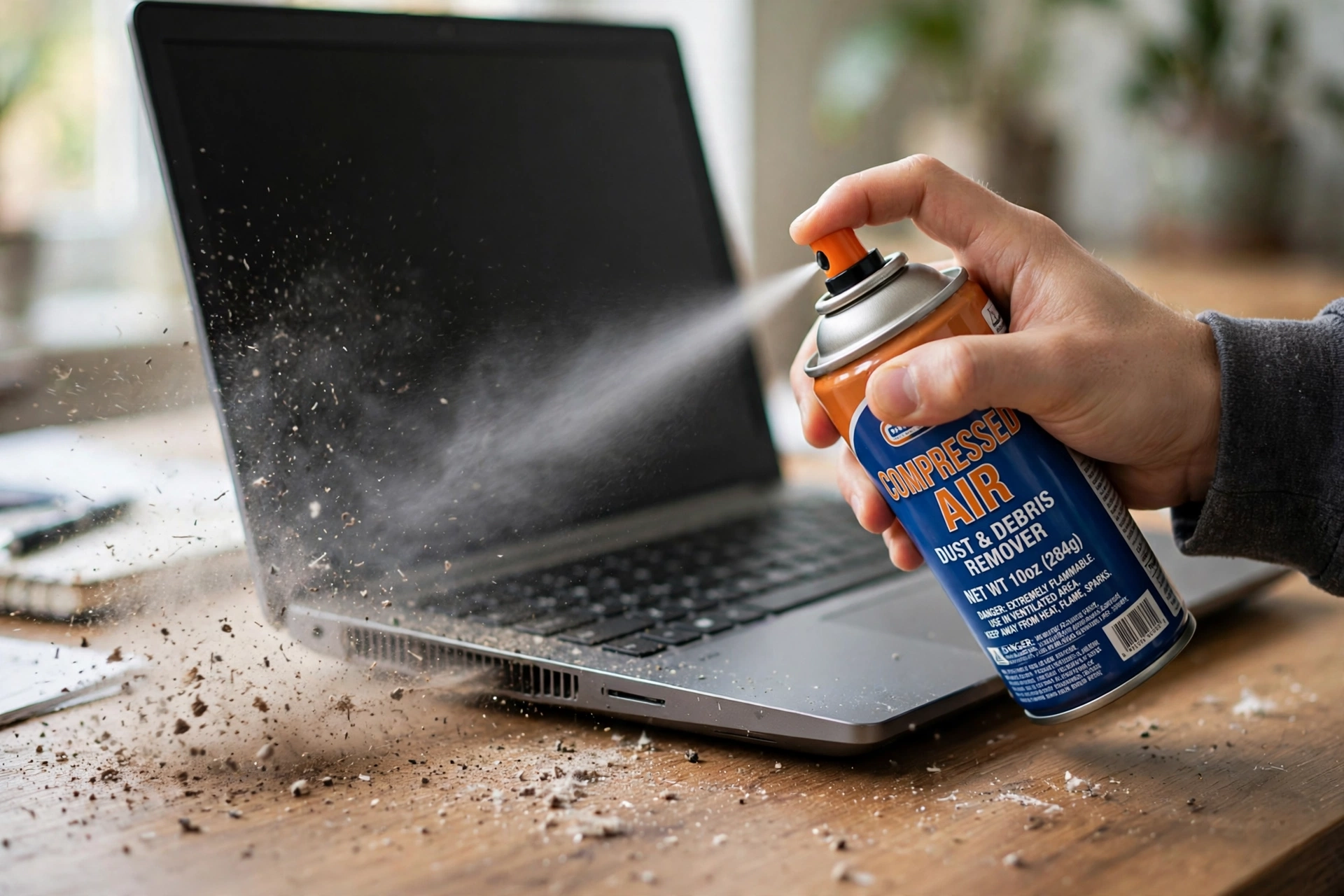
Learning how to clean a laptop fan safely matters, because the wrong method can damage it. With the laptop off and unplugged, use short bursts of compressed air into the exhaust vent, holding the can upright. Two rules that protect the fan: never let the fan spin freely from the air blast — hold it still through the vent with a toothpick or a soft brush if you can reach it, because overspinning can damage the bearings — and never use a vacuum cleaner on the vents, which creates static and can also overspin the fan. Repeat from the intake vents underneath. If a visible mat of dust comes out, you have probably found the cause of the laptop fan making loud noise. Do this outdoors or over a bin.
Fix 8: Open it up for a deep clean (only if you are comfortable)
If external cleaning did not help and you are out of warranty, removing the bottom panel lets you clean the fan blades and heatsink fins properly with compressed air and a soft brush. Photograph every screw position first, disconnect the battery if the design allows it, and never oil the fan — most are sealed units and oil makes things worse. On a machine still under warranty, skip this step and let the manufacturer fix it free.
Fix 9: Replace the thermal paste — or the fan itself
On a laptop more than three or four years old with high idle temperatures, dried thermal paste is a strong suspect. Replacing it means removing the heatsink, cleaning off the old paste, and applying a pea-sized drop of new paste — a job for a confident DIYer or a repair shop, and one that can transform both temperatures and noise. If the noise is grinding or rattling and survives cleaning, the fan bearings are worn and the fan itself needs replacing. Replacement fans are usually inexpensive parts; the labour is the real cost.
Laptop Fan Noise on Windows 11
Most laptop fan noise Windows 11 complaints trace back to three things: a reset power mode, post-update background work, or a stuck background app. First, Windows 11’s default power mode after a major update sometimes flips back to Best performance — recheck Settings > System > Power & battery after every big update. Second, the first day or two after an update, Windows re-indexes files and finishes setup in the background, which keeps the fan busy; if the noise started right after an update and fades within 48 hours, that was the cause. If the same update also left your laptop battery draining fast, see our guide to fixing laptop battery drain after a Windows update. Third, a laptop fan always running on Windows 11 with nothing open usually means a background app (check Task Manager’s Startup tab) or a power plan stuck on high performance — work through fixes 1, 3, and 6 before assuming hardware trouble.
Gaming laptops are loud by design under load: judge them by temperature, not volume. If temps stay under 90°C and performance is steady, the cooling is doing its job.
What a Laptop Fan Grinding Noise Means
A laptop fan grinding noise is different from normal whooshing, and it rarely fixes itself. Grinding usually means worn bearings, a blade rubbing against something inside, or a fan that is slightly misaligned. Cleaning sometimes helps if debris is caught in the blades, but if the grinding stays after a thorough clean — especially if it changes when you tilt the laptop or gets worse under load — the fan is mechanically worn. Budget for a replacement fan rather than more cleaning attempts, and back up your data before booking the repair: any shop visit is a good reminder that your files should exist in more than one place.
When to See a Repair Shop
Book a repair if any of these apply:
- The grinding, rattling, or clicking noise survives cleaning.
- The laptop shuts down on its own, or temperatures stay above 95°C during light work.
- The fan does not spin at all while the laptop overheats — that is urgent, because the machine has lost its cooling.
- The laptop is under warranty — let the manufacturer handle it free.
- You are not comfortable opening the machine, or the battery is glued in and hard to remove safely.
Before you go, note the sound, when it happens, and your idle and load temperatures. And ask for a fan-replacement quote first — a fan is a cheap part, and the fix should be priced like one.
If your laptop is old and the repair quote approaches the price of a replacement, it may be time to look at new machines instead — our guide to how to speed up a slow laptop can help you decide whether an old machine is worth saving, and our best budget laptops under $500 roundup covers replacements that will not break the bank. If you are considering a convertible instead, see our best 2-in-1 laptops of 2026.
Further reading: the HONOR guide to why laptop fans get noisy covers the same causes from a manufacturer’s angle, and the iFixit community answers on very loud laptop fans show how often power profiles and fan modes are the real culprit.
Frequently Asked Questions
Recommended Products
If the fixes above point to heat or dust as the culprit, these two accessories make the job easier:
- Laptop cooling pad — lifts the laptop and boosts airflow, taking load off the internal fan when it roars under heavy work.
- Compressed air duster — short bursts clear dust from the vents and fan blades, as described in Fix 7 above.
Why is my laptop fan suddenly so loud?
A laptop fan that suddenly gets loud is most often reacting to dust blocking the vents, a new or stuck background program using the processor, a power mode set to high performance, or a Windows update finishing background work. Check Task Manager for hidden load, move the laptop to a hard surface with clear vents, and give it 48 hours after an update before assuming hardware trouble. If the noise is grinding or rattling rather than whooshing, suspect a worn fan bearing instead.
Is it bad if my laptop fan is always running?
A fan that runs constantly is not automatically dangerous, but it is worth investigating. It usually means the laptop is hotter than it should be at idle — dust, a background program, or a high-performance power plan. Check idle temperature: 35–50°C is healthy, while 80°C or more at idle means something needs fixing. On a clean, cool laptop, constant running may mean a faulty sensor or stuck fan-control setting — worth a repair check.
How do I make my laptop fan quieter?
The fastest wins are: switch Windows 11 to Balanced or Best power efficiency mode, use your manufacturer’s Quiet or Silent mode, close heavy background programs, put the laptop on a hard surface with clear vents, and clean the vents with short bursts of compressed air. If those do not help, check for malware and update your BIOS and drivers from the manufacturer’s site. Persistent grinding noise usually needs a fan replacement, not more software tweaks.
Can I clean a laptop fan myself?
Yes — external cleaning with compressed air is safe for anyone, as long as you keep the can upright, use short bursts, and do not let the fan spin freely from the air blast. A deeper clean means removing the bottom panel, which is straightforward on many laptops but can void a warranty, so skip it on a machine that is still covered and let the manufacturer handle it. Never use a vacuum cleaner on the vents, and never oil a laptop fan — most are sealed units and oil damages them.


1 response