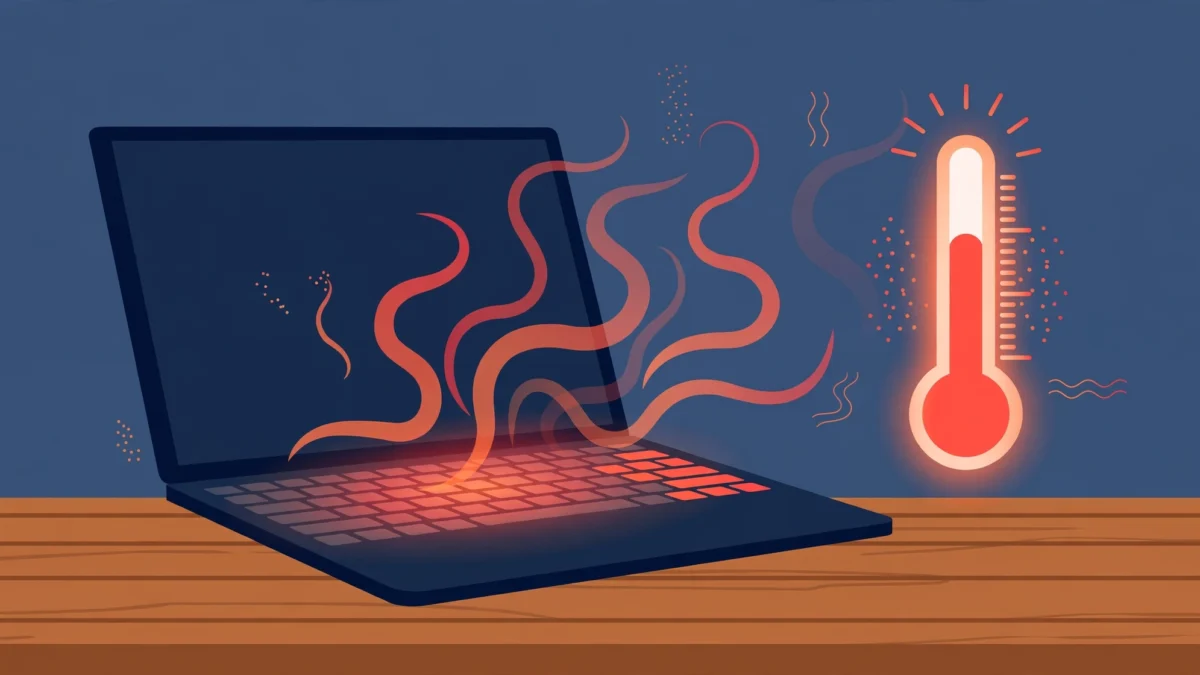

Is your laptop running so hot the keyboard feels like a toaster — or worse, shutting itself down mid-game? You’re not alone: heat is the most common laptop complaint there is. The good news is that learning how to fix laptop overheating is mostly a matter of restoring airflow, clearing out dust, and tweaking a few settings. Below: the warning signs, the real causes, and 10 practical fixes from easiest to most involved.
Table of Contents
- Signs your laptop is overheating
- What causes laptop overheating
- How to fix laptop overheating: 10 fixes that actually work
- Prevention: keep your laptop cool long-term
- A quick note for MacBook users
- Frequently asked questions
Signs your laptop is overheating
Make sure heat is actually the problem first. The tell-tale signs:
- A hot keyboard and palm rest. Warm is normal under load; uncomfortably hot to the touch is not.
- The fan runs at full blast constantly, even while just browsing.
- Sudden slowdowns. A laptop that feels fine for a few minutes then chugs is thermal throttling — the processor slowing down to cool off.
- Random shutdowns or restarts, especially during games or video calls. This is the laptop’s emergency self-defence.
- Crashes and freezes that cluster around heavy workloads.
- The battery drains unusually fast.
- Grinding or rattling from the fan — a mechanical warning sign (see fix 10).
Two or three of these together almost always means heat. Time to fix it.
What causes laptop overheating
Know the cause, pick the right fix. The usual suspects:
- Dust-clogged vents and fans. The number one cause: a thin mat of dust on the heatsink fins.
- Blocked airflow. On a bed, sofa or your lap, the underside vents get sealed shut — soft surfaces are heat traps.
- Heavy sustained workloads. Gaming, 4K video editing, 3D rendering and local AI models pin the CPU and GPU at 100% for long stretches. Machines built for that work, like the RTX Spark laptops we tested, cope far better — but still need clean airflow.
- Dried-out thermal paste. The paste between the CPU/GPU and the heatsink dries up after a few years, and heat stops transferring properly.
- Outdated drivers or firmware. Old drivers can leave fans spinning incorrectly or processors boosting too aggressively.
- Malware or cryptominers chewing through CPU cycles in the background.
- A failing fan. Bearings wear out; a fan that can’t spin up properly can’t cool anything.
How to fix laptop overheating: 10 fixes that actually work
Start at fix 1 and work down — most people never need to go past fix 5. For a second opinion, PCWorld’s guide to cooling an overheating laptop covers similar ground.
1. Get it off soft surfaces — elevate the rear
The fastest free win: laptops pull cool air in from underneath, and on a duvet, sofa or your lap those intakes get sealed shut. Move to a hard, flat surface, and prop the rear edge up an inch or two — bottle caps, a book, or a proper aluminium laptop stand — to give the vents breathing room. Safety note: never block the vents, and don’t run the laptop inside a bag while it’s switched on.
2. Clean the vents with compressed air
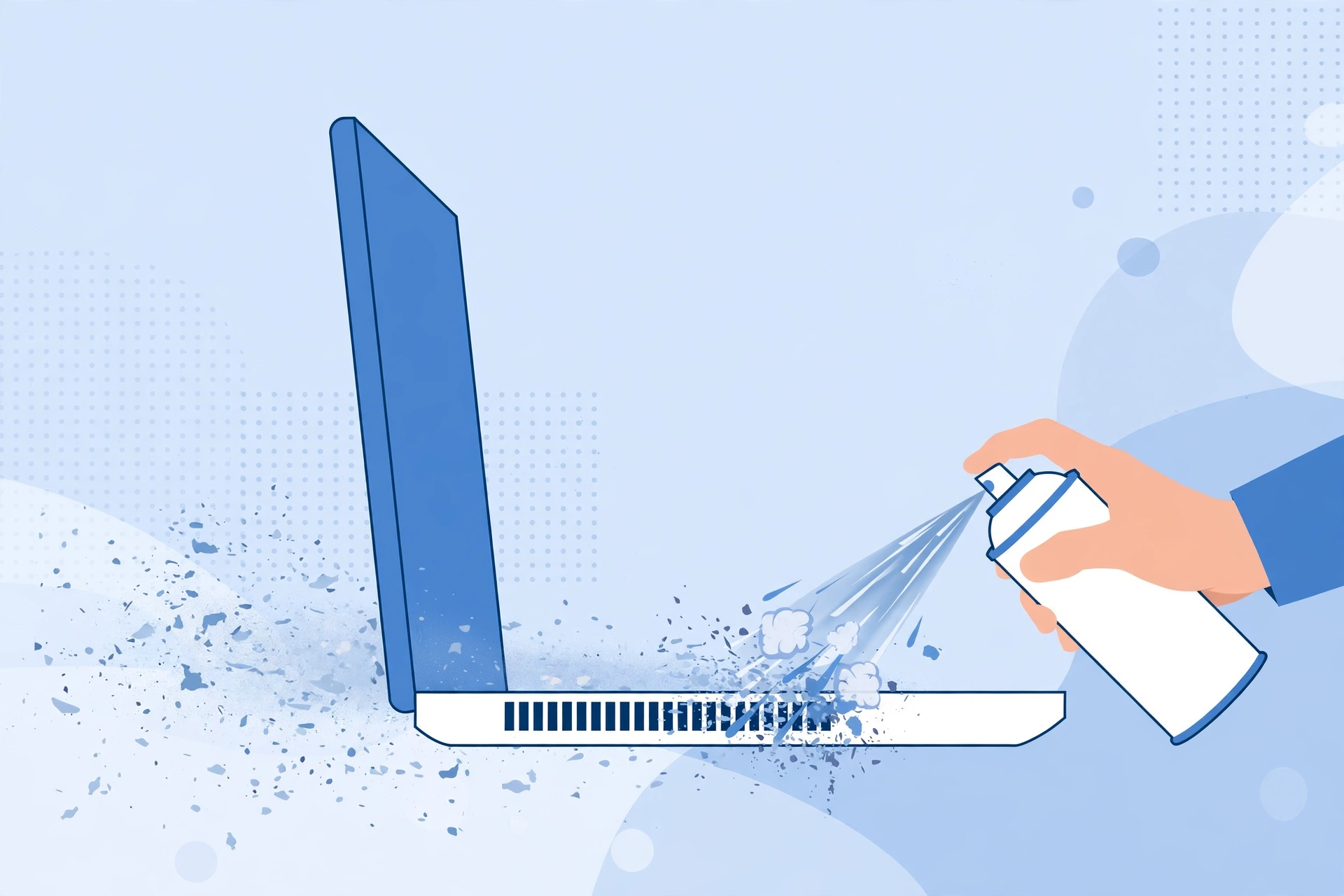
If your laptop is over a year old and has never been cleaned, dust is almost certainly part of the problem. Safety first: shut the laptop down and unplug it (and remove the battery if it’s removable). Take a can of compressed air duster, hold it upright, and fire short bursts at an angle into the exhaust vents — never long sprays, which can spin the fan too fast or introduce moisture. You’ll be surprised how much dust comes out. Repeat every few months to prevent most heat problems before they start.
3. Close CPU-hogging background processes
Sometimes the “overheating” is really a software problem: a runaway browser tab or forgotten app pinning the CPU. On Windows, press Ctrl+Shift+Esc, click the CPU column, and end resource hogs you don’t need; on a Mac, do the same in Activity Monitor. Usual culprits: dozens of Chrome tabs, a video editor left rendering, and cloud backup doing a first sync. If your machine is slow generally too, our guide on how to speed up a slow laptop covers the full clean-up.
4. Update the OS, drivers and BIOS/firmware
Outdated software is a quiet heat generator. Chipset and GPU drivers, fan firmware and BIOS updates routinely improve thermal management — processors that boost less aggressively, fans that ramp sooner. On Windows, check Windows Update, then grab the latest drivers from your laptop manufacturer’s support page — not just the generic Windows ones. On macOS, install the latest release your machine supports. Restart afterwards; it matters. If the screen itself is flickering, work through our guide to laptop screen flickering on Windows 11 for the driver and settings fixes.
5. Adjust your power settings
Your default power plan may be running the CPU at full throttle for no reason. On Windows, choose Balanced or Best power efficiency instead of Best performance (Settings → System → Power & battery) for everyday use. For finer control, set the Maximum processor state to 75–90% in the advanced power plan settings — you won’t notice the difference in everyday use, but temperatures will drop noticeably. On macOS, turn on Low Power Mode (System Settings → Battery) and keep optimised charging enabled.
6. Scan for malware
If your laptop got hot suddenly with no change in use, malware could be the cause — cryptominers turn your CPU into money and your laptop into a space heater. Run a full scan with Windows Security or Malwarebytes’ free scanner, and don’t ignore repeated positives. Afterwards, check your startup apps and remove anything you don’t recognise.
7. Use a cooling pad or laptop stand
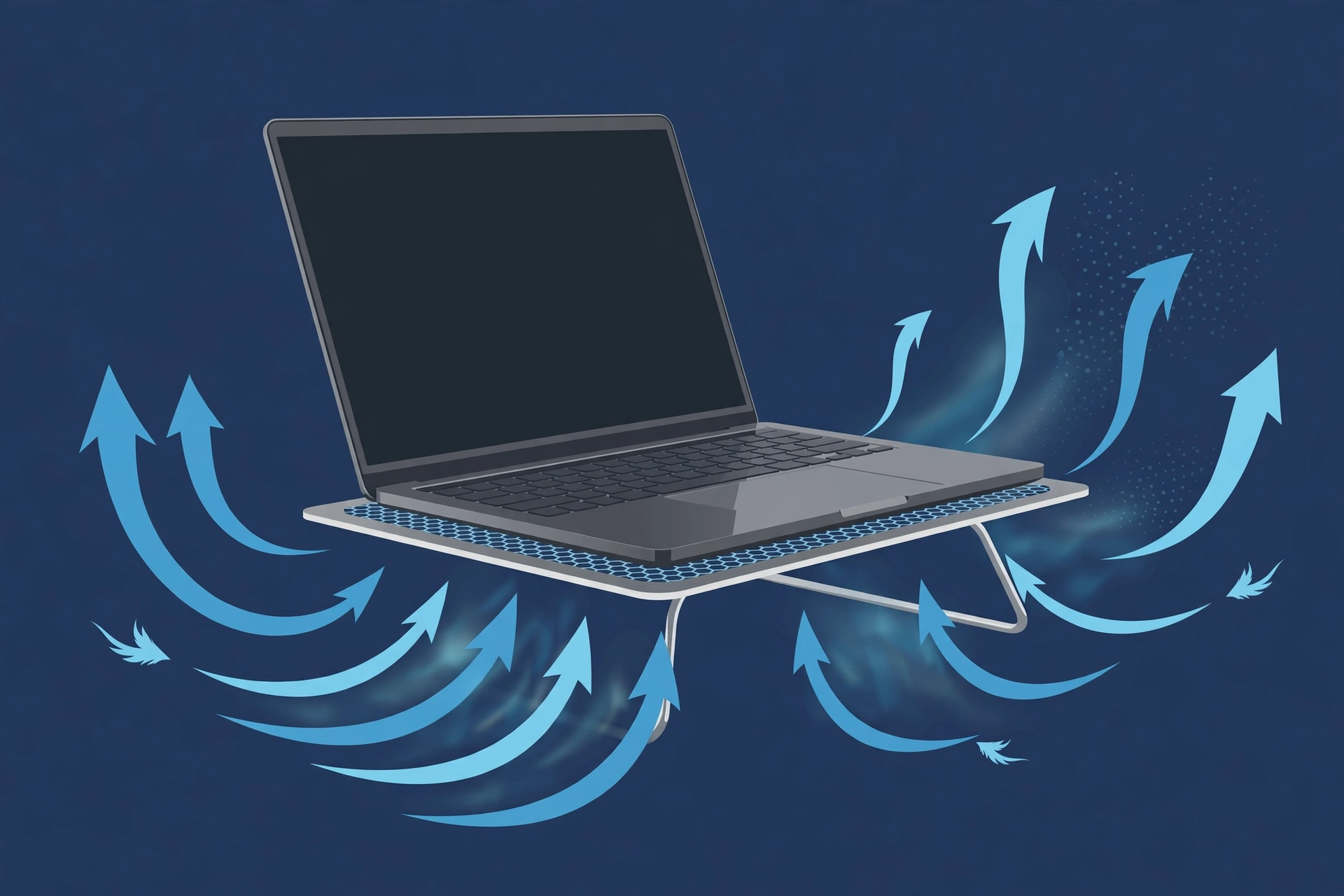
When built-in cooling can’t keep up — common with thin ultrabooks and long gaming sessions — external help makes a real difference. A laptop cooling pad blows extra air across the base; a raised stand improves passive airflow too. Realistic expectations: a cooling pad won’t fix a dust-clogged heatsink or a dead fan, but it typically shaves a few degrees off under load. If you’d rather not plug anything in, the aluminium stand from fix 1 is the zero-power alternative.
8. Reapply the thermal paste (advanced)
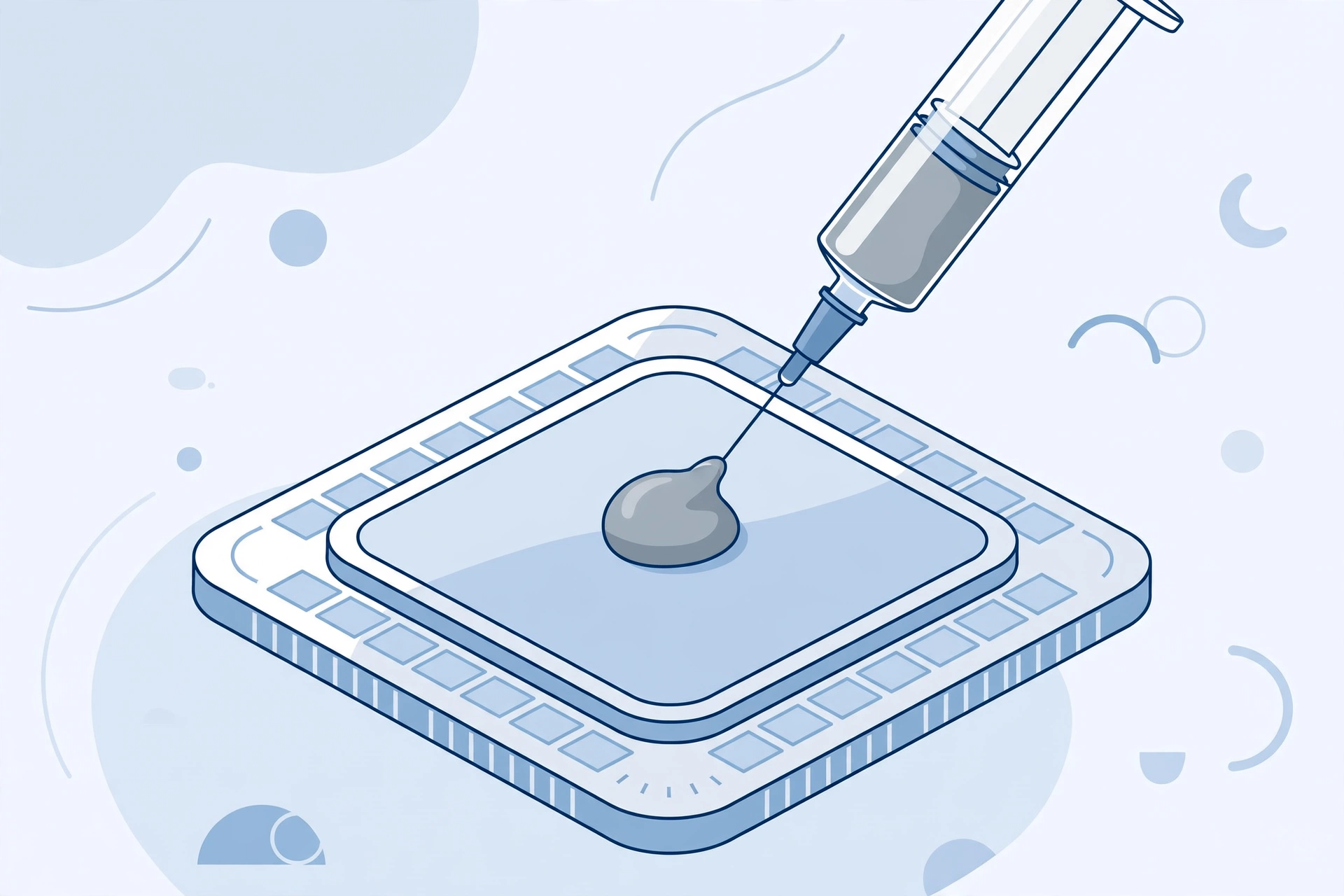
On a laptop that’s 3–5+ years old and runs hot even when clean and idle, the thermal paste between the CPU/GPU and the heatsink has likely dried out. Replacing it can drop temperatures significantly — but this is advanced work: open the chassis, remove the heatsink, clean off the old paste with isopropyl alcohol, and apply a fresh pea-sized dot before reseating everything. Watch a teardown video for your exact model first, track every screw, and unplug the machine and disconnect the battery before touching anything inside. If that sounds daunting, a repair shop will do it cheaply — and can replace the fans at the same time.
9. Check and replace a failing fan
No amount of cleaning fixes a fan that can’t spin. Listen: a healthy fan is a smooth whir that rises and falls with load. A dying one clicks, rattles or grinds — or stays suspiciously silent while the chassis bakes. Check your manufacturer’s diagnostics — most have a built-in fan test in the BIOS or support app. Replacement fans are model-specific and often inexpensive; if you’re comfortable opening the machine (see fix 8’s safety notes), it’s a straightforward swap — otherwise a shop can do it quickly.
10. Know when it’s a repair-shop problem
Some signs mean stop DIY-ing and get a professional:
- The fan grinds or rattles even after cleaning.
- Shutdowns during light use — browsing, documents — not just gaming.
- The battery is swelling — a bulging trackpad or a chassis that won’t sit flat. This is a safety hazard: stop using it, don’t puncture it, and get it to a professional promptly.
- You’ve worked through fixes 1–9 and it’s still hot.
Be honest about the economics too: if the repair quote is half the price of a new machine, spend the money on an upgrade. If so, check our best budget laptops under $500 for 2026 and whether to buy a laptop now or wait.
Prevention: keep your laptop cool long-term
Fix it once; better yet, stop it coming back. Build these habits:
- Always use it on a hard, flat surface with the vents clear.
- Dust the vents every 2–3 months with short bursts of compressed air.
- Keep drivers, firmware and the OS updated — thermal improvements arrive quietly in updates.
- Don’t cook it with the environment: keep it out of direct sunlight, off warm radiators and out of hot cars.
- Let it sleep properly. Don’t bag a running laptop; let it cool or shut it down fully.
- Watch your workload. If you pin the CPU for hours daily, consider more cooling (fix 7) — or a machine built for the job.
A quick note for MacBook users
MacBooks manage heat differently. Apple Silicon models (M1 and later) throttle silently rather than spinning up fans — the MacBook Air has none at all — so warmth under load is normal, not a fault. What isn’t normal is throttling during light work. If that happens: check Activity Monitor for runaway processes, prefer Safari over Chrome (famously power-hungry on macOS), keep macOS updated, and never block the hinge-area vents on Pro models. On older Intel Macs, the fan advice in fixes 2 and 9 applies. If a MacBook still throttles under light loads after all that, book an Apple Store or authorised service appointment rather than opening it yourself.
Frequently asked questions
Why is my laptop overheating all of a sudden?
A sudden change usually means something new is blocking cooling or creating load: dust bridging the heatsink fins, a background process or malware pinning the CPU, an OS update that changed fan behaviour, or a fan that’s just failed. Work through fixes 1–6 — they cover the sudden-onset causes — and don’t ignore repeated shutdowns, which are the machine protecting itself.
Is it bad if my laptop gets hot?
Warm under load is normal; hot to the touch, full-blast fans, throttling or shutdowns are not. Occasional heat is harmless, but chronic overheating degrades the battery faster and shortens component life. If you’re asking how to fix laptop overheating, you’re already at the point where it’s worth fixing.
Will a cooling pad fix overheating?
It helps, but it’s not a cure. A cooling pad typically drops temperatures a few degrees — great for gaming on thin laptops. But if the real problem is dust-clogged vents, dried thermal paste or a dead fan, it only masks the symptom — fix the underlying cause first.
How often should I clean my laptop’s vents?
Every 2–3 months with short bursts of compressed air works for most; monthly if you have pets or live somewhere dusty. Always shut down and unplug first, hold the can upright, and use short angled bursts.
Can overheating damage my laptop permanently?
Yes, over time. Modern laptops shut down before meltdown temperatures, but chronic heat accelerates battery wear, degrades solder joints and storage, and guarantees worse performance through throttling. The occasional hot gaming session won’t kill anything — months of extreme heat will shorten the machine’s life.
When should I take an overheating laptop to a repair shop?
When the fan grinds or won’t spin, when shutdowns happen during light use, when the battery is swelling (stop using it immediately — a safety issue), or when the software and cleaning fixes haven’t helped. Paste replacement and fan swaps are cheap, sensible jobs to hand to a pro.
The bottom line: most laptop overheating is an airflow problem, not a hardware death sentence. Get it onto a hard surface, clean the vents, kill the background CPU hogs and tune your power settings — that solves it for most machines. Learn how to fix laptop overheating once and you’ll never panic about a hot laptop again.


