Verified October 12, 2026 · No affiliate links · Based on Microsoft documentation, manufacturer guidance, and published 2026 expert guides — not lab testing.

Your laptop used to be fine. Now everything takes forever — booting up, opening Chrome, switching between two programs. It happened so gradually you can’t point to one cause, and every guide online seems to say something different. Worst of all, you’re afraid of breaking something if you poke around in settings.
This guide is different. Instead of a random checklist, you’ll learn how to speed up a slow laptop by doing what professional technicians do first: diagnose the actual bottleneck in five minutes, then apply fixes in the order that matters. Most of these fixes are free. We’ll also tell you honestly when nothing will help and it’s time to upgrade — or replace.
The Fast Answer: 3 Fixes That Help Most Slow Laptops
- Restart — don’t just shut down. On Windows 11, “Shut down” with Modern Standby doesn’t fully clear memory. A proper Restart clears memory leaks and stuck processes in 2 minutes. (Fix #2)
- Trim startup apps. Press Ctrl+Shift+Esc, open the Startup apps tab, and disable anything labeled “High” impact that you don’t need at boot. This is the biggest boot-time win on most laptops. (Fix #3)
- Check Task Manager’s Performance tab. If Disk is pinned at 100% on a spinning hard drive, no software trick will save you — an SSD upgrade (~$50–100) is the single biggest speed boost available. If Memory is over 85% with an SSD already installed, RAM is your bottleneck. (Section: Diagnose first)
Bottom line: spend 5 minutes diagnosing before you fix anything, work through the free fixes first, and only spend money once you know which bottleneck you’re paying to remove. Keep reading for the full 12-fix walkthrough.
Stop. Diagnose First (5 Minutes) — The Most Important Step
Almost every “how to speed up a slow laptop” guide skips this step, and it’s why most people fail. If you don’t know what’s slow, you’ll apply fixes at random — disabling startup apps when the real problem is a full hard drive, or buying RAM when the real problem is heat. Five minutes of diagnosis saves you hours of guessing.
The 5-Minute Task Manager Triage

- Press Ctrl + Shift + Esc to open Task Manager. (Don’t press Ctrl+Alt+Del — that’s the long way around.)
- Click the Processes tab. Sort by CPU, then by Memory, then by Disk. Note the names of any apps consistently at the top — write them down. A single app hogging 80%+ CPU when you’re doing nothing is a red flag (it may be a miner, a stuck updater, or just Chrome with 40 tabs).
- Now click the Performance tab. Watch the four graphs for 30 seconds while you do your normal work:
- CPU near 100% constantly → something is chewing cycles: a rogue process, malware, or your CPU is simply too old for your workload.
- Memory above 85% → you’re out of RAM. Close programs or browser tabs; if it stays there, a RAM upgrade may help (only if your laptop allows it — many 2026 budget laptops have soldered RAM).
- Disk at 100% → check what kind of drive you have. If it’s a spinning HDD, this is your bottleneck and almost nothing software-side will fix it. SSD upgrade time.
- GPU high while “idle” → often a browser with hardware acceleration or a stuck app. Try closing it.
- Click the Startup apps tab (left sidebar in Windows 11). Sort by Startup impact. Anything “High” that you don’t need the moment Windows boots is a candidate to disable — but leave antivirus, security tools, and anything from your hardware maker that you don’t recognize alone.
Symptom → Bottleneck → Fix: The Quick Map
| Symptom | Likely bottleneck | Go to |
|---|---|---|
| Slow boot, slow everything, Disk at 100% | Spinning HDD | Fix #12: SSD upgrade |
| Fine at first, grinds to a halt with several apps open | Not enough RAM (Memory >85%) | Fix #13: RAM — only if memory pressure is real |
| Slow right after startup, gets better in 10 min | Too many startup apps | Fix #3: Trim startup apps |
| Slow after 10–15 min, fan screaming | Thermal throttling (dust/heat) | Fix #11: Clean vents |
| Slow only when unplugged | Battery-degradation throttling / power mode | Fix #4 + battery note in Replace section |
| Suddenly slow after a Windows update | Background indexing or driver regression | Fix #8: Updates (+ the patience note) |
| Constant high CPU, fan never stops, nothing open | Malware or stuck process | Fix #9: Full malware scan |
The honest caveat: if Task Manager shows CPU, memory, and disk all reasonable, temps normal, and you’ve worked through the free fixes below — your laptop’s processor is simply the limit. That’s the replace decision, and there’s no shame in it. We’ll get there honestly in the Optimize vs Upgrade vs Replace section.
The Free Fixes, In Order
Work these in order. Each one is free, built into Windows, and safe — no downloads, no registry hacking, no sketchy “optimizers.”
Fix #1: Restart — Properly
This sounds insulting. It isn’t. On Windows 11, Shut down doesn’t fully clear RAM — Modern Standby (connected standby) keeps parts of the system suspended so the laptop wakes fast. Memory leaks and stuck processes survive a shutdown. A Restart actually reinitializes everything.
Do this: Click Start → Power → Restart (not Shut down). That’s it. If you haven’t restarted in weeks, this alone can feel like a new machine.
Fix #2: Trim Startup Apps (Biggest Boot-Time Win)
Most slow-laptop complaints start with “it takes forever to boot.” The answer is almost always the startup list — apps fighting to launch the moment Windows loads.
- Open Task Manager (Ctrl+Shift+Esc) → Startup apps tab.
- Sort by Startup impact.
- Right-click anything “High” impact you don’t need immediately at boot (chat apps, launchers, updaters, printer utilities) and choose Disable.
- Leave alone: your antivirus/security software, anything from your laptop maker you don’t recognize, and audio/display drivers.
Disabling a startup entry doesn’t uninstall anything — the app still works when you open it manually. This is fully reversible.
Fix #3: Switch Power Mode to Best Performance
Windows 11 defaults many laptops to Balanced, and battery saver can kick in silently. If you’re plugged in and the laptop still feels sluggish, check this:
Settings → System → Power & battery → Power mode → Best performance.
Caveat: this drains the battery faster and generates more heat. Use Best performance when plugged in; keep Balanced (or battery saver) when on battery. If your laptop is slow only when unplugged, this is likely the cause — degraded batteries also trigger hidden performance limits, which we cover in the replace section.
Fix #4: Reduce Visual Effects
Windows 11’s animations, transparency, and shadows are pretty — and on weak integrated GPUs, they’re expensive. Trimming them is one of the biggest perceived-speed wins on older hardware.
- Press Win+R, type
sysdm.cpl, press Enter. - Go to the Advanced tab → under Performance, click Settings.
- Choose “Adjust for best performance” — or, if you want a middle ground, choose Custom and keep “Smooth edges of screen fonts” and “Show thumbnails instead of icons” checked.
Yes, the desktop looks plainer. Your apps will open and switch noticeably faster.
Fix #5: Free Disk Space to 15%+
A nearly full drive makes Windows crawl — it needs free space for the page file, updates, and temp files. If your C: drive is above ~85% full, this is costing you speed everywhere.
- Settings → System → Storage — turn on Storage Sense so Windows auto-cleans temp files and the recycle bin.
- Click Temporary files and remove what Windows suggests (leave “Downloads” unchecked unless you’ve reviewed it).
- Uninstall apps you don’t use: Settings → Apps → Installed apps, sort by size.
- Empty the Downloads folder manually — review it first; don’t delete tax returns by accident.
- Check for a giant
Windows.oldfolder after major updates (Disk Cleanup → “Clean up system files” can remove it).
Honest caveat: freeing space helps responsiveness, but it won’t fix a spinning HDD or full RAM. If you’ve freed 20% and it’s still slow, your bottleneck is elsewhere.
Fix #6: Browser Tab + Extension Reset
Here’s the hidden #1 cause of “my laptop is slow” in 2026: the browser. Forty tabs plus coupon extensions, PDF toolbars, and crypto-adjacent junk can consume more RAM than every other app combined — and users never suspect it because “it’s just Chrome.”
- Close tabs you aren’t using. Bookmark instead of hoarding — “might use later” tabs are the enemy.
- Remove extensions you don’t actively use (
chrome://extensionsoredge://extensions). Coupon finders and PDF converters are the worst offenders. - Press Shift+Esc inside Chrome/Edge to open the browser’s own task manager — it shows exactly which tab or extension is eating your resources.
- If it’s still heavy, try a fresh browser profile or a lighter browser for daily use.
Updates, Malware Scans & System Repair
Fix #7: Update Windows + Drivers (But Be Patient Right After)
Outdated drivers and missed patches cause real slowdowns — including security mitigations and GPU driver bugs. But there’s a 2026-specific wrinkle: after a major Windows update (like 24H2), Windows runs background indexing for 10–15 minutes, and some updates ship with driver regressions. Users panic, install junk “fixers,” and make things worse.
- Settings → Windows Update → Check for updates. Install everything, including optional driver updates (under Advanced options).
- For your GPU, grab the driver from the vendor (NVIDIA / AMD / Intel) rather than relying solely on Windows Update.
- Wait 15 minutes after a big update before judging speed. If the laptop is still slow after that, check your display/audio/chipset drivers — a regression there is the classic post-update slowdown cause, not malware.
If a specific update broke things, Settings → Windows Update → Update history → Uninstall updates lets you roll back — but only as a diagnostic step, not a lifestyle. Staying updated matters for security.
Fix #8: Full Malware Scan (The Mystery-Slowdown Fix)
Malware is suspected far more often than it’s the actual cause — but crypto-miners and adware genuinely cause “mystery slowdowns”: constant high CPU, a fan that never stops, nothing visibly open. If Task Manager showed a nameless process hogging CPU, this is your fix.
- Open Windows Security → Virus & threat protection → Scan options → Full scan. Let it finish (1–3 hours — run it overnight).
- For a second opinion, install the free version of Malwarebytes (on-demand scan only), run it once, then close it.
- Never run two real-time antiviruses at once. They fight each other and slow you down more than the malware did. One real-time guard (Windows Security is fine) + occasional on-demand second opinions.
We will never recommend disabling your security software to gain speed. If an “optimization guide” tells you to turn off Defender, close the tab.
Fix #9: Repair System Files (SFC + DISM)
If Windows itself is acting weird — apps crashing, features misbehaving, updates failing — corrupted system files may be the cause. Windows ships with the repair tools built in. No downloads, no sketchy apps.
- Right-click Start → Terminal (Admin).
- Run:
sfc /scannow— let it finish. It repairs protected Windows files automatically. - If SFC reports problems it couldn’t fix, run:
DISM /Online /Cleanup-Image /RestoreHealth— this repairs the component store SFC draws from.
This is free, safe, and built by Microsoft. If a “PC optimizer” offers to do this for you for $29.99, it’s selling you what’s already on your machine.
The Heat Problem (The Fix Nobody Mentions)
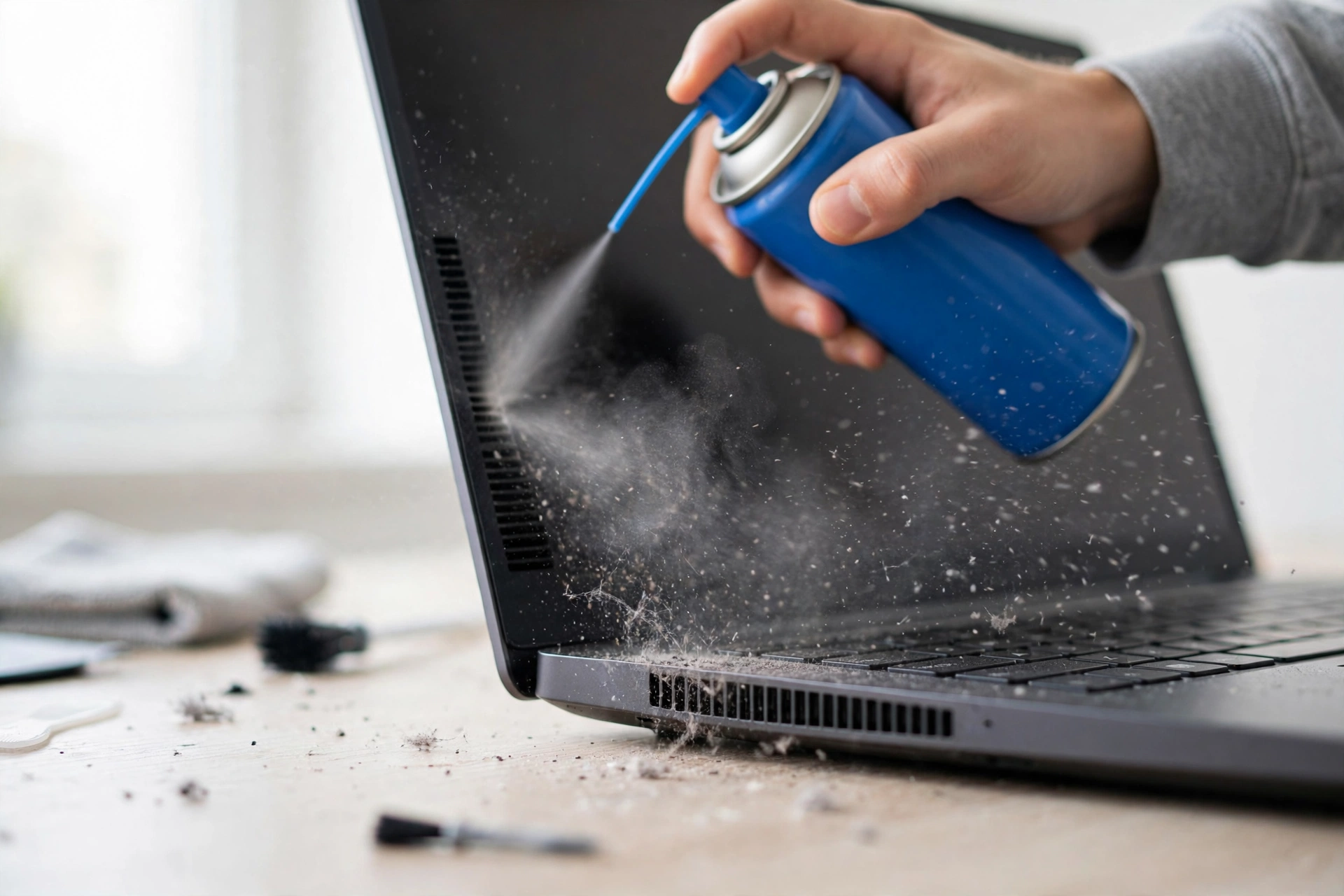
Fix #10: Clean the Vents — Thermal Throttling Is a Speed Problem
Here’s a cause of slowness that lives in “overheating” articles and almost never in “speed up” articles — where it belongs. When dust clogs the vents and thermal paste dries out, sustained temperatures above ~80°C force the CPU to throttle itself down 30–50% to avoid damage. Your laptop gets slow after 10–15 minutes of use, the fan screams, and you blame software. The fix is physical.
- Always use the laptop on a hard surface. Beds, couches, and laps block the intake vents. A cheap laptop stand pays for itself in airflow.
- Blow out the vents with a can of compressed air: laptop off and unplugged, can held upright, short bursts — never tilt the can (liquid propellant can spray out) and never spin the fan at full speed with the air blast.
- Check temps with a free tool like HWMonitor before and after. If idle temps were 70°C+ and drop meaningfully after cleaning, heat was your bottleneck.
- Repasting: if the laptop is 4+ years old and still runs hot after cleaning, the thermal paste is probably dried out. This means opening the laptop — if you’re not comfortable, a local repair shop does this cheaply. Don’t force it.
Honest caveat: opening a laptop can void warranties and risks ribbon cables and stripped screws. Cleaning the outside vents is safe for anyone; going inside is a “know your limits” job.
Hardware: Fix the RIGHT Bottleneck
This is where people waste the most money. The golden rule: RAM removes a bottleneck; it does not create speed. Upgrading the wrong part helps nothing. Use your Task Manager diagnosis from the top of this guide.
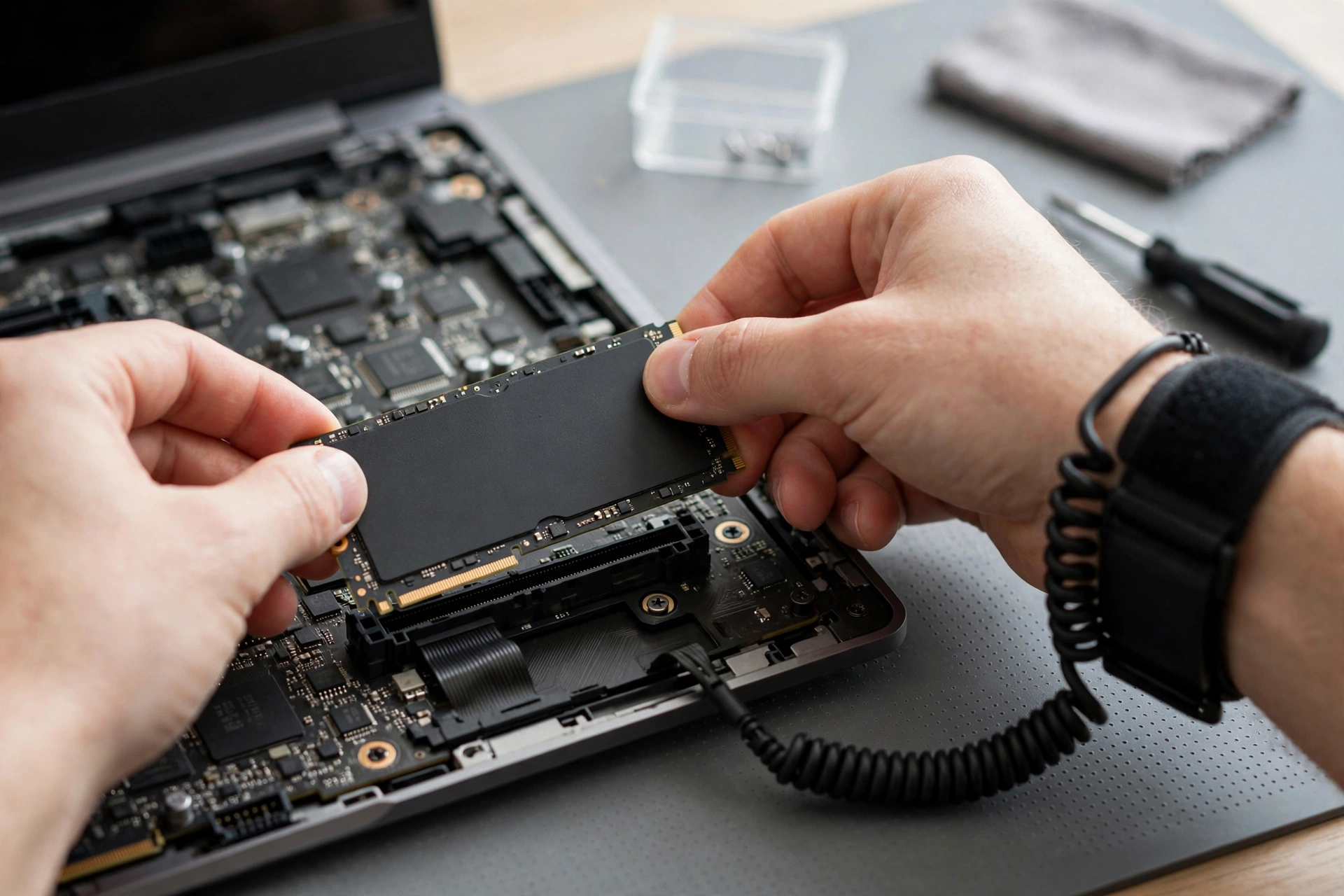
SSD vs RAM: The Bottleneck Table
| What Task Manager shows | The real bottleneck | The fix | Typical cost (Oct 2026) |
|---|---|---|---|
| Disk at 100%, spinning HDD | Slow storage | SSD upgrade — the single biggest hardware win. Published comparisons put SSD boots at ~12–15s vs ~30–34s on HDD, and everything simply opens faster. | ~$50–100 for the drive |
| Memory above 85% constantly, SSD already installed | Not enough RAM | RAM upgrade — but ONLY if your laptop’s RAM isn’t soldered. Check your model’s specs first; many 2026 budget laptops have no upgrade path. | ~$30–60 for 8–16GB |
| Memory never exceeds ~70%, HDD already replaced | Neither — it’s the CPU/platform | Stop spending. More RAM will change nothing. This is the replace decision. | — |
| Slow after 10–15 min, temps above 80°C | Thermal throttling | Vent cleaning / repaste (Fix #10) — not a parts purchase. | ~$0–10 |
Fix #11: SSD Upgrade (HDD → SSD) — The Biggest Single Win
If your laptop still has a spinning hard drive, this one upgrade beats every software trick combined. Everything — booting, opening apps, searching files, installing updates — gets faster because the slowest component in the chain is gone.
Before you buy: confirm your laptop accepts a 2.5″ SATA or M.2 NVMe SSD (check the manual or the manufacturer’s support page). Clone the drive with free cloning software before swapping, so you don’t reinstall everything. And if the old drive is clicking or grinding, it’s failing — back up your files TODAY, before anything else.
Caveat: some ultra-thin laptops have soldered storage with no upgrade slot. Check first; don’t buy parts for a machine that can’t take them.
Fix #12: RAM Upgrade — Only If Memory Pressure Is Real
“I upgraded the RAM and nothing changed” is one of the most common frustrations in laptop forums. It happens because the buyer upgraded the wrong bottleneck: they had an HDD, or their memory usage never actually exceeded ~70%. More RAM only helps when you’re running out of RAM.
So: upgrade RAM only if Task Manager showed memory pinned above ~85% during your normal work, and you’ve confirmed the RAM isn’t soldered. If you need a full replacement instead, our guide to the best budget laptops under $500 in 2026 covers 12 picks with the soldered-RAM trap explained — worth reading before you spend anything.
Bonus Fixes (For the Committed)
- Clean Windows install. The nuclear option: wipes bloatware and years of cruft, frees 2–4GB of idle RAM. Budget 2–4 hours, back up everything first, and reinstall drivers afterward.
- Battery replacement. If the laptop is slow only when unplugged, a degraded battery can trigger hidden performance limits. A fresh battery restores stable CPU/GPU wattage off-charger — usually a shop visit.
Myth-Busting: What Doesn’t Work (Stop Paying for These)
You’ve seen the ads. Here’s the honest breakdown:
- Registry cleaners — don’t. On modern Windows, the registry is not a performance bottleneck, and “cleaning” it changes nothing measurable. Aggressive cleaners remove entries Windows actually needs and can leave the system worse than before. If you already ran one and things broke, the SFC/DISM repair in Fix #9 is your recovery path.
- “PC booster” / optimizer apps — don’t pay for these. Most are a glossy wrapper around the same free built-in tools this guide uses: Disk Cleanup, Storage Sense, SFC. The paid tier adds nothing you can’t do yourself in 30 minutes.
- Random debloat scripts from forums — be very careful. Some “debloat Windows” scripts remove required components (the Microsoft Store, Xbox services that some games need, even parts of Windows Update). If you can’t read the script and understand every line, don’t run it.
- Disabling Windows services you don’t understand — don’t. Old guides love telling you to disable services for “free RAM.” On Windows 11, idle services cost almost nothing, and disabling the wrong one breaks networking, printing, or updates. Startup apps (Fix #2) are the safe target — services are not.
- Two antiviruses at once — never. They fight over every file access and slow you down more than any malware would. One real-time guard only.
Optimize vs Upgrade vs Replace: The Honest Decision

This is the section most guides refuse to write — because “buy a new laptop” doesn’t fit a listicle about free fixes. But you’ve told us your real question: “Do I need a new laptop, or can this one be saved?” Here’s how repair professionals answer it.
The 5 Diagnostic Questions
- Is it one clear bottleneck, or is everything aging at once? Task Manager told you this at the top of the guide. One fixable bottleneck (HDD, full RAM, dust) → fix it. Everything marginal at once → the platform is done.
- Can you upgrade the part that matters? Check before spending a dollar. Soldered RAM, soldered storage, glued-shut chassis — many modern budget laptops offer no upgrade path at all.
- Is anything else failing? Battery, hinge, keyboard, screen, charging port. Cascading failures mean you’re throwing good money after bad.
- Would you trust this laptop for work, school, or travel next month? If the answer is “not really,” no optimization will fix the reliability problem.
- Would a newer machine solve more than speed? Battery life, charging speed, ports, screen, warranty — sometimes the honest math favors replacing even when a fix exists.
The 50% Rule
If the repair costs more than 50% of the laptop’s current used value, replace it. A $120 SSD + $80 shop labor on a laptop worth $200 used is bad math. That same $200 buys a meaningful chunk of a modern replacement.
Stop-Spending Signals
- Three or more simultaneous failures (e.g., bad battery + broken hinge + dying drive).
- A second repair within six months.
- Motherboard-level faults (no power, no display, random shutdowns even when cool).
- CPU older than Intel 8th Gen / Ryzen 2000 — no Windows 11 support path, and security updates matter.
- Everything soldered and the CPU is the bottleneck. There’s nothing left to upgrade.
If You Decide to Replace
Don’t repeat the mistake that got you here: buying blind on specs. Our 12 best budget laptops under $500 in 2026 guide covers the soldered-RAM trap (the #1 reason budget laptops can’t be upgraded later), real cost-per-year math, and honest caveats on every pick. If your budget stretches further, the free AI tools guide is worth a look for your new machine’s software setup — most of what you paid for has a free tier now.
One Honest Footnote: Linux
If the hardware is too old for Windows 11 but fine otherwise — and you only browse, email, and do documents — Linux Mint or ChromeOS Flex are legitimate free options that run beautifully on decade-old hardware. It’s not for everyone (check your must-have apps first), but for browse-only use it’s a real alternative to the landfill.
The 10-Minute Monthly Routine (Prevention Beats Rescue)
Do this once a month and you’ll rarely need this guide again:
- Restart (properly — not just shut down).
- Check Storage Sense ran; glance at free space on C:.
- Open Task Manager → Startup apps — anything new sneak in?
- Windows Update → install everything pending.
- Close unused browser tabs; remove extensions you stopped using.
- Quick vent check — can you see dust? Blow it out.
- Uninstall one app you haven’t touched in months.
- Empty Downloads and the recycle bin.
- Verify your backup ran (this month’s 2 minutes that saves next year’s disaster).
- Note anything new and weird — catching a problem early is always cheaper.
Frequently Asked Questions
Why is my laptop so slow all of a sudden?
Sudden slowdowns usually mean one of four things: a Windows update running background indexing (wait 15 minutes), a new app or browser extension hogging resources, malware, or a drive starting to fail. Open Task Manager (Ctrl+Shift+Esc) and check which resource — CPU, memory, or disk — is maxed out; that points to the cause. If nothing looks wrong and it started right after an update, check your drivers before assuming the worst.
How can I speed up an old laptop without buying a new one?
Work the free fixes in this guide in order: proper restart, trim startup apps, Best performance power mode, reduce visual effects, free disk space, and reset your browser tabs/extensions. If it has a spinning hard drive, an SSD upgrade (~$50–100) is the single biggest improvement available — bigger than any software trick. Clean the vents too; old laptops throttle hard on dust.
My laptop is slow after startup on Windows 11. What do I check first?
Task Manager → Startup apps tab, sorted by Startup impact. Disable High-impact entries you don’t need at boot (leave antivirus and hardware utilities alone). Slow-right-after-startup that improves in ~10 minutes is almost always startup overload, occasionally post-update background indexing.
Task Manager shows 100% disk usage — what does that mean?
It means your storage can’t keep up with requests. On a spinning HDD, this is the expected bottleneck and the fix is an SSD upgrade. On an SSD, 100% disk usually means a specific process is hammering it — sort the Processes tab by Disk to find the culprit (often Windows Search indexing, an antivirus scan, or a stuck updater).
Will adding more RAM speed up my laptop?
Only if you’re actually running out of RAM — Task Manager’s Performance tab showing memory pinned above ~85% during your normal work. If usage never exceeds ~70%, more RAM changes nothing; your bottleneck is elsewhere (usually storage or thermals). Also verify your RAM isn’t soldered before buying — many 2026 budget laptops have no upgrade path.
Is it a virus? Should I run an antivirus scan?
Run one anyway — it’s free and rules it out. Use Windows Security’s full scan, plus Malwarebytes free as a second opinion. But know that malware is the cause less often than people assume; the usual culprits are startup bloat, a full drive, browser tab hoarding, and heat. Constant high CPU with nothing visibly open is the classic malware signature worth taking seriously.
Why is my laptop slow after a Windows update?
Two common reasons: background indexing and search re-indexing run for 10–15 minutes after major updates (wait before judging), and occasionally an update ships with a driver regression — display, audio, or chipset drivers are the usual suspects. Update drivers (including optional ones in Windows Update), and if a specific update clearly broke things, you can roll it back from Update history as a diagnostic step.
Are PC cleaner and optimizer apps worth it?
No — not the paid ones, and barely the free ones. Registry cleaners do nothing measurable on modern Windows and can break things. “Boosters” mostly repackage built-in tools (Disk Cleanup, Storage Sense, SFC) behind a paywall. Everything in this guide uses tools already on your machine. The one legitimate cleanup category is a second-opinion malware scanner, which is free.
My laptop gets slow after 10–15 minutes and the fan screams. What’s wrong?
That’s thermal throttling: dust-clogged vents and dried thermal paste let temperatures climb past ~80°C, and the CPU slows itself 30–50% to survive. Use the laptop on a hard surface, blow out the vents with compressed air (laptop off, can upright, short bursts), and check temperatures with a free monitor. If it’s 4+ years old and still hot after cleaning, the thermal paste needs replacing — a cheap job at a repair shop.
How do I know if I should just buy a new laptop?
Apply the 50% rule: if repairs cost more than half the laptop’s current used value, replace it. Also replace if you hit the stop-spending signals — 3+ simultaneous failures, a second repair in six months, motherboard faults, a CPU too old for Windows 11, or everything soldered with the CPU as the bottleneck. Be honest with the five diagnostic questions in the replace section above.
Methodology Note
This guide is based on Microsoft documentation, manufacturer guidance, and published 2026 expert guides — not lab testing. We did not benchmark these fixes in a controlled lab; the methods described are the standard, documented, community-verified fixes used by professional technicians. Hardware prices (SSD ~$50–100, RAM ~$30–60) are typical US retail ranges as of October 12, 2026 and will vary by region and sale. There are no affiliate links in this article.
Keep Exploring
- 12 Best Budget Laptops Under $500 in 2026 — if the replace decision wins, start here (soldered-RAM trap explained)
- 12 Best Free AI Tools in 2026 — free software worth installing on a fresh or cleaned-up machine
- 12 Best Smart Home Gadgets in 2026 — what to do with the desk space your old laptop leaves behind
- 12 Best Budget Phones Under $300 in 2026 — the same honest cost-per-year approach, for phones
Related: if the fan itself is the main problem — screaming, grinding, or running at full speed even when the laptop is idle — our guide to how to fix a laptop fan making loud noise walks through diagnosing it by sound and nine fixes in order.
Sources & Further Reading
These are the references technicians use to speed up a slow laptop. Microsoft’s official guide to improving PC performance in Windows documents the built-in tools behind the free fixes above, and manufacturer guidance such as Crucial’s SSD installation guide walks through the hardware upgrades step by step. If a malware scan ever finds a threat, Microsoft’s guidance for removing malware and viruses explains what to do next. Whenever you need to speed up a slow laptop again, start with the 5-minute diagnostic at the top — it shows which of these fixes will actually speed up a slow laptop.


3 responses