
If your laptop keyboard some keys not working is the problem, here is the short answer: first find out whether it is hardware or software, then work from the easiest fix upward. Most often the cause is debris under a key, a Windows accessibility setting, the wrong keyboard layout, or a glitchy driver — all fixable at home in under half an hour. Only a dead key cluster after a spill, or keys that fail every test, usually means a repair.

Contents
- Diagnose the Pattern First
- Fix 1: Restart the Laptop Properly
- Fix 2: Test With the On-Screen or an External Keyboard
- Fix 3: Free Any Stuck Modifier Keys
- Fix 4: Clean Under the Affected Keys
- Fix 5: Turn Off Filter Keys and Sticky Keys
- Fix 6: Check the Keyboard Layout and Language
- Fix 7: Run the Keyboard Troubleshooter
- Fix 8: Reinstall the Keyboard Driver
- Fix 9: Test in Safe Mode
- Fix 10: Update or Roll Back After a Windows Update
- Fix 11: Deal With Liquid Damage Immediately
- Fix 12: Replace a Single Key or the Whole Keyboard
- When to See a Repair Shop
- Frequently Asked Questions
Diagnose the Pattern First
Before changing a single setting, spend two minutes noticing the pattern. A laptop keyboard not typing certain keys can look identical on the surface, but the pattern points to very different causes — and it stops you wasting time on fixes that cannot help. Open Notepad, press every key in turn, and note exactly which ones fail.
| What you see | Most likely cause | Start with |
|---|---|---|
| One single key dead, rest fine | Debris, damaged keycap hinge, or worn rubber dome | Fix 4, then Fix 12 |
| A whole row, column, or cluster dead | Damaged membrane, ribbon cable, or liquid damage | Fix 2, then Fix 11 or a repair shop |
| Keys type the wrong characters | Wrong keyboard layout or language | Fix 6 |
| Keys need a long press or ignore quick taps | Filter Keys or Sticky Keys turned on | Fix 5 |
| Keys died right after a Windows update | Driver conflict or a changed setting | Fix 1, Fix 8, then Fix 10 |
| Keys died after a spill | Liquid shorting or corroding the circuits | Fix 11 first, before anything else |
| Keys work sometimes, then stop | Loose ribbon cable, debris, or a failing membrane | Fix 2 and Fix 4 |
| No keys work, but mouse and touchpad are fine | Driver failure or hardware fault | Fix 1, Fix 2, Fix 7, then Fix 8 |
If the same keys fail on an external keyboard too, the problem is in Windows. If they work externally, the built-in keyboard itself is at fault.

Fix 1: Restart the Laptop Properly
A stuck driver process or a half-finished update can leave keys unresponsive until Windows reloads cleanly. Note: Windows 11 Fast Startup can carry the glitch through a shutdown, so use a real restart — Start, Power, then Restart, not Shut down — and test the dead keys in Notepad. If the fault returns after sleep, the driver is probably failing to reload, so move on to Fix 8.
Fix 2: Test With the On-Screen or an External Keyboard
This is the most useful test in the guide, and the one forum threads most often skip. Open the On-Screen Keyboard with Windows + Ctrl + O and click the dead keys: if they type correctly on screen, Windows is fine and the fault is in the physical keyboard. A USB keyboard gives the same answer. Keep it open while you work — it is your typing lifeline for passwords and settings. If your laptop keyboard stopped working windows 11 style, after an update or a resume from sleep, and the on-screen keyboard works, the software fixes from Fix 5 onward hold your answer. The same isolation logic applies to a laptop touchpad not working on Windows 11.
Fix 3: Free Any Stuck Modifier Keys
A stuck Ctrl, Alt, Shift, or Windows key can make healthy keys look broken: if Windows thinks Ctrl is held down, pressing S tries to save instead of typing “s”. Press and release each modifier key several times, and check whether any key sits lower than its neighbours. On the On-Screen Keyboard, a highlighted modifier means Windows believes it is held down. If one stays physically stuck, clean around it as in Fix 4; otherwise treat it as hardware (Fix 12).
Fix 4: Clean Under the Affected Keys
Crumbs, dust, and pet hair are the number one cause of a single dead key. Laptop keyboards are shallow, so even a small crumb can stop the rubber dome underneath from making contact. Knowing how to clean laptop keyboard keys properly matters, because aggressive cleaning breaks more keyboards than dirt does.

- Shut the laptop down completely and unplug it. Never clean keys while it is on — you will trigger random shortcuts.
- Turn it upside down over a bin and tap gently to dislodge loose debris.
- Hold a can of compressed air upright and give short bursts at an angle across the affected keys, never straight down, and never shake the can.
- For one stubborn key, lift the keycap only if your model allows it, using a thin plastic pry tool. If it resists, stop — some ultrabook keycaps break easily. Use air and a soft brush instead.
- Clear what is underneath with a soft brush or a dry cotton swab. Do not use water, and do not press a vacuum nozzle directly onto the keys.
- Refit the keycap by aligning it over the hinge and pressing until it clicks, then test the key.
If the key keeps clogging, the hinge or dome may be cracked — Fix 12 is the lasting answer. If the machine has also been running hot, check our guide to a laptop fan making a loud noise.
Fix 5: Turn Off Filter Keys and Sticky Keys
This is the trap competitors bury halfway down their guides, and it deserves to be near the top. Filter Keys ignores brief or repeated keystrokes; Sticky Keys changes how modifier keys behave. Both can switch on accidentally — holding Shift for eight seconds brings up the Sticky Keys prompt, and one careless click enables it. The result looks exactly like broken keys. To disable filter keys, open Settings, go to Accessibility, then Keyboard, and turn Filter Keys and Sticky Keys off. If Filter Keys already shows as off, toggle it on and back off once to make sure the setting has applied, then test the dead keys at once. On older Windows versions the same settings live under Ease of Access, then “Make the keyboard easier to use”.
Fix 6: Check the Keyboard Layout and Language
If keys type the wrong characters rather than nothing — @ and ” swapped, for example — your layout is wrong, not your keyboard. Windows + Space cycles through installed layouts, and it is easy to hit accidentally. Press Windows + Space to cycle back to the layout matching your physical keycaps, then open Settings, Time and Language, Language and Region, and remove any layout you do not use, so the shortcut has nowhere to jump to.
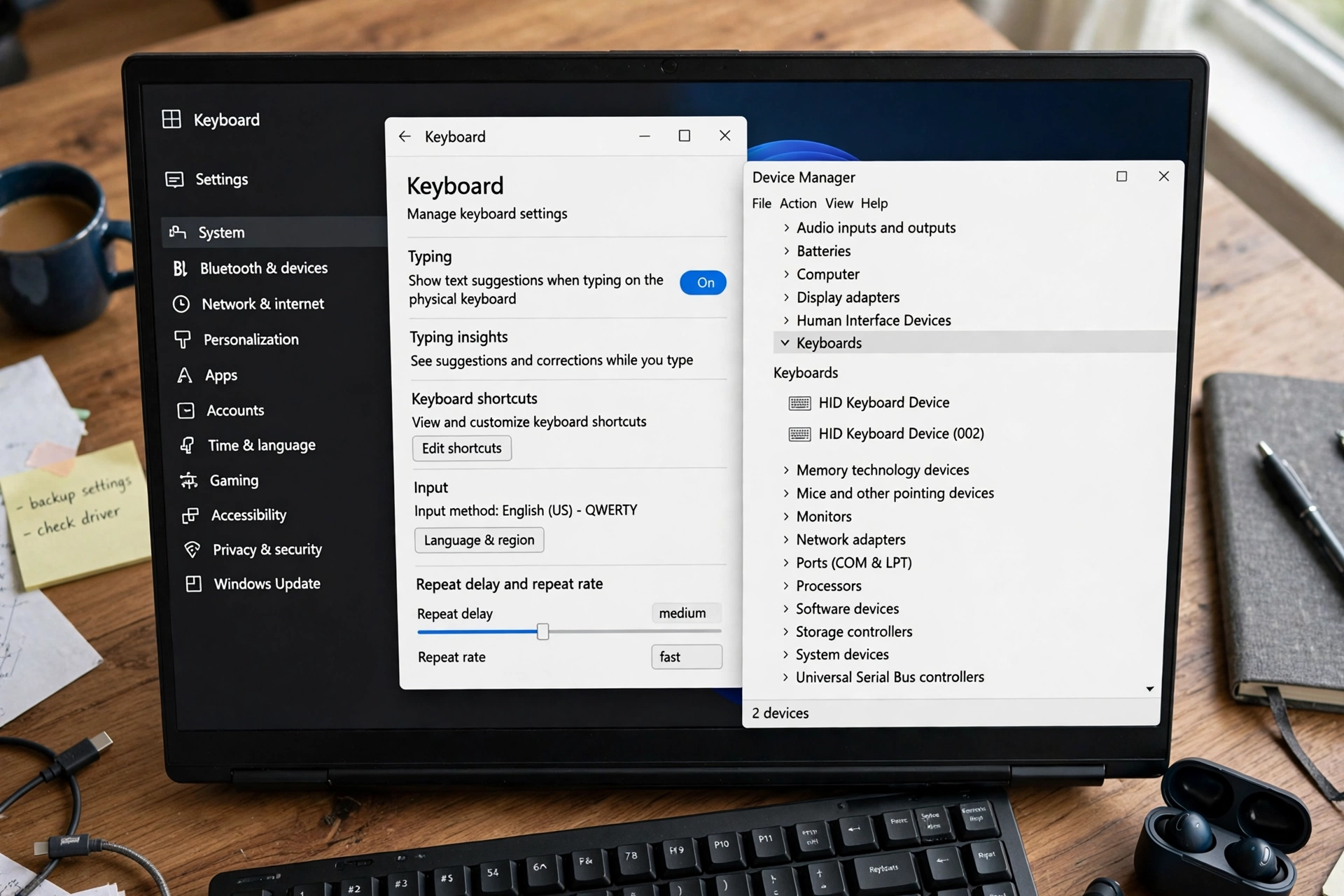
Also check Num Lock if number keys type nothing, and Fn Lock if only the F1–F12 keys misbehave — on many laptops Fn + Esc toggles it. A keyboard that types wrong characters is almost never a broken keyboard, so check this before touching any driver.
Fix 7: Run the Keyboard Troubleshooter
Open Settings, System, Troubleshoot, then Other troubleshooters, find Keyboard, and click Run. Follow the prompts, apply any fix it suggests, then restart and test. It will not fix hardware, but it occasionally catches a missed configuration problem. If it reports nothing wrong, that still helps: it points you back toward cleaning, layout, or hardware. Run it once.
Fix 8: Reinstall the Keyboard Driver
Windows uses a standard driver for most built-in keyboards — usually “Standard PS/2 Keyboard” or “HID Keyboard Device” — but it can corrupt after an update or a bad shutdown. Right-click Start, open Device Manager (open the On-Screen Keyboard first if your keys are dead), expand Keyboards, right-click your keyboard device, and choose Uninstall device. Leave the “delete driver software” checkbox unchecked unless you are troubleshooting a specific manufacturer driver. Restart, and Windows should reinstall the driver automatically. If a warning icon appears, download the driver for your exact model from the manufacturer’s support site — never from a random “driver updater” tool. See also our guide to a laptop battery draining fast after an update.
Fix 9: Test in Safe Mode
Safe Mode loads Windows with only essential drivers and no third-party startup programs. Hold Shift while clicking Restart, then Troubleshoot, Advanced options, Startup Settings, Restart, and press 4. If keys work there but not normally, an installed program — a keyboard remapper, gaming utility, or hotkey tool — is interfering; disable startup programs one by one in Task Manager to find it. If they fail in Safe Mode too, third-party software is ruled out, leaving Windows (Fix 10) or hardware (Fix 12).
Fix 10: Update or Roll Back After a Windows Update
When keys die immediately after a Windows update, check for a newer fix first: Settings, Windows Update, and install anything pending, since Microsoft does ship driver corrections this way. If none exists, roll the driver back in Device Manager: double-click the keyboard device, open the Driver tab, and click Roll Back Driver if available — greyed out means no older driver is stored. Only as a last resort, uninstall the recent Windows update itself, and only if the fault clearly started the day it installed. Never leave Windows Update permanently disabled as a “fix”. See also our guide on how to speed up a slow laptop.
Fix 11: Deal With Liquid Damage Immediately
If keys stopped working after a spill, do this now, before the other fixes. Liquid damage worsens every minute the laptop stays powered on, because current through wet circuits causes corrosion and shorts. Power off immediately — hold the power button if you must — unplug the charger, and turn the laptop upside down in a tent shape so liquid drains out. Do not turn it back on to “test” it. If you can open the laptop safely, disconnect the battery; if not, take it to a repair shop the same day and say exactly what spilled and when. Do not use a hot hair dryer, and do not put it in rice. Leave it upside down in a dry, ventilated room for 24–48 hours. Even if the keys recover, get it checked: sugary residue keeps corroding long after drying.
Fix 12: Replace a Single Key or the Whole Keyboard
When every software fix has failed and the external-keyboard test points at hardware, start small: a single dead key rarely needs a whole new keyboard. Order a single-key kit for your exact model — keycap, hinge, and rubber dome — which usually fits in five minutes. The exception is ultrabooks where the keyboard is glued or riveted into the top case; there a single key cannot be swapped and the whole top case must be replaced, a shop job. For a dead cluster, price a full keyboard for your model first: on many mainstream laptops it is a separate part held by screws and a ribbon cable. While waiting for parts, use the On-Screen Keyboard or a cheap USB keyboard. Before ordering, check the exact model number on the base sticker and match the layout — US and UK keyboards differ. If the screen has misbehaved too, see our guide to a laptop screen flickering on Windows 11; if it will not hold a charge either, check our guide to a laptop plugged in but not charging.
When to See a Repair Shop
Get professional help if: keys failed after a spill; a whole row or cluster is dead and cleaning did not help; keys fail in Safe Mode and on the BIOS screen, which rules out Windows entirely; there is swelling, a burning smell, or a bulging battery; or you are not confident opening the laptop. Also go to a shop if it is still under warranty — opening it yourself can void it, and a warranty replacement is free. Take notes when you go: which keys fail, when it started, whether it followed an update or a spill, and what you have tried. Ask for a quote covering part, labour, and a repair warranty.
Frequently Asked Questions
Most dead-key problems turn out to be small: a crumb, a setting, a layout, or a driver. Diagnose before fixing, work through this guide in order, and you will either have a working keyboard again or a clear answer for the repair shop.
Further reading: Microsoft’s community troubleshooting for this exact fault, and iFixit’s community answers on faulty laptop keys — see Microsoft Q&A: how to fix a laptop keyboard on Windows 11 when some keys will not work and iFixit: why some keys are not working on a keyboard.
Recommended Products
While you work through the fixes, these two accessories are worth having to hand:
- USB external keyboard – an immediate workaround while you fix the built-in keys, and it also helps isolate hardware faults from software ones. Search on Amazon
- Laptop keyboard cleaning kit – debris under the keys is the number one cause of a single dead key; a cleaning kit covers brushes and air, as described in Fix 4. Search on Amazon
Why are some keys on my laptop not working?
Most common causes are debris under the keys, Filter Keys or Sticky Keys switched on, the wrong layout, a corrupted driver, or physical damage from a spill or a worn membrane. The pattern tells you which: a single dead key usually means debris, wrong characters usually mean the layout, and a whole dead row usually means hardware damage.
How do I fix unresponsive keys on my laptop keyboard?
Start with a proper restart, then test with the On-Screen Keyboard or a USB keyboard to find out whether the fault is hardware or software. Then clean under the affected keys, turn off Filter Keys and Sticky Keys, check your layout, run the troubleshooter, and reinstall the driver. If the keys still fail in Safe Mode and on the external test, the built-in keyboard itself is faulty and a single-key or full replacement is the realistic fix.
Can I replace a single laptop key?
Yes, on most mainstream laptops you can replace a single key with a kit containing the keycap, hinge, and rubber dome, matched to your exact model — usually a five-minute job. The exception is ultrabooks where the keyboard is glued or riveted into the top case: there a single key cannot be swapped and the whole top case or keyboard assembly must be replaced, which is a repair-shop job.
Can liquid damage cause keys to stop working?
Yes — liquid is one of the most common causes of dead laptop keys. Water, coffee, and sugary drinks can short the keyboard circuits and corrode them, sometimes killing keys immediately and sometimes weeks later as corrosion spreads. If you spill anything, power off at once, unplug, turn the laptop upside down to drain, and do not turn it back on to test it. Even if the keys recover after drying, have the machine checked for hidden corrosion.


2 responses