
As an Amazon Associate, Technorra earns from qualifying purchases.
A laptop slow after one year feels like a betrayal. Twelve months ago it booted in seconds and opened apps instantly. Now it takes its time waking up, stutters when you switch tabs, and the fan seems to run for no reason at all. Before you assume the machine is dying — or start shopping for a replacement — it helps to know what actually changed. In most cases, a one-year-old laptop is not worn out. It is weighed down.
That distinction matters, because it changes the fix. A genuinely failing laptop needs a repair shop; one weighed down by a year of clutter, dust, and background apps usually needs an afternoon of cleanup, not a new machine. This guide covers the six things that pile up in a laptop’s first year, the tune-up that clears them, and the honest limits — when an upgrade is worth it, and when to get help. For the broader speed fixes, see our companion guide on how to speed up a slow laptop.
Contents
- Why a Laptop Slows Down After One Year
- 1. Startup Clutter You Did Not Ask For
- 2. A Drive That Quietly Filled Up
- 3. Dust and Heat Slowing the Processor
- 4. Drive Health and the HDD Problem
- 5. Background Apps Creeping In
- 6. Battery Wear and Power Throttling
- The One-Year Tune-Up: A Step-by-Step Fix
- When a Hardware Upgrade Is Worth It
- What Will Not Fix a Slow One-Year-Old Laptop
- When to See a Repair Shop
- Recommended Products
- Frequently Asked Questions
Why a Laptop Slows Down After One Year
The first year is the year a laptop accumulates the most. Out of the box, it runs a clean system with a handful of apps and an empty drive. Then real life happens: work apps, games, chat tools, cloud sync clients, and utilities you tried once and forgot. Each one is small on its own; together, they compete for the same processor, memory, and drive every time you boot.
At the same time, the physical machine is changing. Dust gathers in the cooling vents until the fan has to work harder to move the same air. The drive fills with downloads, photos, cached files, and old installers. The battery, fresh a year ago, has been through hundreds of charge cycles and may no longer hold its original capacity. None of these changes is dramatic on its own, which is exactly why the slowdown feels so mysterious: there is no single moment when the laptop broke. There is a year of small changes, and one day you notice the total.
1. Startup Clutter You Did Not Ask For
Startup apps are the most common reason a laptop feels slower after a year. Many programs add themselves to the startup list when you install them, and they rarely ask clearly. After twelve months of installs, it is normal to find a dozen or more apps launching at boot: chat clients, cloud sync, update helpers, gaming launchers, and manufacturer utilities. Each one takes a slice of memory and processor time before you have even opened anything.
The fix is simple and free. On Windows, open Task Manager, go to the Startup tab, and look at the impact column. Disable anything you do not need at switch-on — you can still open those apps manually. Leave security software and hardware utilities alone, and disable one or two items at a time if unsure. On a Mac, the list is in System Settings under General, then Login Items.
2. A Drive That Quietly Filled Up
A drive that was roomy on day one can be uncomfortably full by month twelve. Downloads pile up, photo and video libraries grow, games expand with updates, and Windows itself keeps update files and restore points. When a drive gets close to full, the system has less room for temporary files and virtual memory, and everything starts to feel sluggish.
Start by checking your free space, then clear the easy wins: Downloads, old installers, duplicate photos, and games you no longer play. Windows users can turn on Storage Sense, which clears temporary files automatically — Microsoft’s guide explains how to manage drive space with Storage Sense. If you are still tight on space, move photos and videos to an external drive or cloud storage rather than deleting things you might want later.
3. Dust and Heat Slowing the Processor
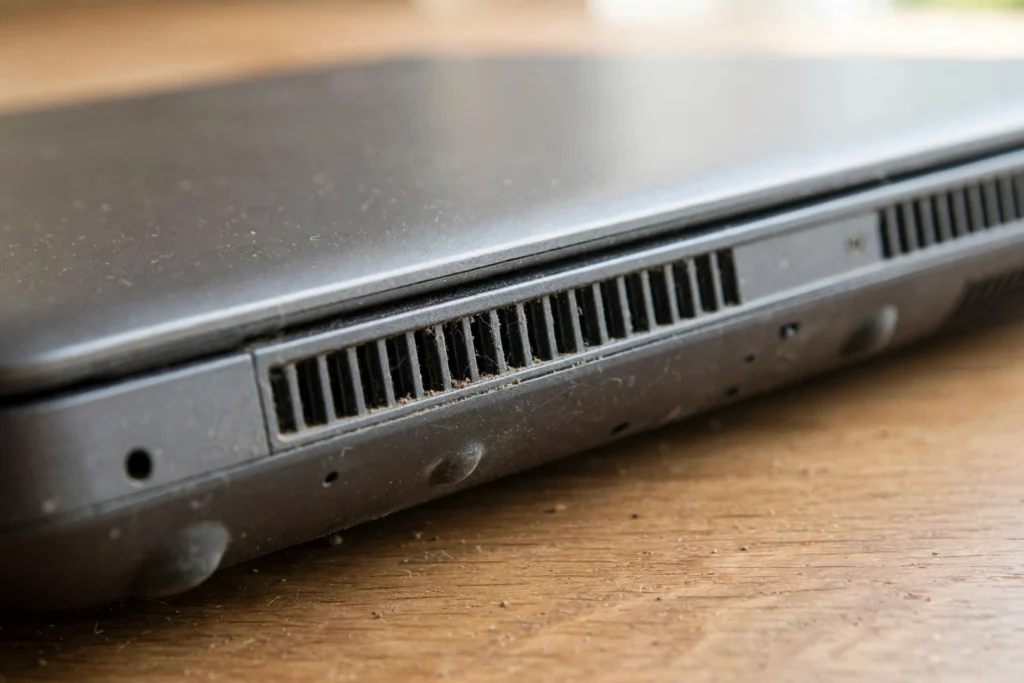
This is the cause most people never suspect. A laptop cools itself by pulling air through vents and over a fan. Over a year of daily use — especially on beds, sofas, and dusty desks — those vents collect dust. As airflow drops, the processor runs hotter, and modern processors protect themselves by slowing down, a behaviour called thermal throttling. The result is a laptop that feels slow precisely when you ask the most of it.
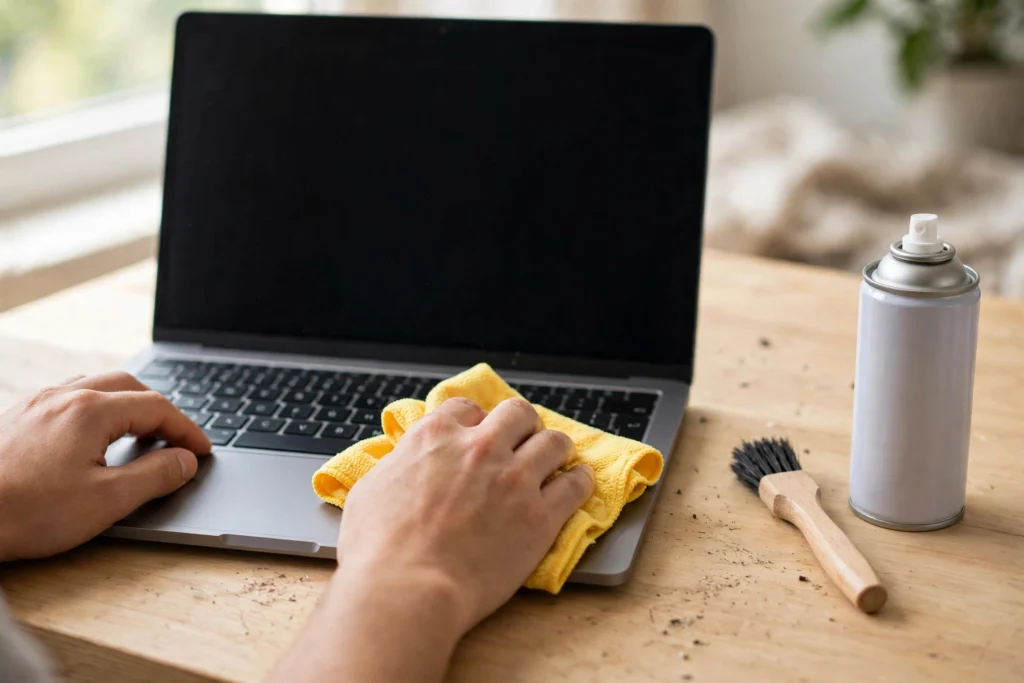
Signs of a heat problem include a hot underside during light work, a fan that runs constantly, and sudden slowdowns during video calls or games that ease off after a rest. The safe first step is simple: use the laptop on a hard, flat surface, keep the vents clear, and clean the outside vents gently with short bursts of compressed air while the machine is off. Do not open the laptop or remove the fan unless you know what you are doing. If your fan has become genuinely loud rather than just busy, our guide to a laptop fan making a loud noise walks through the warning signs.
4. Drive Health and the HDD Problem
Not all slowdowns are about clutter. The type of drive matters, and a year is long enough for the difference to show. Laptops with a traditional spinning hard drive (HDD) slow down far more noticeably over time than laptops with a solid-state drive (SSD), because every file read involves a physical moving part. If your one-year-old laptop still runs on an HDD, the drive itself is a likely bottleneck.
You can check your drive type in your system settings or task manager. If you find an HDD, the single most effective upgrade is usually moving to an SSD — it is also the upgrade most worth paying for, as covered below. If you already have an SSD, a year of normal use should not have worn it out, so look at the other causes first. Either way, back up anything important before changing a drive, and never ignore repeated disk errors or a drive that disappears from the system: those are repair-shop symptoms, not tune-up symptoms.
5. Background Apps Creeping In
Startup apps are only half the story. Over a year, apps also accumulate in the background: cloud sync tools scanning folders, messaging apps polling for updates, browser extensions multiplying, and updaters phoning home. Together they keep the processor and drive busy even when you think the laptop is idle, which is why a machine can feel slow the moment you sit down to use it.
Take ten minutes to audit what is running. On Windows, Task Manager’s Processes tab, sorted by CPU and memory, shows the real culprits. Uninstall what you no longer use rather than just closing it, since uninstalled apps cannot creep back at boot. In your browser, remove extensions you no longer need. Microsoft’s guide to tips to improve PC performance in Windows covers the built-in settings worth checking.
6. Battery Wear and Power Throttling
Batteries age, and a year of daily charging leaves a mark. A worn battery holds less charge, which you will notice as shorter unplugged time — but it can also affect performance. Some laptops reduce processor speed when the battery is degraded, and a failing battery can cause sudden shutdowns under load even when the charge indicator looks fine. If the drain started right after a system update, see our guide on a laptop battery draining fast after an update.
Check your battery health report in your system tools before spending anything: a battery that has lost a large share of its original capacity is a candidate for replacement, while a healthy one points back to software causes. If the machine is not charging properly at all, see our guide on a laptop plugged in not charging before assuming the battery alone is at fault. If your battery is swollen, hot, or the trackpad or case has started to lift, stop using it and get it replaced professionally — that is a safety issue, not a performance tweak.
The One-Year Tune-Up: A Step-by-Step Fix
If you want to know how to speed up a one year old laptop without guessing, work through this order — highest impact and lowest risk first — and stop as soon as the machine feels right again.
- Restart, then audit startup apps. A fresh restart clears temporary states; then disable the startup items you do not need daily.
- Uninstall what you no longer use. Forgotten apps still update, sync, and launch. Remove them properly instead of just closing them.
- Free up drive space. Clear downloads and temporary files, turn on Storage Sense, and move large media libraries off the main drive.
- Update Windows, drivers, and your browser. A year of skipped updates can leave performance and security fixes uninstalled.
- Clean the vents and use a hard surface. Gentle exterior cleaning and proper airflow cost nothing and rule out heat throttling.
- Check battery health. If capacity has dropped sharply, factor a replacement into your plans rather than chasing software fixes.
- Only then consider a reset or an upgrade. Both are covered below, and both are easier to judge once the free fixes are done.
Give the laptop a day of normal use after the tune-up before deciding anything else, since the system may still be indexing files or finishing updates in the background.
When a Hardware Upgrade Is Worth It
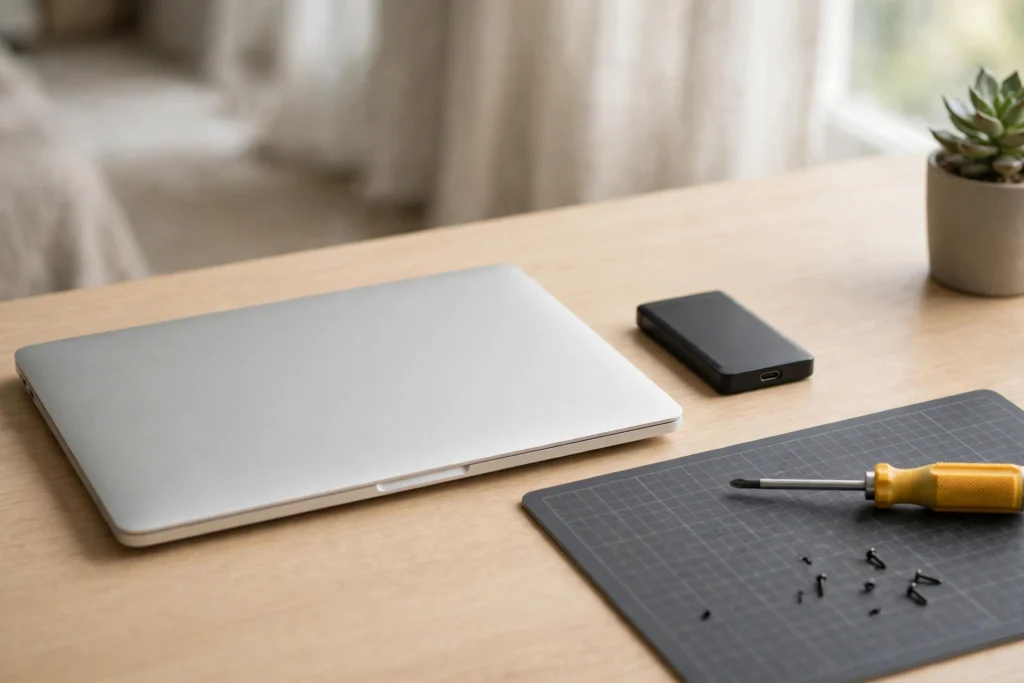
Upgrades help most when they match the actual bottleneck, and they are wasted when they do not. An SSD upgrade is the best money for a laptop still running on a spinning hard drive — it changes how the whole machine feels, from boot times to app launches. A memory upgrade helps if you regularly run many browser tabs and heavy apps at once; it will not help much if memory usage is low and the drive or heat is the real problem.
Before buying anything, check two things: whether your model actually allows upgrades, and whether the upgrade is worth it against the laptop’s age and value. Many thin and light laptops have soldered memory or storage that cannot be changed at all, in which case an external SSD for storage is the practical option. A one-year-old laptop in good shape is usually worth a modest upgrade, while a machine with a failing screen, keyboard, or battery may be better money put toward a replacement.
What Will Not Fix a Slow One-Year-Old Laptop
Some popular fixes sound convincing and deliver little. PC cleaner or optimiser apps mostly delete temporary files you could clear yourself, and the aggressive ones risk removing things you actually need. Registry cleaners offer no meaningful speed benefit on a modern system and can cause real damage. Likewise, adding more security software on top of what you already run usually slows a laptop down — one good security tool, kept updated, is enough.
Another trap is chasing a single magic setting. Disabling visual effects or tweaking obscure system options might shave a little load, but it will not rescue a laptop whose real problems are a full drive, dusty cooling, or a dozen startup apps. Fix the big, boring causes first.
When to See a Repair Shop
Most one-year slowdowns are fixable at home, but some symptoms mean it is time for a professional. See a repair shop if you notice any of the following: the laptop shuts down suddenly or restarts under load; the battery is swollen, very hot, or the case or trackpad is lifting; the drive reports errors, files go missing, or the system fails to boot; the fan grinds, rattles, or stops entirely; or the machine stays hot and slow even after cleaning and a full tune-up. Also seek help if you need internal cleaning, a battery replacement, or a drive swap and you are not comfortable opening the machine.
Before you go, back up your important files if the machine still lets you, note down exactly when the problem happens, and check whether the laptop is still under warranty — a warranty repair costs nothing but the wait.
Recommended Products
Each product below matches a fix in this guide. Check compatibility with your laptop model before ordering, especially for internal parts.
- Portable SSD for laptop storage — move photo and video libraries off a full internal drive without opening the machine.
- Laptop RAM upgrade kit — worth considering only if your model allows memory upgrades and you regularly run out of memory.
- Laptop cleaning kit — microfiber cloths, brushes, and compressed air for safe exterior and vent cleaning.
If your laptop slow after one year has been bothering you, start with the free fixes today: trim the startup list, clear the drive, and give the vents some air. Most one-year-old laptops come back to life with exactly that — and the ones that do not have told you the next step is a targeted upgrade or a professional check.
Why is my laptop slow after one year?
A laptop slow after one year is usually slow because a year of use has added startup apps, background programs, a fuller drive, and dust in the vents. None of these alone is dramatic, but together they strain the processor, memory, and airflow. Work through the tune-up in this guide and most machines recover much of their speed without new hardware.
Is it normal for a laptop to slow down after a year?
Yes, some slowdown after a year is normal, because every laptop accumulates software and dust with use. What is not normal is a sudden, severe slowdown, frequent crashes, shutdowns under load, or a swollen battery — those point to a fault, not ordinary wear.
Will a factory reset speed up a one-year-old laptop?
A factory reset usually does speed up a one-year-old laptop, because it removes every accumulated app and setting in one stroke. But it is a last resort: it erases your files and programs, takes hours to recover from, and is unnecessary if a tune-up fixes the problem. Try the cleanup steps first, and always back up before resetting.
Should I upgrade RAM or SSD on a slow one-year-old laptop?
It depends on the bottleneck. If your laptop still uses a spinning hard drive, an SSD upgrade is almost always the better first move. If you already have an SSD but constantly run out of memory, a RAM upgrade is the better choice. Check that your model allows the upgrade before buying — many thin laptops have soldered parts.


