
Laptop Battery Draining Fast After Windows Update: 9 Fixes
A laptop battery draining fast after update is a common complaint — and the update itself rarely damaged the battery. In most cases Windows is still finishing background work, or the update quietly reset your power settings and woke up apps that now drain power. Work through the nine fixes below in order — most people find the culprit by fix 3.
This guide covers Windows 11 and Windows 10, including how to check battery usage by app, how to read a battery health report, and what to do when the laptop drains while asleep.
Contents
- Why Does a Windows Update Drain the Battery?
- First: Is It Really the Update?
- 9 Fixes for Battery Drain After a Windows Update
- Battery Draining While Asleep or Switched Off
- When to See a Repair Shop
- Frequently Asked Questions
Why Is a Laptop Battery Draining Fast After Update?
A Windows update does several power-hungry things at once, and a few of them keep going long after the “update complete” screen disappears:
- Search indexing and optimisation. After a feature update, Windows re-indexes your files and finishes setup tasks in the background. This typically lasts 24–48 hours and is the single most common reason for battery drain after Windows 11 update complaints.
- Cloud services re-syncing. OneDrive, Google Drive, and photo backup apps sometimes re-scan or re-upload large parts of your library after an update. One re-uploading photo library can drain a battery faster than any setting change.
- Reset power settings. Updates can flip your power mode back to Best performance, raise screen brightness, or switch a high-refresh-rate display back to 120 Hz or 144 Hz — each of which quietly costs hours of battery life.
- New or changed drivers. An update can install a graphics, Wi-Fi, or chipset driver that keeps a device awake or runs less efficiently than the old one.
- Apps waking up. Background app permissions and startup programs can change after an update, so apps that used to sleep now run constantly.
None of this means the update harmed your battery. It means the laptop’s workload changed, and the fixes below put it back.
First: Is It Really the Update?
Before changing settings, spend two minutes on this check — it prevents hours of fixing the wrong thing.
Wait 48 hours. If the drain started within a day of a major update and the laptop is warm even when idle, Windows is probably still finishing background work. Use the laptop plugged in for a day or two, then judge battery life again. If it is still bad after 48 hours, move on to the fixes.
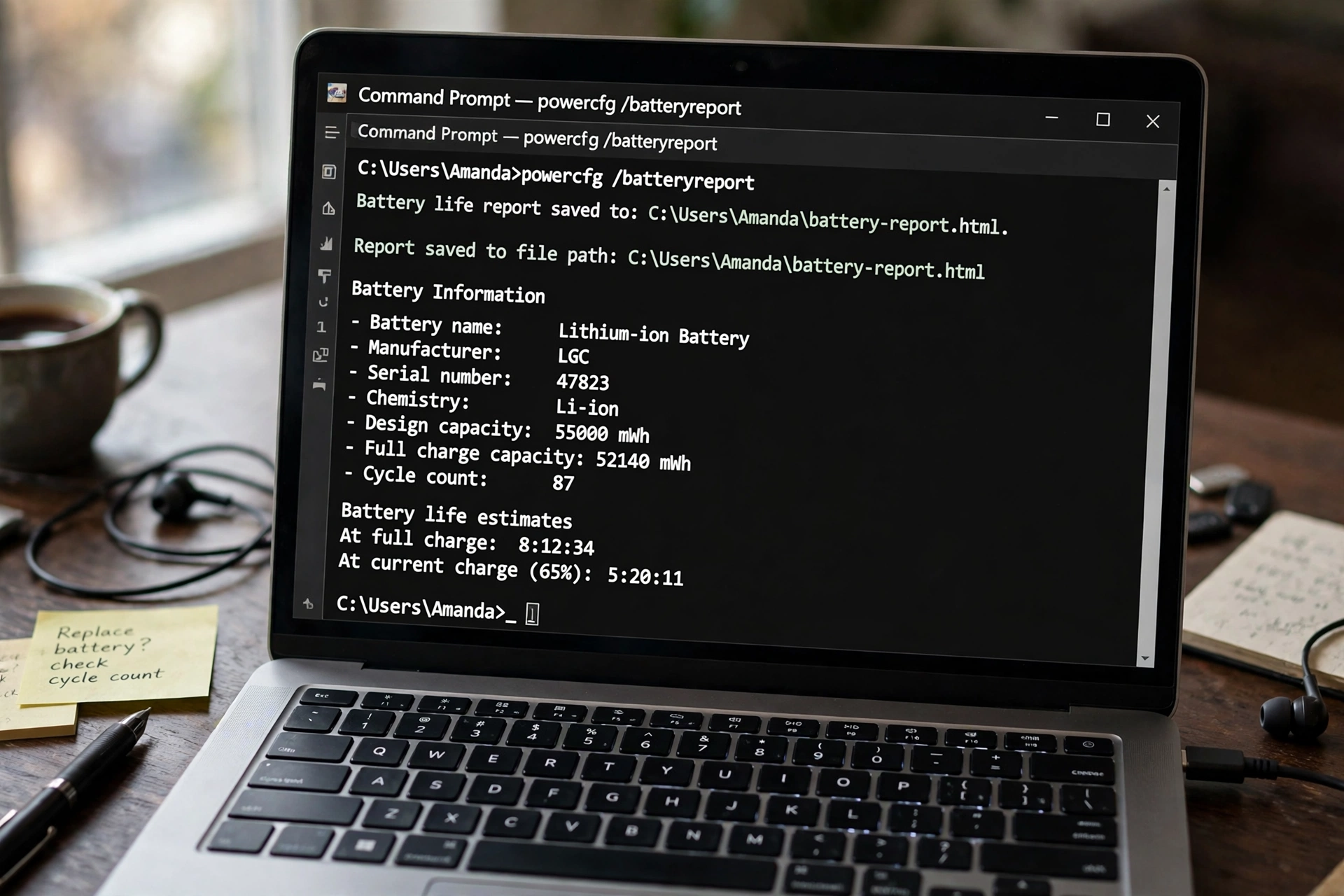
Check the battery’s actual health. Open Command Prompt as administrator and run powercfg /batteryreport. Open the generated battery-report.html file and compare Design Capacity with Full Charge Capacity. If the full charge capacity is above 80% of design capacity, the battery itself is fine and software is your problem. Below 70–80%, the battery is worn, and no setting will fully restore the old runtime — see the repair section at the end.
9 Fixes for Battery Drain After a Windows Update
Every fix below works on Windows 11 and Windows 10 and needs no tools. Treat this section as your complete battery drain fix Windows 11 checklist, and work through it in order.
Fix 1: Finish the update properly
Go to Settings > Windows Update and check for updates again, including optional updates. An update that is half-finished — or a follow-up fix Microsoft already released — will keep background services busy. Install everything offered, restart, and give the laptop one plugged-in session to settle. This alone resolves many cases of a laptop battery draining fast after update.
Fix 2: Check battery usage by app
This is the most revealing step in the whole guide. On Windows 11, go to Settings > System > Power & battery > Battery usage. It shows exactly which apps used the most battery in the last 24 hours or 7 days. Look for surprises: a photo app re-uploading, a browser with video ads across many tabs, a game launcher, or a cloud app syncing. For the worst offenders, either close them, limit their background activity (click the app in Battery usage and set it to never run in the background), or pause their sync until you are plugged in. On Windows 10 the same screen lives under Settings > System > Battery > Battery usage by app.

Fix 3: Set power mode to Best power efficiency
Go to Settings > System > Power & battery and set Power mode to Best power efficiency when on battery. Then turn on Energy saver (called Battery saver on older Windows versions) and set it to switch on at 30–40% instead of the default 20% — an earlier Energy saver start saves more across a full day than any single app tweak. If the update reset you to Best performance, this one change can win back an hour or more. The same power-saving settings can also affect the wireless adapter, so check them if your laptop WiFi keeps disconnecting.
Fix 4: Turn down the screen — brightness and refresh rate
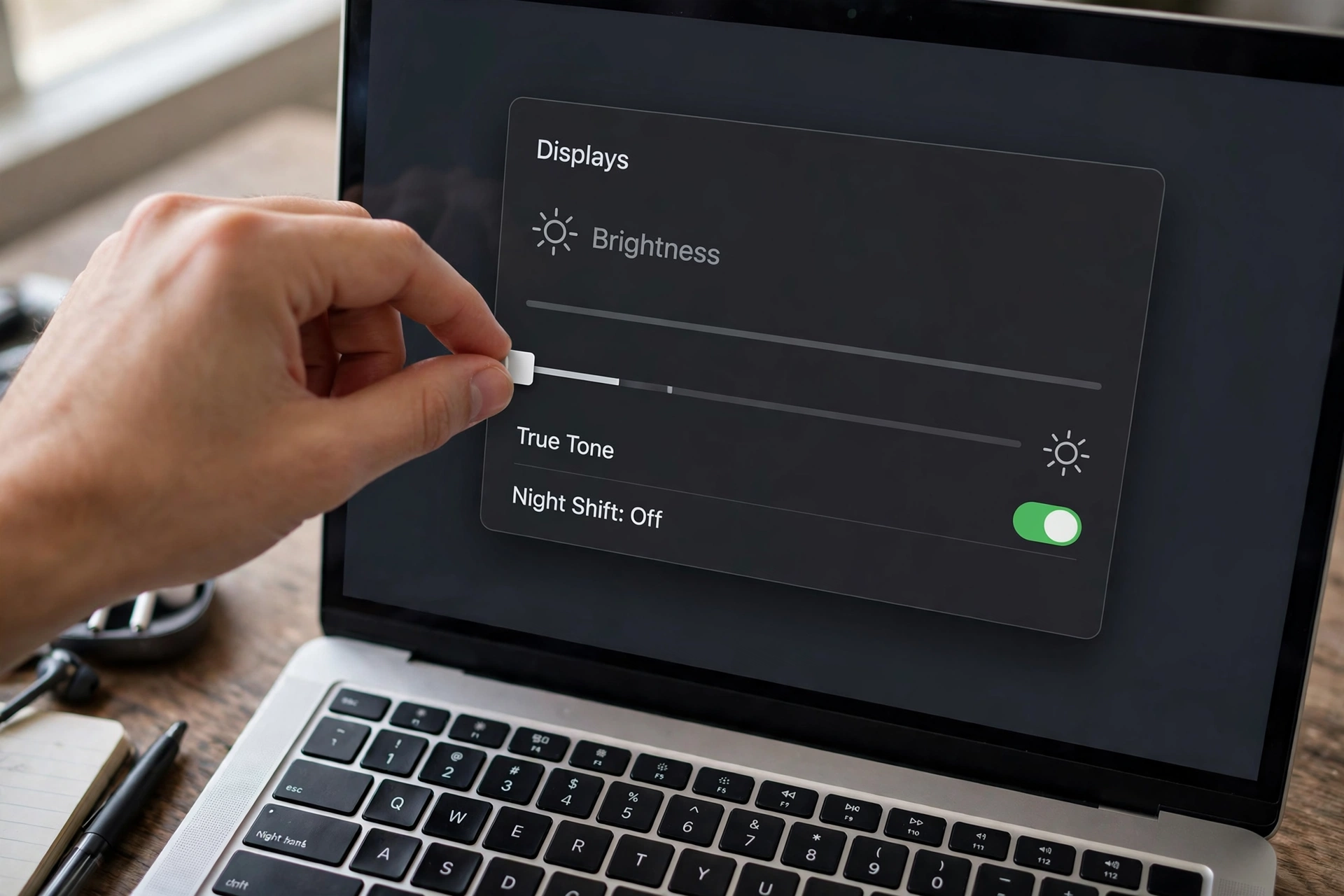
The display is usually the biggest single battery cost. Drop brightness to around 60% indoors, and on a high-refresh-rate screen, switch to a dynamic refresh rate or a fixed 60 Hz in Settings > System > Display > Advanced display. A 120 Hz or 144 Hz screen at full brightness is one of the fastest ways to watch a laptop battery die in an hour. Also turn off the keyboard backlight when you do not need it.
Fix 5: Stop unneeded background and startup apps
Open Task Manager (Ctrl + Shift + Esc) and check the Startup tab. Disable anything you do not need at boot — updaters, launchers, chat apps, and cloud tools all add up. Then go to Settings > Apps > Installed apps, open the worst offenders from fix 2, and turn off “Let this app run in the background” where the option exists. A browser efficiency mode (Edge has one built in; Chrome’s Memory Saver does similar) also stops background tabs from eating battery.
Fix 6: Pause cloud re-sync until you are plugged in
If OneDrive, Google Drive, or a photo backup app is re-uploading after the update, pause syncing while on battery. In OneDrive, click the cloud icon and choose Pause syncing; most photo apps have a “backup only while charging” option — turn it on. This is a temporary fix with an outsized effect: a full library re-upload can drain a battery on its own, and it will finish happily overnight while plugged in.
Fix 7: Fix the drivers the update changed
First, reinstall the battery driver: open Device Manager, expand Batteries, right-click Microsoft ACPI-Compliant Control Method Battery, choose Uninstall, and restart — Windows reinstalls it cleanly. Next, check your laptop maker’s support page for chipset, graphics, and power-management drivers newer than the ones Windows installed; manufacturer drivers are often better tuned for battery life than generic ones. If the drain started the same day a specific graphics driver landed, rolling that driver back is worth trying before anything more drastic.
Fix 8: Run the Power troubleshooter and check sleep drain
Go to Settings > System > Troubleshoot > Other troubleshooters and run Power. It catches common misconfigurations, including sleep settings that keep the laptop half-awake. If your laptop drains while asleep, run powercfg /sleepstudy from an administrator Command Prompt — the report shows exactly which app or device woke the machine. A device or app that wakes the laptop every few minutes is a different problem from daytime drain, and the sleep study names it.
Fix 9: The last resorts — uninstall the update, or accept the battery is worn
If the drain began immediately after one specific update and none of the fixes above helped, uninstalling that update is reasonable: Settings > Windows Update > Update history > Uninstall updates. Treat this as temporary — Microsoft usually fixes a bad update within weeks, and skipping security updates permanently is a bad trade. On the other hand, if your battery report shows capacity below 70–80% of design, the update only exposed a worn battery; a replacement battery restores runtime in a way no setting can. A laptop battery dies in 1 hour on light work, even after all nine fixes, almost always has a health problem rather than a software one.
Battery Draining While Asleep or Switched Off
Drain while the laptop is asleep or off is a separate issue from daytime drain, and it has its own culprits: Modern Standby keeping the machine semi-awake for notifications, a USB device drawing power, a wake timer from an update, or a lid that does not actually put the machine to sleep. Check the sleep study report from fix 8 first — it names the waking app or device. Practical fixes: unplug USB accessories before closing the lid, disable “allow this device to wake the computer” for the network adapter in Device Manager if network wake is the culprit, and use Hibernate instead of Sleep for overnight periods (Settings > System > Power & battery > Screen and sleep, or the classic power options). If the battery drains while the laptop is fully shut down, that points to a hardware or battery fault, not a setting.
When to See a Repair Shop
Book a repair if any of these apply:
- A swollen battery. If the trackpad feels raised, the case bulges, or the keyboard is lifting, stop using the laptop and get it checked immediately. A swollen battery is a safety issue: do not puncture it, do not try to remove it yourself, and do not charge the laptop until it has been inspected.
- Battery health below 70% of design capacity and runtime under an hour on light work.
- The battery drains while fully shut down, or the laptop only works while plugged in.
- The laptop is under warranty — battery defects are usually covered.
Before you go, save your battery report — it tells the shop the battery is genuinely worn and prevents a wasted “software reset” visit. And if you need power on the go while the repair happens, our best power banks of 2026 roundup covers laptop-capable options. For longer-term battery habits that apply to every device you own, see how to make your phone battery last longer, and if the laptop itself feels generally slow since the update, our guide to how to speed up a slow laptop pairs well with the fixes above. If you are weighing a replacement instead of a repair, check our best budget laptops under $500.
Further reading: the Microsoft Q&A thread on battery drain after a Windows 11 update walks through the same driver and clean-boot steps from Microsoft’s own support team, and the WindowsCult battery optimisation guide covers the refresh-rate and power-plan settings in more depth. For the opposite problem, see our guide to a laptop plugged in but not charging.
Frequently Asked Questions
Recommended Products
While you work through the drain fixes, these two keep your laptop powered reliably:
- 65W USB-C laptop charger — a known-good charger rules out power-delivery problems while you track down the drain.
- Laptop power bank — keeps you working while the fixes run; the repair-shop section above links our roundup of laptop-capable options.
Why is my laptop battery draining so fast all of a sudden?
A sudden drop in battery life usually has a software cause: a Windows update finishing background work, a cloud app re-syncing, a power setting that got reset to high performance, or a new app running in the background. Check Settings > System > Power & battery > Battery usage to see which app is responsible — the answer is almost always in that list. If the drain lasts more than 48 hours after an update and no app stands out, run a battery health report to rule out a worn battery.
Does a Windows update affect battery life?
Yes, temporarily. For a day or two after a major update, Windows re-indexes files, finishes setup, and cloud apps may re-sync — all of which drain the battery faster than normal. Updates can also reset power settings to high performance or raise the screen refresh rate. Battery life normally returns to normal within 48 hours once the background work finishes. A Windows update does not physically damage a battery, but it can expose a battery that was already worn.
How do I check which app drains my laptop battery?
On Windows 11, go to Settings > System > Power & battery > Battery usage, which lists every app’s battery use over the last 24 hours or 7 days. Tap an app to limit its background activity. On Windows 10, the same screen is under Settings > System > Battery > Battery usage by app. For deeper detail, run powercfg /batteryreport from an administrator Command Prompt to see usage history, and powercfg /sleepstudy to find out what wakes the laptop while asleep.
How can I make my laptop battery last longer?
The biggest wins, in order: set power mode to Best power efficiency and turn Energy saver on early, lower brightness to around 60% and drop the refresh rate to 60 Hz, stop unneeded startup and background apps, pause cloud syncing while on battery, and keep the laptop cool — heat shortens battery life over time. For a full routine that also covers phones and tablets, the habits in our battery guides apply across devices, and a battery health check once every few months tells you when the battery itself, rather than settings, is the limit.


2 responses