

Your television is probably the most underappreciated data collector in your home. Getting the smart TV privacy settings right takes about five minutes per TV, costs nothing, and stops the most aggressive tracking smart TVs do by default. Here is what your TV collects and how to switch it off on Samsung, LG, Roku, Google TV and Fire TV — plus network-level tricks for the truly cautious.
Table of Contents
- What your smart TV actually collects
- The smart TV privacy settings that matter most
- Samsung (Tizen): turn off Viewing Information Services
- LG (webOS): turn off Live Plus
- Roku TV: disable Smart TV Experience
- Google TV / Android TV (incl. Sony): kill Samba and ad IDs
- Amazon Fire TV: three switches to flip
- Vizio (SmartCast): turn off Viewing Data
- Voice assistants and microphones
- Network-level blocking: Pi-hole, DNS and guest Wi-Fi
- What you can’t turn off (honest limits)
- FAQ
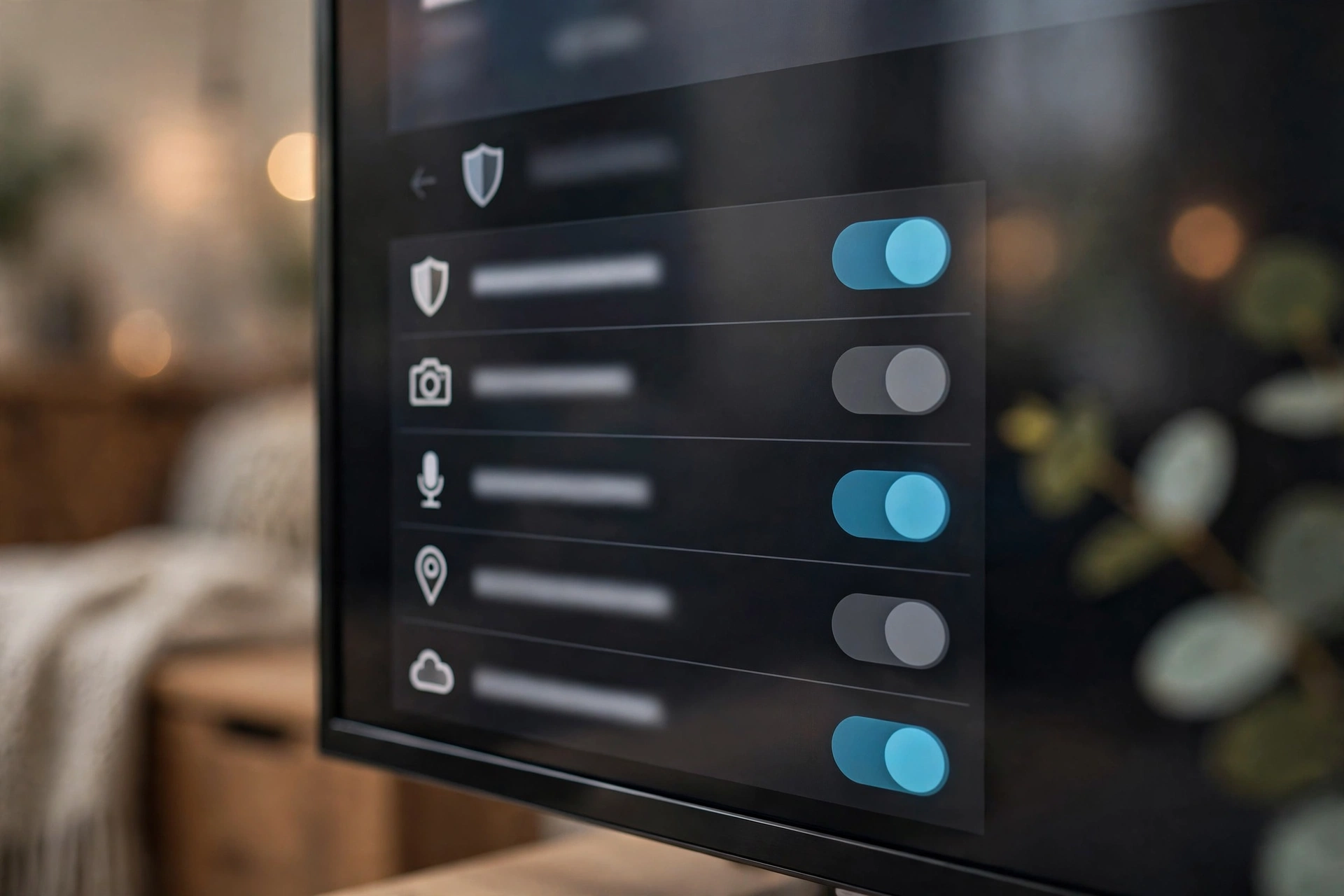
What your smart TV actually collects
Most of the spying concern around smart TVs comes down to three things:
- Automatic Content Recognition (ACR): software that samples what is on your screen — a screenshot every few hundred milliseconds, or an audio fingerprint — and matches it against a database to identify exactly what you are watching. It works on everything: streaming apps, live TV, cable boxes, Blu-ray players, even a game console over HDMI. On Samsung it is called Viewing Information Services, on LG Live Plus, on Roku Smart TV Experience, on Sony Samba Interactive TV, and on Vizio Viewing Data.
- Voice and microphone data: remotes with microphones listen for a wake word or only while you hold the voice button, depending on the brand — but some far-field voice systems listen continuously. Voice clips may be processed in the cloud.
- Advertising identifiers and app analytics: every platform assigns your TV an advertising ID (like on your phone), tracks which apps you open, and scans your local network for devices to cast to — which also reveals what else lives on your network. A 2026 investigation into LG TVs raised questions about how much these features can expose, including audio logs and details about neighbouring networks.
The key point: ACR is the big one. It is on by default on virtually every smart TV, and turning it off stops the deepest layer of passive tracking without losing streaming apps or picture quality.
The smart TV privacy settings that matter most
Every brand hides these in a different menu and calls them something different, but the checklist is the same everywhere:
- Turn off ACR / viewing-data collection — the single most important switch.
- Turn off interest-based / personalised advertising — stops your viewing history becoming an ad profile.
- Reset or delete the advertising ID — breaks the continuity of past tracking.
- Disable voice features you don’t use — and use the hardware mic switch if your TV has one.
- Re-check after every software update — toggles sometimes switch back on after firmware updates.
Samsung (Tizen): turn off Viewing Information Services
Samsung calls its ACR system Viewing Information Services, and it is enabled by default on most models. On recent Tizen versions:
- Press Home on the remote and open Settings.
- Select All Settings, then General & Privacy.
- Open Terms & Privacy (labelled Privacy Choices on some models).
- Turn Viewing Information Services to Off.
- In the same menu, turn off Interest-Based Advertising and Voice Recognition Services.
On some older models the path is Settings > Support > Terms & Privacy > Privacy Choices instead. TVs from 2023 onwards also have a physical microphone switch on the bottom edge that electrically disconnects the mic — no software can override it. And if your TV is linked to a Samsung account, sign in on Samsung’s account site and turn off viewing-data collection in the privacy controls, since account-level collection can span devices.

LG (webOS): turn off Live Plus
LG’s ACR layer is called Live Plus, and it sits under the system menus:
- Press the Settings (gear) button on the remote.
- Go to All Settings > General > System > Additional Settings.
- Toggle Live Plus to Off — this disables LG’s viewing-data collection.
- In the same area, turn on Limit Ad Tracking.
- Then check All Settings > Support > Privacy & Terms and turn off any remaining viewing-information and ad-personalisation options, including Do Not Sell My Personal Information where available.
If you’re building out a wider setup, our best smart home gadgets guide covers automations that don’t demand full access to your data.
Roku TV: disable Smart TV Experience
Roku’s ACR — branded Smart TV Experience — tracks programmes watched from the antenna and devices plugged into the TV’s inputs, then may share audience segments with partners. (Roku TVs only; streaming sticks don’t have this menu.)
- From the Home screen, open Settings.
- Go to Privacy > Smart TV Experience.
- Uncheck Use info from TV inputs.
- Head to Privacy > Advertising and turn on Limit ad tracking.
- Check Privacy > Microphone and restrict microphone access to only what you actually use.
One honest caveat: Roku says data it already collected stays on its servers after you switch the setting off — the toggle stops new collection. For more Roku tinkering, our Roku remote secret codes guide covers hidden menus.
Google TV / Android TV (incl. Sony): kill Samba and ad IDs
Google’s platform spreads tracking across the TV maker’s software, Google itself, and third parties. Many Sony TVs ship with Samba Interactive TV, a third-party ACR integration:
- Open Settings from the Home screen.
- On Sony models, find Samba Interactive TV (under Device Preferences or All Settings > Privacy on newer Google TV firmware) and turn it Off.
- Go to Settings > Device Preferences > Usage & Diagnostics and turn off all reporting.
- Open Settings > Privacy > Ads, reset your advertising ID, then opt out of ads personalisation.
- On newer Google TV models, also check Settings > Privacy > Usage & Diagnostics for app-behaviour reporting.
Menu labels vary more here than anywhere else — search Settings for “privacy” and “ads” if you can’t find the exact path.
Amazon Fire TV: three switches to flip
- Open Settings (gear icon).
- Go to Preferences > Privacy Settings.
- Turn off Device Usage Data, Collect App & Over-the-Air Usage, and Interest-based Ads.
That covers the Fire TV OS layer. Note that Amazon’s own apps will still measure your usage inside their apps — you can’t avoid that while using the app itself.
Vizio (SmartCast): turn off Viewing Data
- Open Settings > All Settings > Admin & Privacy (on older models: Menu > System > Reset & Admin).
- Set Viewing Data to Off.
This disables Vizio’s ACR-based collection. Also enable Limit Ad Tracking in the same area.
Voice assistants and microphones
Most remotes only listen while you hold the voice button — but far-field systems (LG hands-free, Samsung far-field Bixby) listen for a wake word around the clock:
- Turn off Voice Recognition Services (Samsung) or far-field voice (LG) if you don’t use hands-free commands.
- Use the physical mic switch if your TV has one — Samsung’s 2023+ models have it on the bottom edge, and it’s a hardware disconnect that beats any software toggle.
- On Roku TV, check Privacy > Microphone to see which apps can access the mic.
Network-level blocking: Pi-hole, DNS and guest Wi-Fi
Settings toggles stop the official collection, but a network-level block catches anything the TV tries to send anyway — telemetry, analytics and ad calls. This is the most thorough approach, and it’s free.
Option 1: Pi-hole or AdGuard Home. Point your router’s DNS at a Pi-hole (a cheap Raspberry Pi does the job) or AdGuard Home install, then block your TV maker’s ACR domains. Community blocklists — notably the Perflyst PiHoleBlocklist SmartTV list — curate these, but the key domains include:
- Samsung:
samsungacr.com,config.samsungads.com,samsungrm.net - LG:
us.ibis.lgappstv.com,ad.lgappstv.com,rdx2.lgtvsdp.com - Samba TV (Sony and others):
beacon.samba.tv,log.samba.tv,api.samba.tv - Vizio:
tvinteractive.tv - Roku:
scribe.logs.roku.com,cooper.logs.roku.com
The traffic dies at your router. If SmartThings or ThinQ integrations break, unblock domains one at a time until they work again.
Option 2: hosted DNS filtering. If you don’t want to run a Pi-hole, point your router at a DNS provider with custom rules (AdGuard DNS offers this from a web dashboard) and paste the domains above into its blocklist. Every device on your network benefits.
Option 3: guest network. Put the TV on a separate guest Wi-Fi network — a smart TV privacy settings trick that isolates it from your computers, phones and NAS boxes, so its network-scanning features can’t map your home network.
One technical caveat: some TVs — Roku included — ignore the router’s DNS and use hardcoded servers, so you’ll need a firewall rule redirecting all outbound DNS (port 53) traffic back to your filtering server to catch them. Academic research on smart TV trackers has documented exactly how persistent this telemetry is (see the arXiv-published “The TV is Smart and Full of Trackers” study).

What you can’t turn off (honest limits)
Adjusting your smart TV privacy settings cuts the deepest tracking, but it doesn’t make the TV a dumb screen. Be honest about the limits:
- Firmware updates can re-enable toggles. This is the most common complaint in 2026 guides: revisit your smart TV privacy settings after every update.
- Apps track you separately. Netflix, YouTube and Disney+ log your viewing inside their own apps regardless of the TV’s ACR setting. Only each app’s own privacy controls affect that.
- Home-screen ads persist. Turning off personalised ads means the adverts aren’t targeted — they don’t disappear from the home screen.
- Some data can be cached offline. Research covered by outlets like Wirecutter found TVs can keep capturing ACR data while offline and upload it when they reconnect — another reason network-level blocking matters.
- The nuclear option is going offline. Disconnect the TV from Wi-Fi entirely and use a streaming device you trust for apps. The TV becomes a display, nothing more — though its ACR should still be switched off first, since it can sample HDMI inputs too.
Setting all this up pairs well with a broader smart home privacy review — our Samsung SmartThings hub review covers which automations are worth the data they ask for, and our home office automation guide keeps the rest of your tech lean.
FAQ
Is my smart TV actually spying on me?
It isn’t recording your living room conversations like a wiretap — but it is almost certainly fingerprinting what you watch through ACR, building an advertising profile from your viewing, and scanning your network for other devices. The settings above turn most of it off.
Does turning off ACR break anything?
No. You lose viewing-based recommendations and some personalised home-screen rows; streaming apps, picture quality and updates all keep working.
Can my smart TV hear me right now?
Only if voice features are enabled. Most remotes only listen while the mic button is held. Far-field systems that listen for a wake word should be disabled in settings if you don’t use them — or killed with the hardware mic switch on Samsung models that have one.
Do I need a Pi-hole to stop smart TV tracking?
No — the settings above stop the official collection on their own, and that’s enough for most people. Pi-hole or DNS filtering is the extra layer that catches undocumented telemetry.
For a second walkthrough with the same steps per platform, Comparitech’s guide to stopping smart TV spying is a solid reference.


1 response