
As an Amazon Associate, Technorra earns from qualifying purchases.
If your laptop camera not working Windows 11 is stopping your video calls, start with the physical camera first, then check Windows camera permissions, then drivers. Most webcam problems are caused by a closed privacy shutter, a switched-off camera key, a permission that was turned off after an update, or a driver problem — and most of them can be fixed in under half an hour without any new hardware.
Work through the fixes in order, easiest first, and test the camera after each step so you know which fix solved it. The final sections cover when an external webcam is the sensible fix and when a repair shop is the right call.
Contents
- 1. Check the privacy shutter and camera key
- 2. Test the camera in the Camera app
- 3. Check Settings > Privacy & security > Camera
- 4. Check the camera inside Zoom, Teams, or your browser
- 5. Enable or update the driver in Device Manager
- 6. Reinstall the webcam driver
- 7. Run the Windows troubleshooter and try Basic camera mode
- 8. Check the BIOS or UEFI camera setting
- 9. Try an external webcam and check the USB connection
- When to See a Repair Shop
- Recommended Products
- Frequently Asked Questions
1. Check the privacy shutter and camera key
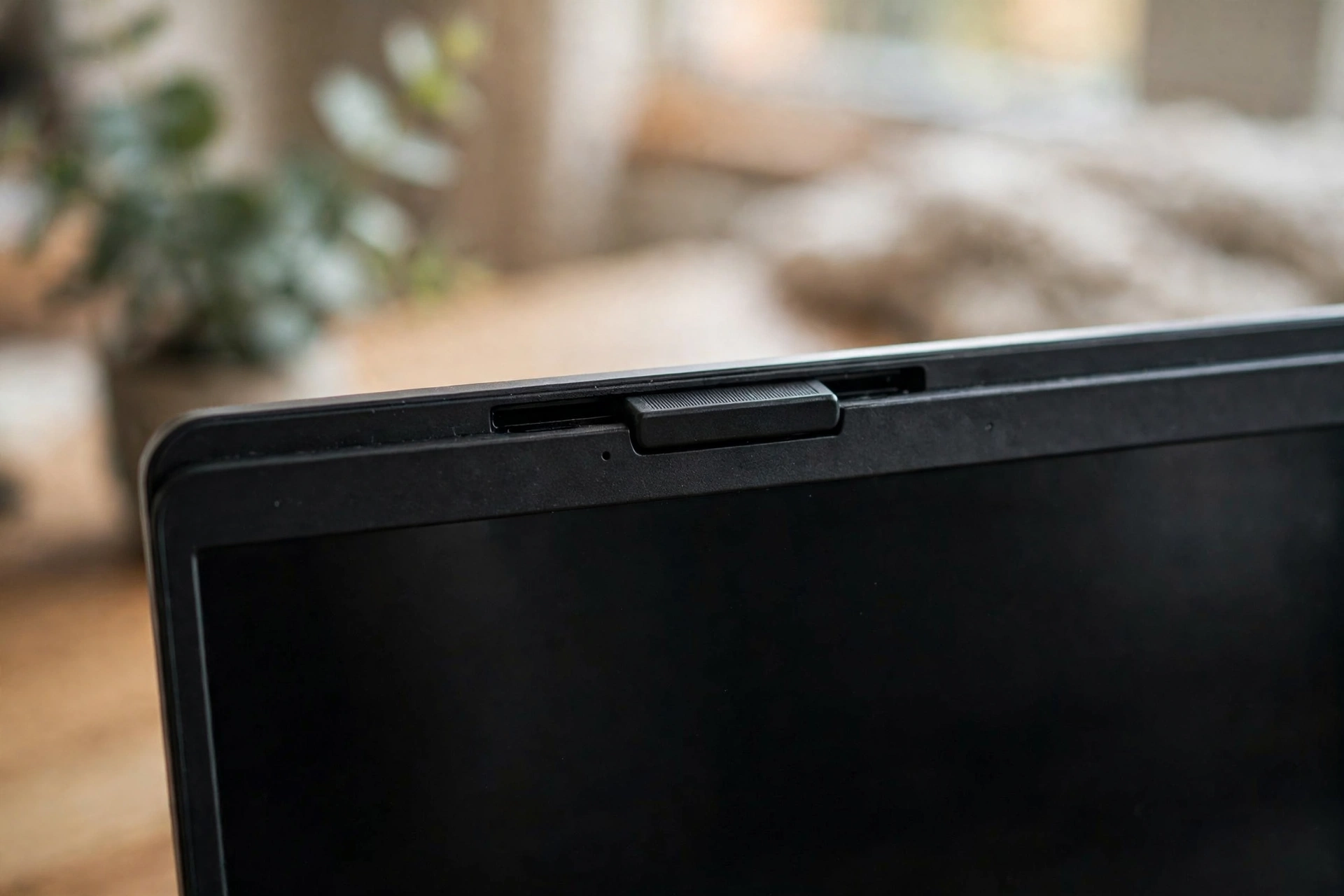
Before you change any setting, look at the camera itself. Many modern laptops have a small sliding privacy shutter built into the bezel above the screen. If it is closed, the camera will show nothing at all, or a black screen, no matter what Windows is set to do. Slide it fully open and test again.
Next, look for a camera key on the keyboard — usually a small camera icon on a function key — or a physical switch on the side of the machine. Press the camera key once, or Fn plus that key, and watch for an on-screen indicator.
This is the most common cause of a webcam not detected Windows 11 complaint after a laptop has been carried in a bag or cleaned: a shutter nudged shut looks exactly like a driver failure from inside Windows, so rule it out first.
2. Test the camera in the Camera app
Open the built-in Camera app by searching for “Camera” in the Start menu. This matters because it separates a Windows-wide camera problem from a problem in one app. If the camera works in the Camera app but not in Zoom or Teams, Windows and the driver are fine, and the problem is in that app’s settings — jump to fix 4. If it fails in the Camera app too, keep working through the list.
Note what the Camera app shows you. A black preview usually means a permission, shutter, or app conflict. “No camera attached” usually means the camera is disabled, its driver is missing, or the hardware is not being detected — pointing to Device Manager in fixes 5 and 6.
Also close every other app that might be using the camera first: Windows generally lets only one app use it at a time, so a call left running in the background can block the Camera app.
3. Check Settings > Privacy & security > Camera
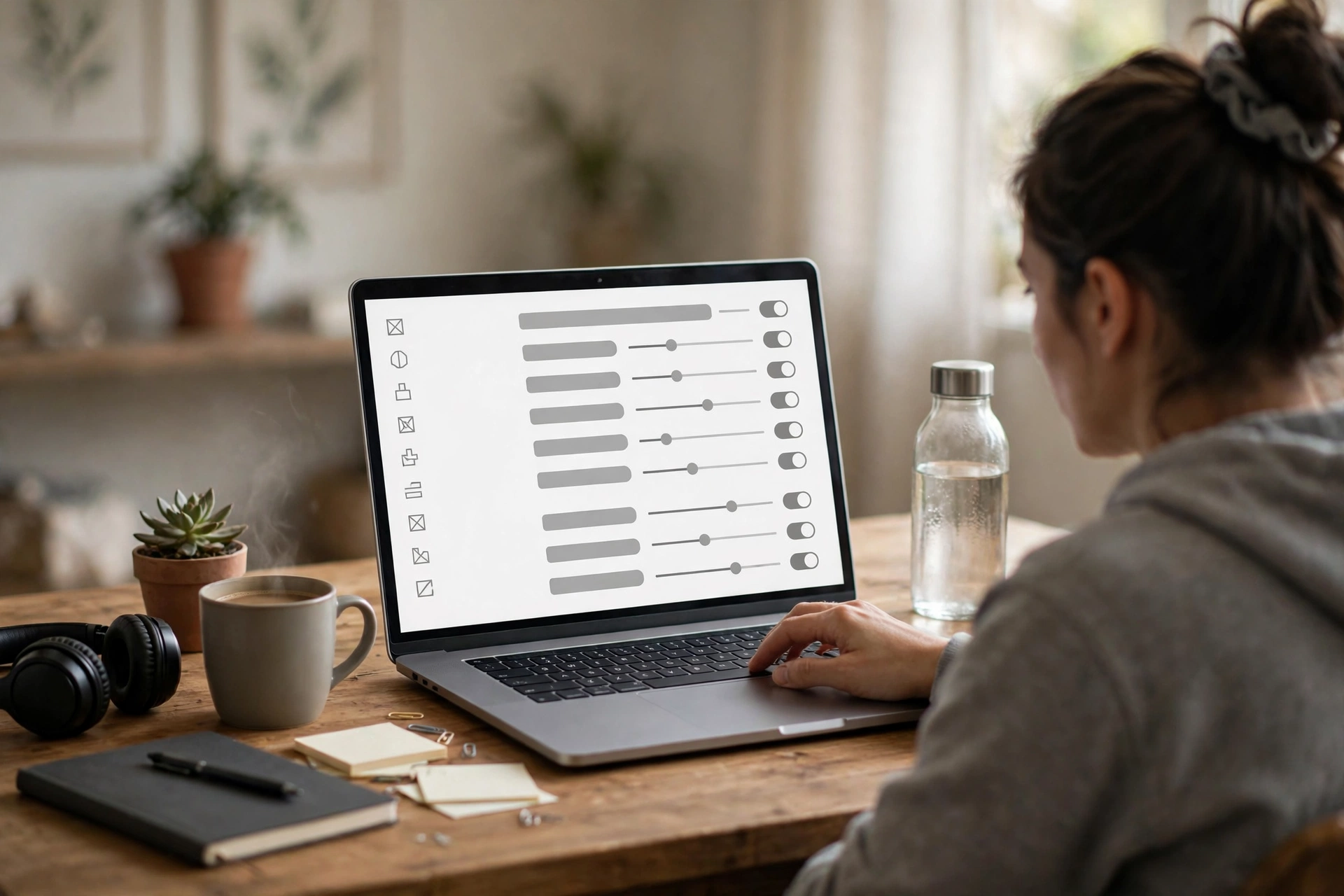
A camera privacy settings fix solves many cases, especially after a Windows update or fresh setup. Windows 11 has three layers of camera permission, and all of them need to be right.
- Press Windows + I to open Settings, then go to Privacy & security > Camera.
- Make sure Camera access is turned on. If this is off, no app can use the camera at all.
- Turn on Let apps access your camera, then check the toggle for each app you need — Camera, Zoom, Teams, or whichever app is failing.
- Scroll down and turn on Let desktop apps access your camera. Desktop apps, including browsers and most video-conferencing apps installed from the web, are covered by this single switch rather than individual toggles, so missing this one is a classic cause of a Zoom camera not working while the Camera app works fine.
If a toggle is greyed out, it may be managed by an administrator — on a work or school laptop, ask IT rather than fighting the policy. Also check your antivirus software: some suites include webcam protection that blocks camera access independently of Windows settings.
Microsoft’s own guidance on these settings is worth bookmarking if you need to revisit them later: Manage app permissions for a camera in Windows.
4. Check the camera inside Zoom, Teams, or your browser
When the camera works in the Camera app but not in one meeting app, the app itself is choosing the wrong camera or has been denied access. Open that app’s video settings and check three things.
First, confirm the selected camera: in Zoom, Settings > Video; in Teams, Settings > Devices. If you have ever plugged in an external webcam, the app may still be pointing at a camera no longer connected. Select your built-in camera explicitly.
Second, check the browser: it asks for camera permission per site. Click the camera or lock icon in the address bar on the meeting page and make sure access is allowed — a single “Block” click months ago will silently break every meeting on that site.
Third, restart the app completely — not just the call, the whole app, including from the system tray — then reopen it and rejoin. Many “camera not working” reports end here.
5. Enable or update the driver in Device Manager
If the camera is still not detected, the driver is the next suspect. A webcam not detected Windows 11 problem after an update is often a driver that was disabled, replaced, or corrupted by that update.
- Right-click Start and choose Device Manager.
- Expand Cameras, or Imaging devices on older setups, and look for your webcam.
- If the camera has a small down arrow on its icon, it is disabled. Right-click it and choose Enable device, then test the Camera app.
- If it is enabled, right-click it and choose Update driver > Search automatically for drivers, then restart the laptop and test again.
If the camera does not appear at all, click Action > Scan for hardware changes, then restart, and turn on View > Show hidden devices. A greyed-out entry there means Windows knows about the hardware but is not loading it — a driver problem, not a dead camera. The same approach helps other hardware that stops responding after an update, as in our guide to a laptop touchpad not working on Windows 11.
6. Reinstall the webcam driver
When updating does not help, a clean reinstall is the stronger step. This removes the current driver completely and lets Windows install a fresh copy on restart.
- In Device Manager, right-click your camera and choose Uninstall device.
- If offered, tick Attempt to remove the driver for this device (worded as “Delete the driver software” on some versions), then confirm.
- Restart the laptop. Windows will detect the camera again during startup and reinstall a driver automatically.
- Open the Camera app and test. If Windows does not reinstall a driver, go back to Device Manager, click Action > Scan for hardware changes, and test again.
If the automatic driver still fails, download the driver from your laptop manufacturer’s support site for your exact model, not from a generic driver-download site. Install it, restart, and test again.
If the problem started right after a Windows update, check for a Roll Back Driver option on the Driver tab first — rolling back can undo a bad update in minutes.
7. Run the Windows troubleshooter and try Basic camera mode
Windows 11 includes an automated camera troubleshooter that checks permissions, drivers, and service state in one pass. Open the Get Help app and run it, or go to Settings > System > Troubleshoot > Other troubleshooters and run the Camera troubleshooter there. It will not fix everything, but it catches configuration slips that are easy to miss by hand.
On Windows 11 version 24H2 and later, there is also a Basic camera mode in Settings > Bluetooth & devices > Cameras. It bypasses manufacturer plug-ins and hardware acceleration; if the camera works there but not in normal mode, the hardware is fine and the problem is a manufacturer component or driver (see fix 6).
Also install any pending Windows updates from Settings > Windows Update, since a camera fix is sometimes bundled into a cumulative update. Microsoft’s full troubleshooting article is here: Camera doesn’t work in Windows.
8. Check the BIOS or UEFI camera setting
Some laptops let the camera be disabled at firmware level, in BIOS or UEFI settings. When this is off, Windows cannot see the camera at all — it will not appear in Device Manager, and no driver reinstall will bring it back. Check this before concluding the hardware is dead.
Restart the laptop and enter BIOS or UEFI setup using the key shown on the startup screen — commonly F2, Del, or Esc, depending on the manufacturer. Look for a camera, webcam, or integrated peripherals setting, often under Advanced, Security, or Integrated Peripherals. Make sure the camera is enabled, save the change, and exit. Windows should then detect the camera on the next boot; check Device Manager and the Camera app.
Do not change other BIOS settings while you are in there. If you cannot find a camera option, leave BIOS alone — guessing in firmware settings can cause bigger problems than a dead webcam.
9. Try an external webcam and check the USB connection
If the built-in camera still is not detected after every software fix, an external webcam tells you whether the problem is the built-in hardware or something wider. Plug a USB webcam directly into the laptop, not through a hub, and open the Camera app. If it works immediately, your Windows camera system is healthy and the built-in camera itself is the likely fault.
Test the port too: try the webcam in a second port, and another device in the first. A port that fails with every device is a port problem, not a camera problem. Also drop any USB hub or dock from the chain — unpowered hubs in particular can make webcams connect and disconnect unpredictably.
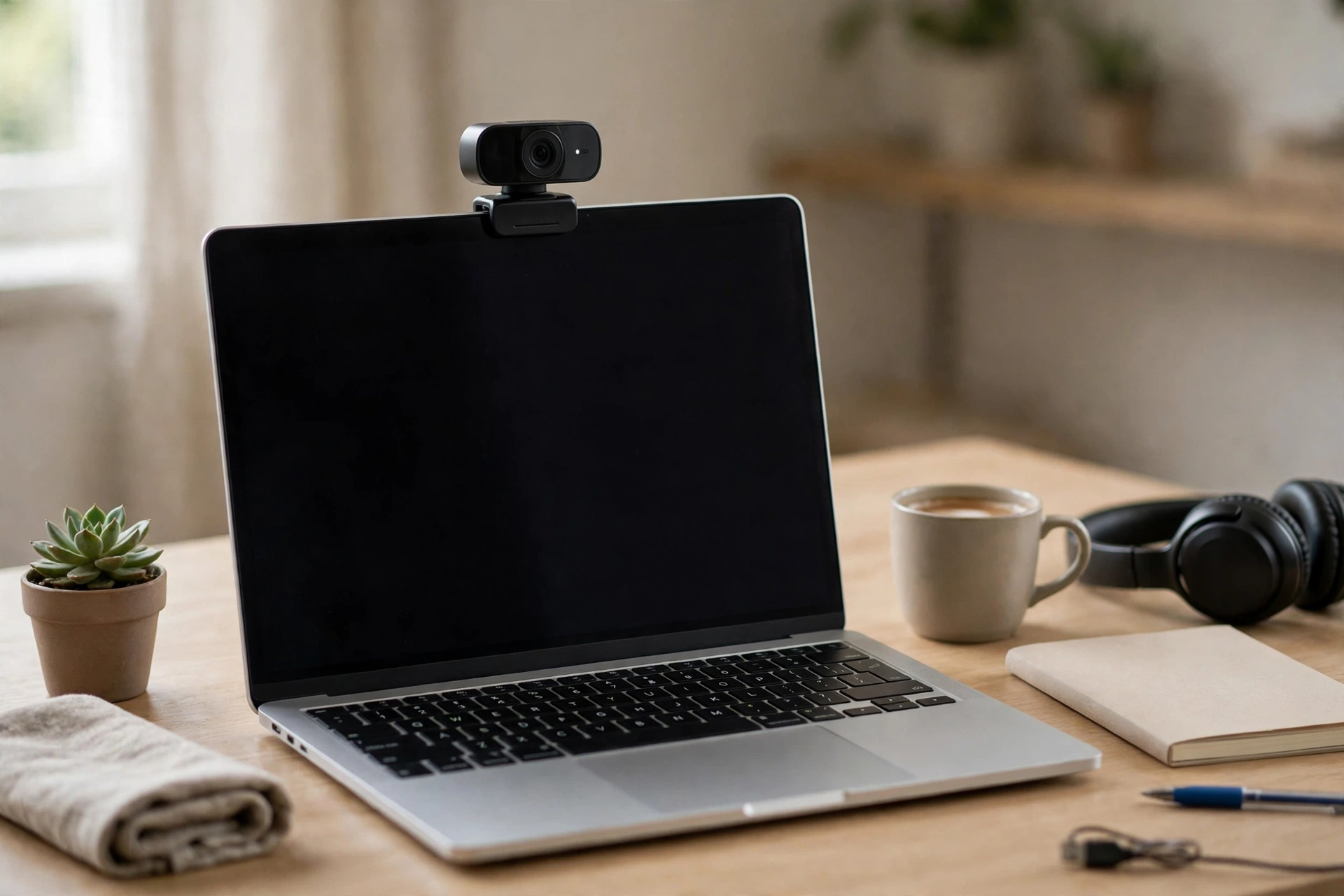
For many people, an external webcam is simply the practical end of the story: cheaper than a repair, set up in minutes, and usable on your next laptop too — provided you have ruled out the free software fixes above first.
When to See a Repair Shop
See a repair shop if the built-in camera is not detected in Device Manager even after a driver reinstall and a BIOS check, if it stopped working after a drop or liquid spill, or if it failed together with other hardware. A camera cable running through the hinge can wear or break, and replacing it means opening the lid assembly — not a job to improvise at home.
Before you go, note when the problem started, whether it followed an update, a drop, or a spill, and what you have already tried — that saves diagnostic time and money. If your laptop shows no signs of life at all, that is a power problem, not a camera problem: see our guide to a laptop that won’t turn on with no lights instead.
Also weigh the repair against the laptop’s age and value. On an older laptop, an external webcam is often the better spend; on a laptop still under warranty, contact the manufacturer first, since opening the machine yourself can void warranty cover.
Finally, do not confuse a camera black screen with a display black screen: a laptop camera black screen means only the camera preview is dark while Windows looks normal. If the whole screen is black but the fan is running, see our guide to a laptop black screen with the fan running. If the laptop has also become sluggish since the same update, our guide on how to speed up a slow laptop covers the related cleanup checks.
Recommended Products
If the software fixes have not revived your built-in camera, these are the practical replacements worth considering:
- External webcam — a plug-and-play USB webcam that clips onto your laptop or monitor, usually with a better picture than a built-in camera.
- 1080p USB webcam — if you take a lot of video calls, look for a 1080p model with a built-in microphone, so one device covers picture and sound.
- Webcam privacy cover — a thin sliding cover for your new webcam, so you can block the lens physically between calls without unplugging anything.
Frequently Asked Questions
Why is my laptop camera not working?
The most common reasons are a closed privacy shutter or switched-off camera key, camera permissions turned off in Windows Settings, another app already using the camera, or a missing or corrupted driver after an update. Less often, the camera is disabled in BIOS or UEFI, or the hardware itself has failed. Work through physical checks, then permissions, then drivers, testing after each step.
How do I turn on the camera in Windows 11?
Open any privacy shutter and press the camera key if your laptop has one. Then press Windows + I, go to Privacy & security > Camera, and turn on Camera access, Let apps access your camera, and Let desktop apps access your camera. Finally, check the app or site’s own video settings. If the camera still does not appear, check Device Manager to confirm it is enabled and its driver is installed.
Why does my webcam show a black screen?
A laptop camera black screen usually means the lens is covered, another app is already holding the camera, or the app has not been granted permission. Close other video apps, check the shutter, and confirm permission in Settings > Privacy & security > Camera. If the preview is black in every app, try updating or reinstalling the driver, and try Basic camera mode in Settings > Bluetooth & devices > Cameras (Windows 11 version 24H2 or later). A black screen in one app only points to that app’s own camera selection or permission.
How do I reinstall my webcam driver?
Right-click Start, choose Device Manager, and expand Cameras. Right-click your webcam, choose Uninstall device, and tick “Attempt to remove the driver for this device” if that option appears. Restart your laptop, and Windows will detect the camera and reinstall a driver automatically. If it does not, return to Device Manager and choose Action > Scan for hardware changes. If the automatic driver still fails, download the driver for your exact laptop model from the manufacturer’s support website, install it, restart, and test in the Camera app.


