
As an Amazon Associate, Technorra earns from qualifying purchases.
Nothing ruins a video call or a film quite like laptop speakers crackling every few seconds — popping and buzzing while voices turn harsh. The good news is that most cases are caused by software — a bad driver, a clashing audio setting, or a power-saving feature — not a broken speaker. You can usually fix it yourself, in order.
Work through the fixes below in order, testing after each step, and stop as soon as the crackling is gone. Near the end is a hardware isolation test that tells you whether the fault is software or a blown speaker, plus advice on when a repair shop is smarter.
Contents
- Quick Checks First (2 Minutes)
- 1. Run the Windows Audio Troubleshooter
- 2. Turn Off Audio Enhancements
- 3. Change the Sample Rate and Default Format
- 4. Turn Off Exclusive Mode
- 5. Reinstall or Roll Back the Audio Driver
- 6. Fix Audio Power Management Settings
- 7. The Hardware Isolation Test: Software or Blown Speaker?
- When to See a Repair Shop
- Recommended Products
- Frequently Asked Questions
Quick Checks First (2 Minutes)
Before changing settings, rule out the simple causes: the wrong output device, a single misbehaving app, or volume pushed past what small built-in speakers can handle cleanly.
- Check the output device. Click the speaker icon, then the arrow beside the volume slider, and make sure the built-in speakers are selected — not a monitor, dock, or old Bluetooth device. Windows sometimes switches output when you plug in or unplug a display.
- Test more than one app. Play a browser video, a song, and a system sound. If only one app crackles, the problem is in that app’s settings or cache, not your speakers — lower its volume and restart it.
- Lower the volume to around 70 percent. Tiny laptop speakers distort when driven hard, especially on bass-heavy audio. If crackling vanishes at moderate volume but returns at full volume, the speakers are being overdriven, not failing.
- Restart the laptop. A restart clears stuck audio services and temporary driver glitches, and works more often than people expect.
- Unplug USB devices one at a time. A faulty hub, dock, or headset adapter can inject noise or conflict with the audio device. If the crackling stops, you have found the culprit.
If none of that helps, work through the fixes below one at a time, testing after each.
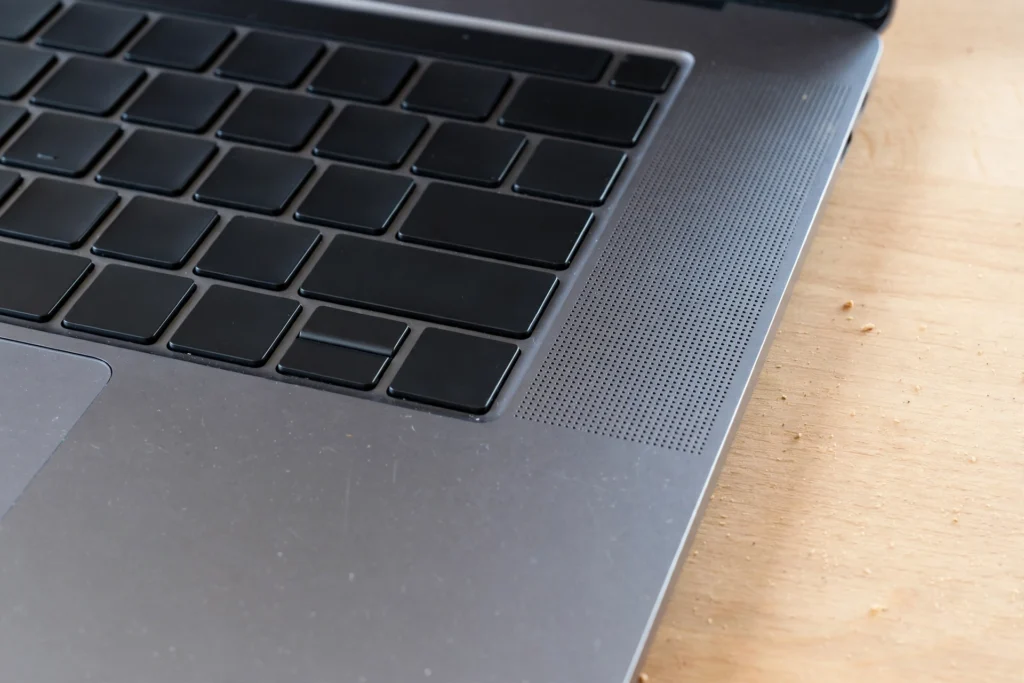
1. Run the Windows Audio Troubleshooter
The Windows audio troubleshooter checks for muted or disabled devices, stopped audio services, and incorrect default-device settings, and applies fixes automatically. It takes a minute and can resolve several common causes at once, including laptop speakers crackling on Windows 11 after an update changed a setting.
Go to Settings > System > Troubleshoot > Other troubleshooters and run Audio (on older builds, Playing Audio). Pick your built-in speakers when asked, answer its questions, and let it apply any fix it suggests. Then play something and listen.
If it reports nothing found, that only rules out the basic causes — the manual fixes below cover settings the troubleshooter does not always touch. Microsoft’s guide to fixing sound or audio problems in Windows is a useful second reference, as is its page on missing or undetected audio devices.
2. Turn Off Audio Enhancements
Audio enhancements are extra sound processing — bass boost, virtual surround, loudness equalisation — added by your audio driver or a manufacturer app such as a Realtek audio console. They are meant to make small speakers sound bigger, but they can clash with a driver or an app and produce exactly the popping and distortion known as laptop speaker distortion.
In Windows 11, go to Settings > System > Sound, select your speakers under Output, and set Audio enhancements to Off. On older Windows versions, right-click the speaker icon, choose Sounds, open the Playback tab, right-click your speakers, choose Properties, and untick the options on the Enhancements tab. Then test.
Also check any manufacturer audio app on your laptop — these often have their own effects that keep processing audio even after Windows enhancements are off. Turn off surround, bass boost, or “smart volume” effects there too, then test. If the crackling goes away, leave enhancements off.
3. Change the Sample Rate and Default Format
The sample rate (the default format) is how many times per second Windows samples the audio signal. Some drivers struggle with higher rates, and a mismatch can show up as crackling or stuttering — especially intermittent laptop speakers crackling during video playback but not during simple system sounds.
Right-click the speaker icon, choose Sounds, open the Playback tab, right-click your speakers, choose Properties, and open the Advanced tab. In the Default Format drop-down, try 16 bit, 44100 Hz (CD Quality) first — the most widely supported and least demanding format. Click Apply, then play audio and listen.
If CD quality does not help, try 24 bit, 48000 Hz instead. Avoid the highest studio-quality format — a format your driver cannot sustain cleanly will crackle more, not less. Once you find a format that plays cleanly, leave it there.
4. Turn Off Exclusive Mode
Exclusive mode lets an app take full control of your audio device, bypassing Windows’ mixer. When two apps fight over control — or one grabs the device at a different sample rate — the result can be crackling or dropouts. Turning it off is safe, reversible, and a common fix for Windows 11 audio crackling.
In the same Advanced tab, under Exclusive Mode, untick Allow applications to take exclusive control of this device. Click Apply and OK, then test with the app that was crackling before.
If only one app crackles, check its own audio settings too — some have a separate “exclusive mode” toggle.
5. Reinstall or Roll Back the Audio Driver
Drivers are the most common cause of laptop speakers crackling after a Windows update: an update can install a generic driver, replace a manufacturer-tuned driver with a newer but buggier one, or leave a half-updated driver behind. Rule of thumb: if the crackling started after an update, roll back; if it started for no obvious reason, reinstall cleanly.
Roll back the driver (if the problem started after an update)
Press Windows + X and choose Device Manager. Expand Sound, video and game controllers, right-click your audio device (often Realtek Audio or High Definition Audio Device), and choose Properties. On the Driver tab, click Roll Back Driver if available, pick a reason, and confirm. Restart and test. If the button is greyed out, use the reinstall steps below.
Reinstall the driver cleanly
In Device Manager, right-click the audio device and choose Uninstall device. If you see a checkbox for deleting the driver software, tick it, so you get a genuinely fresh install rather than the same faulty files. Restart, and Windows will detect the hardware and install a driver automatically. Test before installing anything else.
If Windows installs a generic driver and the crackling returns, go to your laptop manufacturer’s support site, search for your exact model, and download their audio driver for your version of Windows. Manufacturer drivers are tuned for your machine’s speakers, so they are usually a better match. Install it, restart, and test again.
6. Fix Audio Power Management Settings
Power management is a sneaky cause of crackling. To save battery, Windows can put audio hardware or USB ports to sleep between sounds; when the hardware wakes mid-playback, you hear a pop or dropout. The pattern often looks random because it depends on when the hardware sleeps and wakes.
Start with the audio device: in Device Manager, right-click it under Sound, video and game controllers, choose Properties, and on the Power Management tab (if shown), untick Allow the computer to turn off this device to save power.
Next, check USB power saving, which matters with a USB headset, dock, or external speaker. In Control Panel > Power Options > Change plan settings > Change advanced power settings, find USB settings > USB selective suspend setting and set it to Disabled for battery and plugged-in modes. In Device Manager, also open each USB Root Hub and untick the same box on its Power Management tab.
Finally, test on mains power. If the crackling only happens on battery or in a power-saving mode, the cause is almost certainly power management rather than a failing speaker; switching to the Balanced or Best performance plan while testing will confirm it. If the battery also drains unusually fast, see our guide to laptop battery draining fast after an update.
7. The Hardware Isolation Test: Software or Blown Speaker?
If every software fix above has failed, stop guessing and isolate the fault. This test separates a software problem from a damaged speaker in about five minutes, and can save you paying for a repair you do not need.
Step 1: Test with headphones
Plug in wired headphones and play the same audio that crackled through the speakers. If the headphones sound clean, the signal is fine and the problem is specific to the built-in speakers or their amplifier. If the headphones crackle too, the fault is upstream — driver, settings, or audio chip — and a speaker replacement would not help.
Step 2: Test with an external speaker
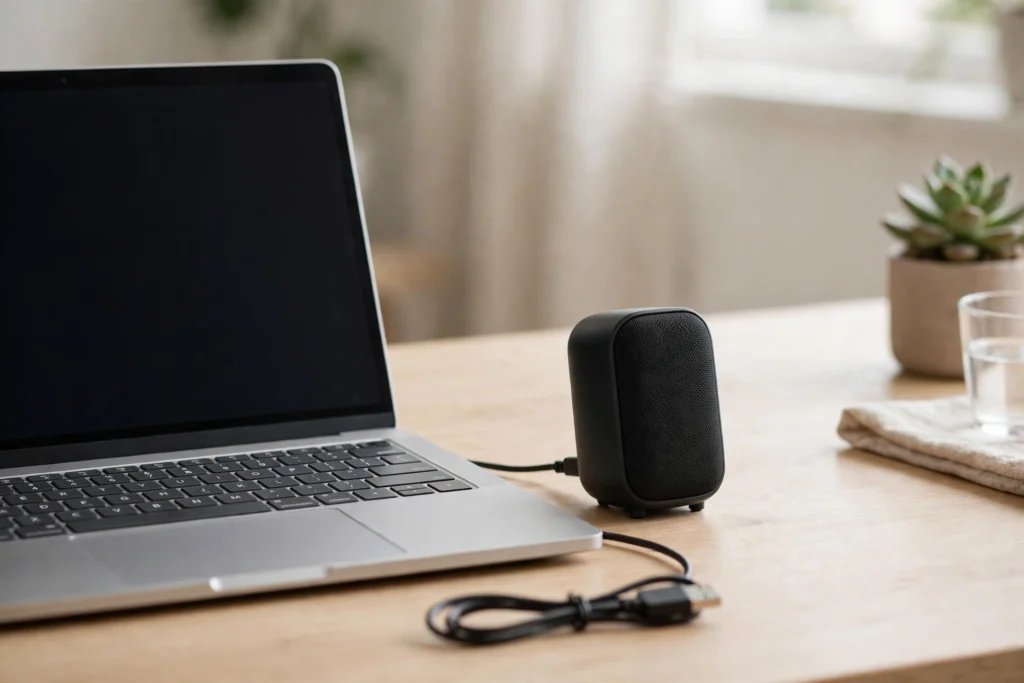
Connect a Bluetooth or USB external speaker and play the same audio. Clean sound here, with crackling built-in speakers, points firmly at the built-in speakers; crackling on every output points back to software or the audio chip. Without an external speaker, the headphone test alone tells you most of what you need.
Step 3: Test at low volume and with a single tone
Play a simple track with a clear vocal — not a bass-heavy song — at low volume. A blown speaker usually distorts even at low volume, often on one side only: listen to each side separately and note whether one buzzes, rattles, or sounds muffled while the other is clean. Distortion only at high volume, on both sides equally, more likely means overdriving, not breakage.
Step 4: Check for physical damage clues
Check the grilles for dents, debris, or liquid damage, and listen for a rattle that changes when you press around the speaker area or tilt the laptop — that can mean something loose inside rather than a dead speaker. Do not open the laptop yourself if it could void a warranty; note what you observe and pass it to a technician.
In short: clean headphones plus crackling built-in speakers at all volumes, especially one-sided, means a hardware fault is likely; crackling on every device, or crackling that changes with settings, means software is still the prime suspect. Similar isolation logic applies to other faults — see our guide to a laptop fan making a loud noise.
When to See a Repair Shop
Most crackling is fixable at home, but take the laptop in if any of the following apply:
- The isolation test points to hardware. Headphones and an external speaker sound clean, but the built-in speakers distort at every volume, especially on one side only.
- There is physical damage. A dented grille, a speaker that rattles when you move the laptop, liquid damage, or a drop shortly before the crackling started.
- The laptop is still under warranty. Do not open it or attempt an internal repair — a warranty claim for a speaker replacement is usually straightforward, and opening the machine can complicate it. Back up your data first and describe your isolation test results to the service centre.
- Other hardware symptoms appear too. Shutdowns, charging problems, or a trackpad failing at the same time could point to a wider board or power issue. Charging faults have their own checks — see our guide to a laptop plugged in but not charging — but combined symptoms merit a technician looking at the whole machine.
- You have tried everything above twice. If a clean driver reinstall, all the settings fixes, and the isolation test still leave crackling built-in speakers, further guessing usually costs more than a diagnosis.
Before you go, note what you have tried, and whether the fault is one-sided or both-sided, constant or intermittent, and volume-dependent or not. Ask for a quote before authorising a replacement — the speakers are often inexpensive, but the labour to reach them varies by model.
Recommended Products
If your built-in speakers are the problem, or you want better sound while deciding on a repair, these are genuinely useful stopgaps: an external speaker bypasses the faulty speakers, a USB audio adapter gives you a clean second output, and wired headphones let you run the isolation test above.
- External USB speakers — a simple plug-in replacement for failing built-in speakers, powered over USB with no separate charger.
- USB audio adapter — adds a fresh audio output (often with a headphone jack) if the laptop’s own audio hardware is suspect.
- Wired headphones for laptop — the quickest way to run the isolation test and keep working while the speakers are fixed.
Why are my laptop speakers crackling?
Most often it is a faulty or mismatched audio driver, audio enhancements clashing with that driver, an unsuitable sample rate, exclusive mode conflicts, or power management putting audio hardware to sleep mid-playback. Less commonly it is physical: a blown speaker, a loose connection, or debris in the grille. The hardware isolation test in this guide tells you which category your fault falls into.
How do I fix crackling speakers on Windows 11?
Run the Windows audio troubleshooter, turn audio enhancements off, and set the default format to 16 bit, 44100 Hz. Then turn off exclusive mode; if the problem began after an update, roll back the audio driver, otherwise reinstall it cleanly or install the manufacturer’s driver. Finally, disable USB selective suspend and the audio device’s power-saving option, testing after each step.
Can a driver update cause speaker crackling?
Yes — it is one of the most common triggers, especially when a Windows update installs a generic driver over a manufacturer-tuned one, or a new driver version introduces a bug with your hardware. If the crackling started right after an update, rolling back the driver is the fastest test: if the sound clears up, the update was the cause, and you can then install the manufacturer’s driver for your exact model instead.
How do I know if my laptop speakers are blown?
A blown speaker usually distorts even at low volume, often on one side only, and the distortion does not change when you adjust drivers or settings. The decisive test: play the same audio through headphones and an external speaker. If those sound clean while the built-in speakers buzz, rattle, or sound muffled at every volume, the built-in speakers are very likely damaged. If every output crackles, or the crackling changes with settings, the fault is more likely software.


