
As an Amazon Associate, Technorra earns from qualifying purchases.
A laptop hot while charging is usually nothing to panic about — a little warmth is normal. But heat that makes the keyboard uncomfortable, keeps the fan roaring, or comes with a strange smell is not. In most cases the cause is one of four things: a charger working too hard, an ageing battery, blocked vents, or heavy software running while the laptop charges.
Contents
- Is it normal for a laptop to get hot while charging?
- Why your laptop overheats when plugged in
- How hot is too hot for a laptop?
- Diagnose it: charger, battery, or vents?
- Fix 1: Give the laptop air and a hard surface
- Fix 2: Check the charger and cable
- Fix 3: Lighten the load while charging
- Fix 4: Clean the vents and check the fan
- Fix 5: Update drivers, firmware, and power settings
- Fix 6: Check battery health and charging habits
- Fix 7: Use a cooling pad for heavy workloads
- Is it safe to use a laptop while charging?
- Laptop charger heat: what is normal?
- When to see a repair shop
- Recommended products
- Frequently asked questions
Is It Normal for a Laptop to Get Hot While Charging?
Yes, some warmth is completely normal. Charging a lithium-ion battery involves a chemical reaction that releases heat, the charger converts mains electricity to a lower voltage (which also generates heat), and the laptop itself may be running programs while it charges. Together, a warm base, a warm charger, and a fan that kicks in for a while are all expected — especially early in a charge, when charging is fastest.
What is not normal is heat that keeps climbing, heat concentrated in one spot such as a bulging area under the keyboard, or heat paired with warning signs: a burning or chemical smell, a trackpad that feels raised, or a battery that drains far faster than it used to.
Why Your Laptop Overheats When Plugged In
Laptop overheating when plugged in usually has more than one contributor. Knowing which heat source dominates matters, because a dusty vent and a failing battery need very different fixes.
Fast charging creates the most heat
Most laptops charge fastest when the battery is low, then slow down as they approach full. That is why a laptop often feels hottest in the first 30 to 60 minutes after you plug it in. If your laptop gets hot only when charging from a low battery and cools as it fills up, fast charging itself is the likely explanation.
Heavy software adds heat on top of charging heat
Gaming, video editing, video calls, and even a browser with dozens of tabs push the processor and graphics chip hard. When that workload heat stacks on top of charging heat, the fan gets louder and the whole machine feels hotter.
Blocked vents and dust trap the heat
Laptops cool themselves by pulling in cool air and pushing hot air out through vents, usually on the sides or underneath. A laptop on a bed, blanket, or your lap blocks those intakes, and dust build-up does the same thing more gradually.
An ageing or damaged battery runs hotter
As a battery ages, its internal resistance rises, so it generates more heat for the same amount of charging. A battery several years old will often run noticeably warmer while charging than it did when new. A swelling battery is a different matter — see the repair-shop section below, and stop using it.
The wrong or failing charger
A charger with the wrong wattage, a damaged cable, or a cheap third-party replacement can overheat itself and make the laptop charge inefficiently. Laptop charger heat is often the first clue: if the charger brick is far hotter than the laptop, the charger — not the laptop — may be the problem.
How Hot Is Too Hot for a Laptop?
There is no single temperature that applies to every model, so treat the ranges below as general guidance, not a guarantee for your machine. Your laptop maker’s published limits take precedence. Most laptops are designed so internal components stay below about 100°C under heavy load, with the processor throttling — deliberately slowing down — before it reaches damaging temperatures.
| What you feel | What it usually means | What to do |
|---|---|---|
| Warm base, quiet fan | Normal charging warmth | Nothing — this is expected |
| Noticeably hot, loud fan | Heavy load or blocked airflow | Work through Fixes 1 to 4 |
| Very hot, fan at full speed | Cooling problem or failing part | Check vents, fan, and battery health |
| Too hot to hold, smell, swelling | Stop-use warning sign | Shut down, unplug, get it checked |
As general guidance, an idle laptop commonly sits around 35 to 50°C internally and rises to roughly 60 to 80°C under a heavy workload. Sustained temperatures above the mid-80s during light work deserve investigation. Do not judge by the case alone: metal laptops conduct heat to the surface more than plastic ones, so they can feel hotter while their internals are fine.
Laptop Hot While Charging: Diagnose Charger, Battery, or Vents
Before changing anything, spend a few minutes narrowing down the source. This short test saves you from replacing a charger when the real problem is dust, or vice versa.
- Feel around the machine. Heat at the charger brick points to the charger; heat under the palm rest often points to the battery; heat near the vents with a loud fan points to airflow.
- Charge while idle. Close heavy programs and leave the laptop plugged in for 20 minutes. If it cools down, workload heat was the main contributor.
- Try a different surface. Move the laptop to a hard, flat table with vents clear. If temperatures drop quickly, airflow was the problem.
- Try a genuine spare charger, if you have one. If the heat drops, the original charger or cable is suspect. Never test with a charger of the wrong voltage or connector.
- Check battery health. On Windows, run
powercfg /batteryreportand compare design capacity with full charge capacity. A large gap means an ageing battery. On a Mac, check System Settings, then Battery, for battery condition.
A laptop that gets hot only when charging — cool on battery power, hot the moment you plug in — points toward the charger, the charging circuit, or the battery itself.
Fix 1: Give the Laptop Air and a Hard Surface
Always charge and use the laptop on a hard, flat surface with the vents uncovered — not on a bed, duvet, cushion, or your lap. Even raising the back of the laptop slightly, on a laptop stand, can improve airflow underneath. Keep the room reasonably cool and out of direct sunlight.
Fix 2: Check the Charger and Cable
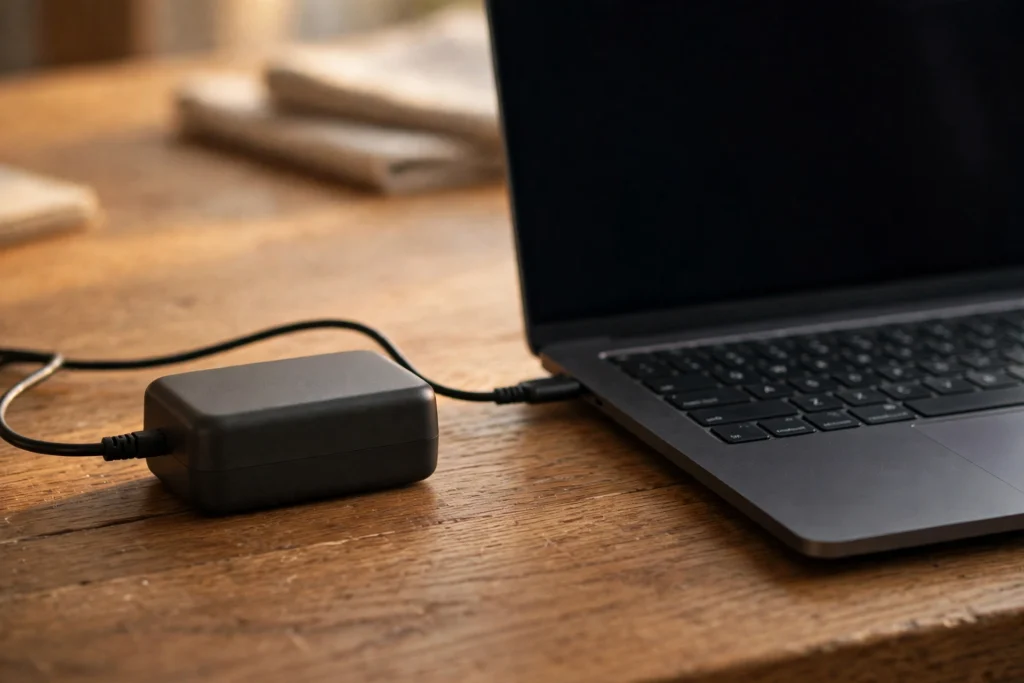
Unplug the charger and inspect it for a frayed cable, bent pins, a loose connector, or scorch marks. Check that the wattage matches your laptop’s original charger — a lower-wattage charger may run flat out and overheat. Use the charger that came with the laptop, or a genuine replacement, wherever possible. If anything looks damaged, smells burnt, or is too hot to touch, stop using that charger. Ifyour laptop charges but gains no charge, our guide to a laptop plugged in but not charging covers that problem.
Fix 3: Lighten the Load While Charging
If the laptop only overheats while you work and charge at the same time, reduce the workload during charging. Close programs you are not using, especially games and video editors, and cut down open browser tabs. On Windows, open Task Manager with Ctrl + Shift + Esc and sort by CPU usage to find anything hogging the processor in the background. Switch to a balanced power mode rather than high-performance mode while charging. If the fan suddenly gets loud for no obvious reason, a laptop fan making a loud noise may have its own cause worth checking.
Fix 4: Clean the Vents and Check the Fan
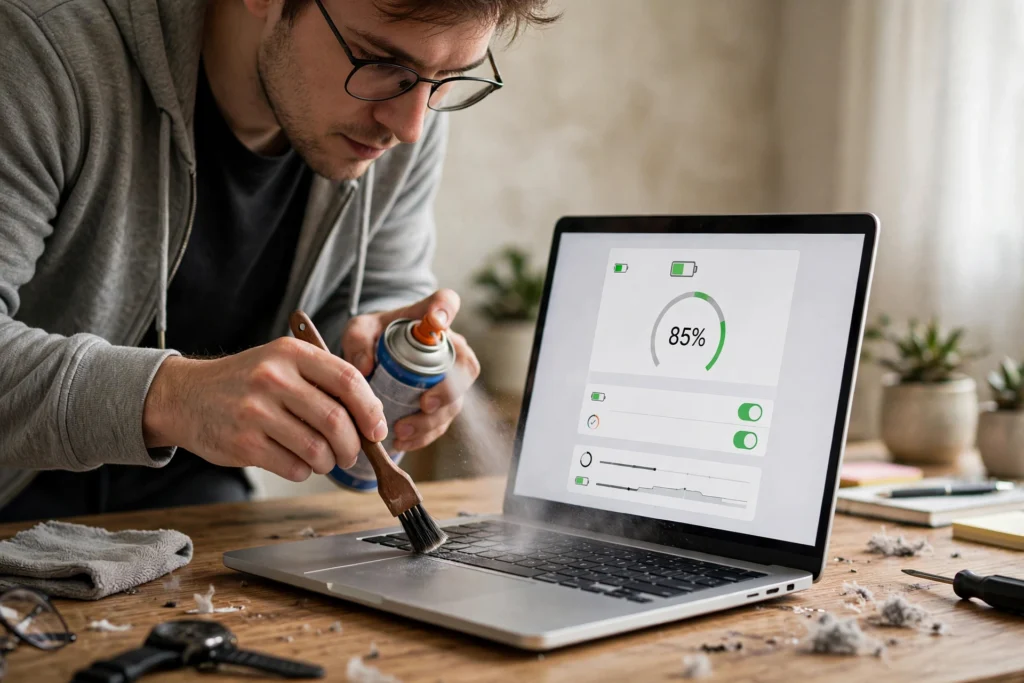
With the laptop switched off and unplugged, use short bursts of compressed air to clear dust from the vents, holding the can upright and the nozzle a few centimetres away. Do not use a vacuum cleaner on the vents, and avoid spinning the fan up to high speed with the air. If the fan rattles, grinds, or does not spin at all when the laptop gets hot, the fan itself may need replacing.
Fix 5: Update Drivers, Firmware, and Power Settings
Outdated BIOS or firmware can mismanage charging and fan speeds, and outdated drivers can leave the processor working harder than it should. Check Windows Update, then your laptop maker’s support app or website for BIOS and firmware updates, installing them while the laptop is plugged in and cool. In Windows power settings, set the cooling policy to Active rather than Passive when plugged in, so the fan speeds up before the processor throttles.
Fix 6: Check Battery Health and Charging Habits
An ageing battery is one of the most common reasons a laptop gets hot only when charging. If full charge capacity is well below design capacity — roughly 80% or less on an older machine — the battery is wearing out and will run warmer. Habits help from here on: avoid charging in a hot room, avoid leaving the laptop at 100% on charge for weeks if your maker offers an 80% charge limit, and avoid regularly running the battery flat before charging. Microsoft’s battery guidance recommends avoiding charging or using a device at high temperatures, since excessive heat permanently reduces lithium-ion capacity — see their caring for your battery in Windows page. If the battery also drains unusually fast, our guide to a laptop battery draining fast explains how to tell a software drain from a worn battery.
Fix 7: Use a Cooling Pad for Heavy Workloads
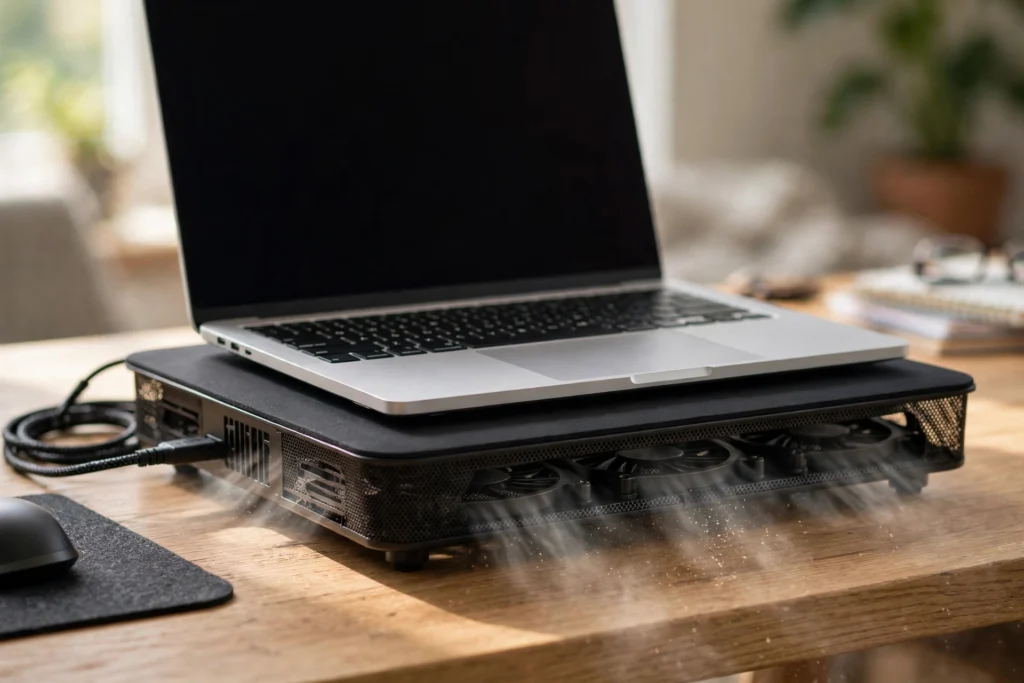
A cooling pad will not fix a failing battery or a broken fan, but it genuinely helps when the problem is workload heat plus limited airflow — for example, gaming or editing while charging. A pad lifts the laptop, exposes the underside vents, and adds fans of its own. If the laptop still runs very hot with a pad, clean vents, and a light workload, that points back to the battery or charging circuit.
Is It Safe to Use a Laptop While Charging?
For a healthy laptop, yes — laptops are designed to be used while charging, and doing so does not damage a normal battery on its own. That answers the common question, is it safe to use laptop while charging, and it holds as long as the warning signs in this guide are absent. Heavy use while charging creates more heat, which over time ages the battery faster, and a damaged battery, damaged charger, or blocked vent changes the picture entirely. If it is very hot, the charger is too hot to touch, or you see swelling or smell burning, stop using it and unplug it.
Laptop Charger Heat: What Is Normal?
A charger that feels warm during charging is normal; a charger too hot to hold comfortably, smelling of burning, buzzing, or with a melted or discoloured case is not. Chargers work hardest when the battery is low and the laptop is in use, so they are warmest early in a charge. Keep the charger brick in open air rather than under bedding or inside a bag. Dell’s troubleshooting guidance makes the same stop-use call: switch off and disconnect if the machine is swollen, smells of burning, or stays too hot to touch after shutdown — see Dell’s overheating troubleshooting guide.
When to See a Repair Shop
See a repair shop, or contact your laptop maker’s support, if any of the following apply — do not keep charging a machine in this state to see whether it improves:
- Swollen battery: a raised keyboard, lifting trackpad, or case that no longer sits flat. Stop using the laptop immediately, do not press on the swollen area, do not try to puncture or remove the battery yourself, and do not charge it.
- Burning or chemical smell: stop using it immediately, shut it down, unplug it, and get it checked. A burning smell is never normal.
- Charger too hot to touch: unplug it and replace the charger; if a new genuine charger is also too hot, the charging circuit needs checking.
- Heat that persists after cleaning, a genuine charger, and a light workload: the battery, fan, or charging circuit needs hands-on diagnosis.
- Shutdowns during charging: repeated sudden shutdowns while plugged in suggest a thermal or power fault, not a settings problem.
- A fan that does not spin or makes grinding noises: the cooling system itself needs repair.
When you go, tell the shop the pattern you found: whether the laptop gets hot only when charging, and whether the charger or the battery area is hottest.
Recommended Products
These products genuinely fit the fixes above — a cooling pad for workload heat and airflow, and a genuine replacement charger for a failing or wrong charger. Buy the charger made for your exact laptop model.
- Laptop cooling pad — lifts the laptop, exposes the underside vents, and adds airflow for heavy work while charging.
- Laptop charger replacement — choose the genuine charger for your exact laptop model and wattage if your current charger is damaged, too hot, or the wrong wattage.
Is it normal for a laptop to get hot while charging?
Yes, mild warmth is normal. Charging generates heat, and so does using the laptop at the same time. The laptop is usually warmest early in a charge and cools as the battery fills. Heat that is uncomfortable to touch, constant loud fan noise, a burning smell, or swelling are not normal.
Why does my laptop heat up when plugged in?
Charging itself creates heat, and that heat adds to whatever the processor and graphics chip produce. The usual causes are fast charging from a low battery, heavy software running while charging, blocked or dusty vents, an ageing battery, or a wrong or failing charger.
Is it bad to use a laptop while charging?
No, not for a healthy laptop — laptops are designed to be used while plugged in. Heavy use while charging does create extra heat, which can age the battery faster, so avoid gaming or video editing while charging if the machine already runs hot. Stop using it and unplug it if you notice swelling, a burning smell, or a charger too hot to touch.
How hot is too hot for a laptop?
As general guidance, internal temperatures around 35 to 50°C at idle and 60 to 80°C under heavy load are typical, with throttling protecting the processor at higher temperatures. Exact limits vary by model, so your maker’s guidance takes precedence. Treat a machine that is too hot to touch, stays very hot under a light workload, or smells of burning or shows swelling as too hot — shut it down and unplug it.


