
As an Amazon Associate, Technorra earns from qualifying purchases.
If your laptop Bluetooth missing Windows 11 problem has left you with no toggle and no way to pair headphones, start here: in most cases Bluetooth has not vanished permanently. It is usually switched off, stuck in a bad power state, blocked by a driver problem, or not being detected at all. Work through the fixes below in order, easiest first, and stop as soon as Bluetooth returns.
A bluetooth toggle missing windows 11 issue is not always the same as a missing adapter. Sometimes the toggle is gone from Quick Settings but the adapter is still present in Device Manager. Sometimes Bluetooth is gone everywhere, which points to detection or driver trouble. And sometimes the laptop never had Bluetooth at all, which changes the fix completely. This guide separates those cases so you do not reinstall a driver for hardware that was never there.
Contents
- What “Missing” Actually Means
- Fix 1: Confirm Your Laptop Actually Has Bluetooth
- Fix 2: Turn Off Airplane Mode and Check the Wireless Key or Switch
- Fix 3: Tell a Missing Tile Apart from a Missing Adapter
- Fix 4: Do a Full Power-Off with Shift + Shut Down
- Fix 5: Show Hidden Devices in Device Manager and Enable the Adapter
- Fix 6: Update, Roll Back, or Reinstall the Bluetooth Driver
- Fix 7: Check the Bluetooth Support Service and Run the Troubleshooter
- Fix 8: Consider Firmware or BIOS Updates with Caution
- Fix 9: Use a USB Bluetooth Adapter as a Fallback
- When to See a Repair Shop
- Recommended Products
- Frequently Asked Questions
What “Missing” Actually Means
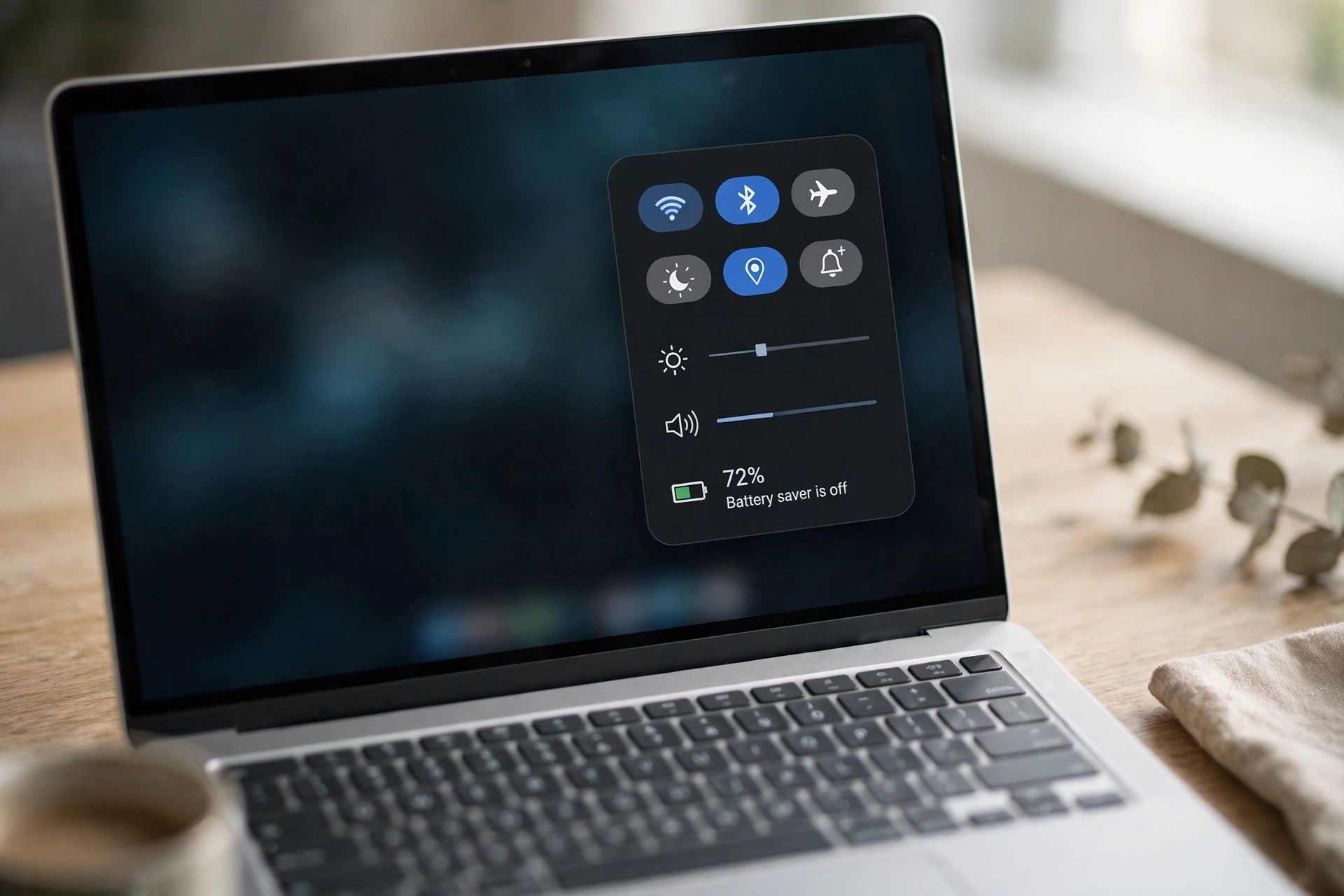
Windows 11 shows Bluetooth in Settings > Bluetooth & devices and in the Quick Settings panel from the taskbar. If it is missing from both, and there is no Bluetooth section in Device Manager, Windows is not detecting an adapter at all. If it is missing from Quick Settings only, the problem is more likely a tile or settings issue than a hardware failure.
That distinction decides your next step. A missing tile can often be fixed by re-adding it or switching Bluetooth on in Settings. A missing adapter needs the deeper steps below: a full power-off, hidden-device checks, and driver work. Also note the timing — Bluetooth that vanished right after an update points strongly to a driver issue, while a sudden failure with no update points more toward a stuck hardware state.
Fix 1: Confirm Your Laptop Actually Has Bluetooth
Not every laptop has Bluetooth built in. Some budget, older, and business or education models ship without a Bluetooth adapter, even when they have Wi-Fi. If your laptop never had Bluetooth, no driver reinstall will create it — the correct fix is the USB adapter in Fix 9.
Look up your exact model number on the manufacturer’s support site and check the wireless specifications. If Bluetooth is listed, move on to Fix 2. If it is not, skip to Fix 9. One extra clue: some laptops combine Bluetooth with the Wi-Fi card on one internal module, so if Wi-Fi failed at the same time, the two problems may share a cause. If Wi-Fi is also dropping, our guide to a laptop Wi-Fi connection that keeps disconnecting covers the wireless side.
Fix 2: Turn Off Airplane Mode and Check the Wireless Key or Switch
Airplane mode switches off wireless radios, including Bluetooth, and it is easy to turn on by accident with a stray key press or Quick Settings tap. Open Quick Settings from the taskbar, make sure Airplane mode is off, then open Settings > Bluetooth & devices and look for the Bluetooth toggle.
Next, check for a physical wireless switch on the side or front edge, or a keyboard function key marked with a wireless or airplane symbol — usually Fn plus that key. On some models it controls Wi-Fi only; on others it controls both Wi-Fi and Bluetooth, so test it even if Wi-Fi already works. If you switch a physical control back on, wait a few seconds for the adapter to initialise, then check Settings again.
Fix 3: Tell a Missing Tile Apart from a Missing Adapter
Quick Settings tiles can be removed, so a missing Bluetooth tile does not necessarily mean Bluetooth is gone. Use the edit control in Quick Settings, if available, and check whether a Bluetooth tile can be added back. If it can, and it works, the problem is solved.
At the same time, open Settings > Bluetooth & devices. If you see a Bluetooth toggle there, Bluetooth is present — turn it on and pair from Settings instead of relying on the tile. If Settings shows no Bluetooth section at all, Windows is not detecting an adapter. That is the bluetooth not available laptop situation the remaining fixes address, and rearranging tiles will not help it.
Fix 4: Do a Full Power-Off with Shift + Shut Down
Restarting is not the same as fully powering off. Windows 11’s fast startup can preserve hardware state across a restart, so a Bluetooth adapter stuck in an unresponsive state can survive a normal restart unchanged. A full power-off clears that state, and Microsoft lists it as a first-line fix for Bluetooth that has disappeared.
Hold down Shift, then select Start > Power > Shut down — not Restart — and keep holding Shift until the laptop powers off. Wait at least a minute, then power it back on and check Settings > Bluetooth & devices. If Bluetooth has returned, the adapter had simply stuck. This costs nothing and takes a couple of minutes, which is why it comes before any driver work.
Fix 5: Show Hidden Devices in Device Manager and Enable the Adapter
When Bluetooth is bluetooth not showing in device manager in its normal view, it may still be present as a hidden device. Windows hides devices it is not currently detecting, and an adapter that failed to initialise can end up in that hidden list.
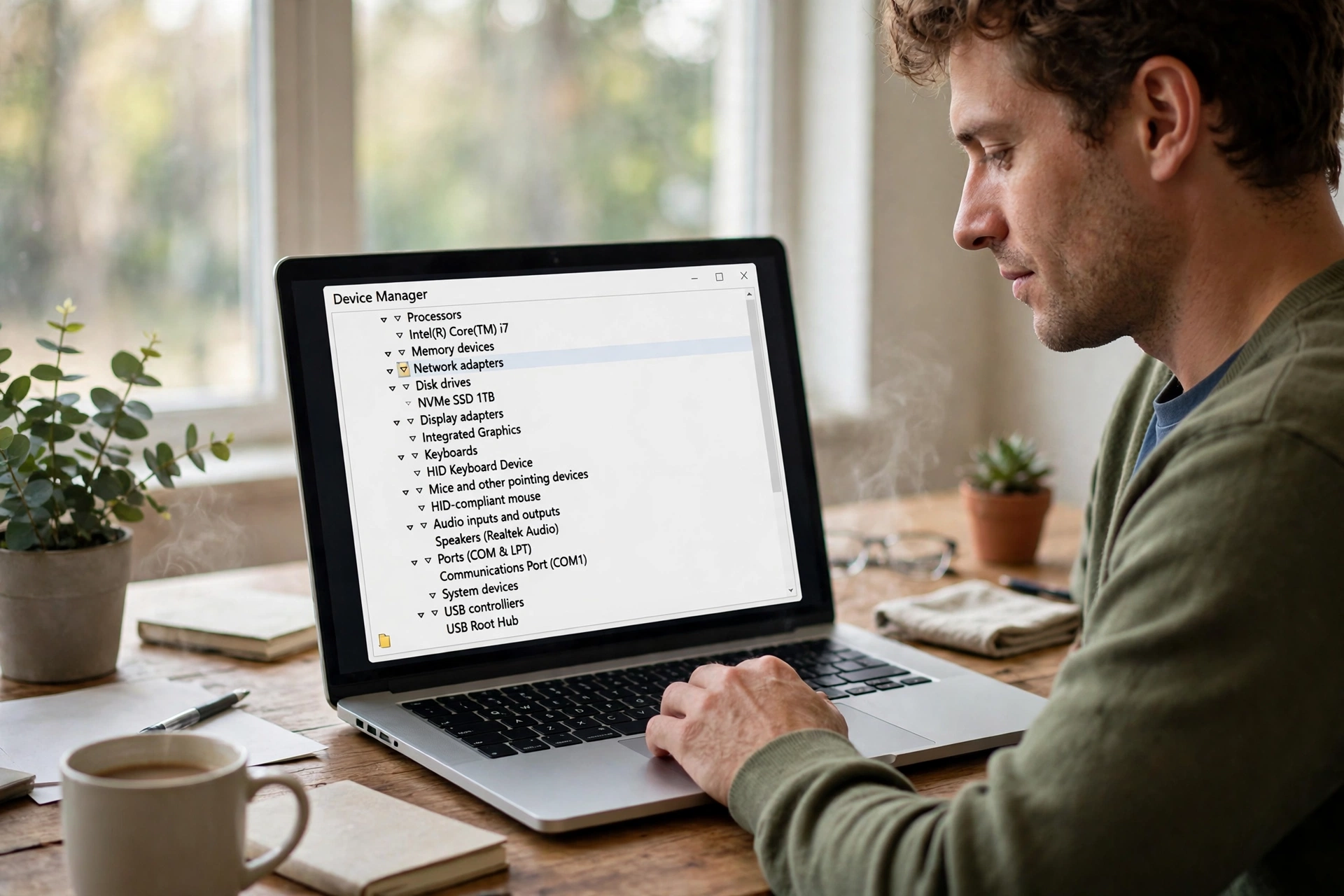
Right-click Start and open Device Manager, then select View > Show hidden devices. Expand the Bluetooth section. If an adapter appears — its name often includes “Radio” or a wireless chipset name — right-click it and select Enable device, if available. A warning symbol usually means a driver problem, covered in Fix 6. Also check Network adapters and Other devices for an unknown device with a warning symbol; an unidentified Bluetooth adapter can appear there instead.
Fix 6: Update, Roll Back, or Reinstall the Bluetooth Driver
A faulty, outdated, or incompatible driver is one of the most common causes of missing Bluetooth, and a bluetooth driver reinstall is often the fix that finally brings it back. When drivers break, Windows may stop detecting the adapter altogether rather than showing an error.
Start in Device Manager: expand Bluetooth, right-click your adapter, and select Update driver > Search automatically for drivers. If Windows says the best driver is already installed, that only means it found nothing newer — not that the driver is healthy. If the problem began after an update, try rolling back instead: right-click the adapter, select Properties, open the Driver tab, and select Roll Back Driver if available, then restart.
If neither works, reinstall from the manufacturer. Download the latest Bluetooth or wireless driver for your exact model from the manufacturer’s support site, uninstall the adapter in Device Manager (right-click, Uninstall device), install the downloaded driver, and restart. Do not use unofficial driver sites — a wrong or bundled driver can cause more harm. Microsoft makes the same point: Bluetooth hardware errors are typically caused by manufacturer drivers or firmware. See Microsoft’s guide to fixing Bluetooth that has disappeared in Windows and its broader Bluetooth problems in Windows page. Note that previously paired devices may need pairing again after a reinstall.
Fix 7: Check the Bluetooth Support Service and Run the Troubleshooter
Windows runs a Bluetooth Support Service, and if it is stopped, Bluetooth can fail even when the adapter and driver are fine. Press Windows + R, type services.msc, and press Enter. Find Bluetooth Support Service, make sure its Startup type is Automatic and its status is Running, and start or restart it if needed.
Then run the Bluetooth troubleshooter at Settings > System > Troubleshoot > Other troubleshooters, or use the automated troubleshooter in the Get Help app on Windows 11. Also check Settings > Windows Update for pending updates, which can include a Bluetooth driver or system fix. If the laptop has also become generally sluggish, that is a separate issue — see our guide on a laptop that has gone slow after a year and how to speed up a slow laptop.
Fix 8: Consider Firmware or BIOS Updates with Caution
If nothing above has worked, firmware may be involved. Manufacturers sometimes release BIOS or UEFI updates that improve hardware stability or help the system recover from unresponsive Bluetooth devices. Check Settings > Windows Update > Advanced options > Optional updates, or the manufacturer’s support site for your exact model.
Treat BIOS updates with more caution than driver updates. Only install one from the manufacturer’s official site, for your exact model, with the laptop plugged into mains power and nothing else running — interrupting a BIOS update can cause serious problems. If the update notes do not mention Bluetooth, wireless, or hardware stability, it may not help at all. If you are not comfortable with BIOS updates, skip this step; a repair shop can do it safely.
Fix 9: Use a USB Bluetooth Adapter as a Fallback
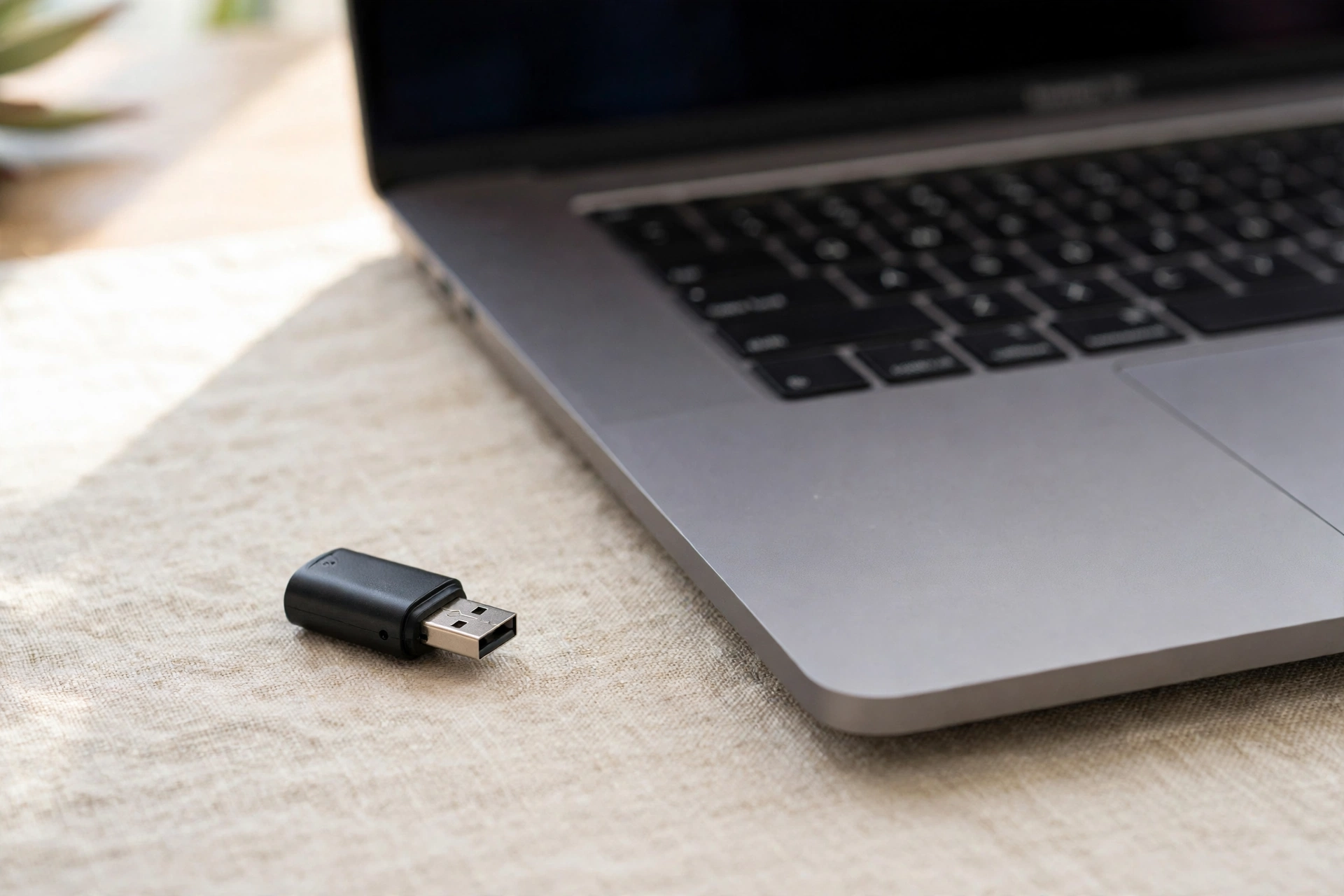
If the built-in adapter cannot be recovered, or your laptop never had Bluetooth, a USB Bluetooth adapter is a practical, low-cost fallback. It plugs into a USB port, installs its own driver, and gives the laptop Bluetooth without opening the case. For everyday uses — headphones, a mouse, a keyboard, a speaker — a small adapter is entirely adequate.
For headphones or speakers, check that the adapter supports the audio profiles your headphones need rather than assuming all adapters handle audio equally. For the first test, plug it directly into the laptop rather than a USB hub, so a faulty hub cannot confuse the result, then pair from Settings > Bluetooth & devices. If Bluetooth works through the adapter, the problem was with the built-in adapter or its driver — useful information if you later weigh a repair against keeping the USB adapter.
When to See a Repair Shop
See a repair shop if Bluetooth is still missing after the full power-off, hidden-device check, and manufacturer driver reinstall — especially if the adapter never appears in Device Manager, even with hidden devices shown. That pattern suggests the internal wireless module may have failed or worked loose, and fixing it usually means opening the laptop. The same applies if Wi-Fi and Bluetooth failed together, or if the laptop was recently dropped or repaired.
Before you go, note what you tried and what you saw: whether the adapter appeared in Device Manager, whether a driver change helped, and whether a USB adapter works. Ask for a quote before authorising a module replacement, and weigh it against simply using a USB adapter long-term. If the laptop is under warranty, contact the manufacturer first. If speakers have also developed faults, check our guide to laptop speakers crackling before your visit, so you can describe that symptom accurately too.
Recommended Products
If your built-in Bluetooth cannot be recovered, or your laptop never had it, these genuinely fitting options cover the two situations in this guide:
- USB Bluetooth adapter — the fallback from Fix 9, for laptops whose built-in Bluetooth is missing or absent. See USB Bluetooth adapters on Amazon.
- Bluetooth headphones — worth testing with once Bluetooth is back, to confirm pairing and audio work end to end. See Bluetooth headphones on Amazon.
Pick the adapter first if Bluetooth is still missing; pick headphones only once Bluetooth is working again, so you can test them immediately.
Frequently Asked Questions
Why is the Bluetooth option missing on my laptop?
The Bluetooth option is usually missing because Windows is not detecting a Bluetooth adapter. That can happen when the adapter is switched off by Airplane mode or a wireless key, when it is stuck in a bad power state, when its driver is faulty, or when the laptop never had Bluetooth built in. Less commonly, the internal wireless module has failed. Work through this guide in order — physical switch, full power-off, hidden devices, then a manufacturer driver reinstall — and use a USB Bluetooth adapter as a fallback if the adapter never appears.
How do I enable Bluetooth in Windows 11?
Make sure Airplane mode is off in Quick Settings, then go to Settings > Bluetooth & devices and turn the Bluetooth toggle on. If there is no toggle, the adapter is not being detected, so fix detection first: try the full power-off in Fix 4, hidden devices in Fix 5, and a manufacturer driver reinstall in Fix 6. Once the toggle appears, pair a device by selecting Add device, choosing Bluetooth, and putting your headphones, mouse, or keyboard into pairing mode.
How do I reinstall the Bluetooth driver?
Download the latest Bluetooth or wireless driver for your exact model from the laptop manufacturer’s support website. Then open Device Manager, expand Bluetooth, right-click your adapter, and select Uninstall device. Install the downloaded driver, restart the laptop, and check Settings > Bluetooth & devices for the toggle. Avoid unofficial driver sites, and if the problem started after an update, try Roll Back Driver in the adapter’s Properties first. Previously paired devices may need pairing again after a reinstall.
Does my laptop have Bluetooth built in?
Not every laptop has Bluetooth built in, so check the specifications for your exact model on the manufacturer’s support site. If Bluetooth is listed, a missing toggle means a settings, driver, or detection problem covered by this guide. If it is not listed, the laptop has no built-in adapter and no software fix will add one — a USB Bluetooth adapter is the correct solution.
Missing Bluetooth on a Windows 11 laptop is frustrating, but it is usually fixable without a repair. Start with the quick checks, give the full power-off a proper try, and work through the driver steps methodically. If the built-in adapter will not come back, a USB adapter gives you the same everyday Bluetooth for a fraction of the cost of a repair.


