
If your laptop touchpad not working Windows 11 has left you stuck, start with the simplest fix first: press the touchpad toggle key on your keyboard, usually an Fn combination, then check that the touchpad is switched on in Windows Settings. Most touchpads stop working because they have been switched off by accident, disabled by a setting, or broken by a driver problem after an update — and all three can usually be fixed at home in a few minutes.
Contents
- What Is Going Wrong With Your Touchpad?
- Fix 1: Press the Fn Touchpad Toggle Key
- Fix 2: Test With an External Mouse and Check Touchpad Settings
- Fix 3: Enable or Update the Driver in Device Manager
- Fix 4: Clean Reinstall of the Touchpad Driver
- Fix 5: Fix Gestures and Scrolling Settings
- Fix 6: Test in Safe Mode and Check the BIOS
- Fix 7: Roll Back After a Windows Update
- When to See a Repair Shop
- Recommended Products
- Frequently Asked Questions
What Is Going Wrong With Your Touchpad?
Before changing anything, work out what kind of failure you have: a completely dead touchpad needs a different fix from one that moves but will not scroll. Use the table below to narrow it down, then jump to the matching fix. Keep an external mouse plugged in while you troubleshoot — if it works fine, the fault is specific to the touchpad.
| Symptom | Likely cause | Try first |
|---|---|---|
| Touchpad does nothing at all | Switched off with the Fn key, or disabled in Settings | Fix 1, then Fix 2 |
| Cursor moves but taps do not register | Tap-to-click off, or a driver fault | Fix 2, then Fix 3 |
| Cursor moves but scrolling does not work | Scrolling or gesture settings changed, or a driver fault | Fix 5, then Fix 3 |
| Touchpad stopped working after update | Windows update replaced or broke the driver | Fix 4, then Fix 7 |
| Touchpad works sometimes, then freezes or jumps | Driver conflict, or a developing hardware fault | Fix 4, then Fix 6 |
| Works in the BIOS but not in Windows | Windows driver or software problem | Fix 4, then Fix 7 |
| Does not work anywhere, including the BIOS | Hardware fault, loose cable, or swollen battery | See a repair shop |
Fix 1: Press the Fn Touchpad Toggle Key
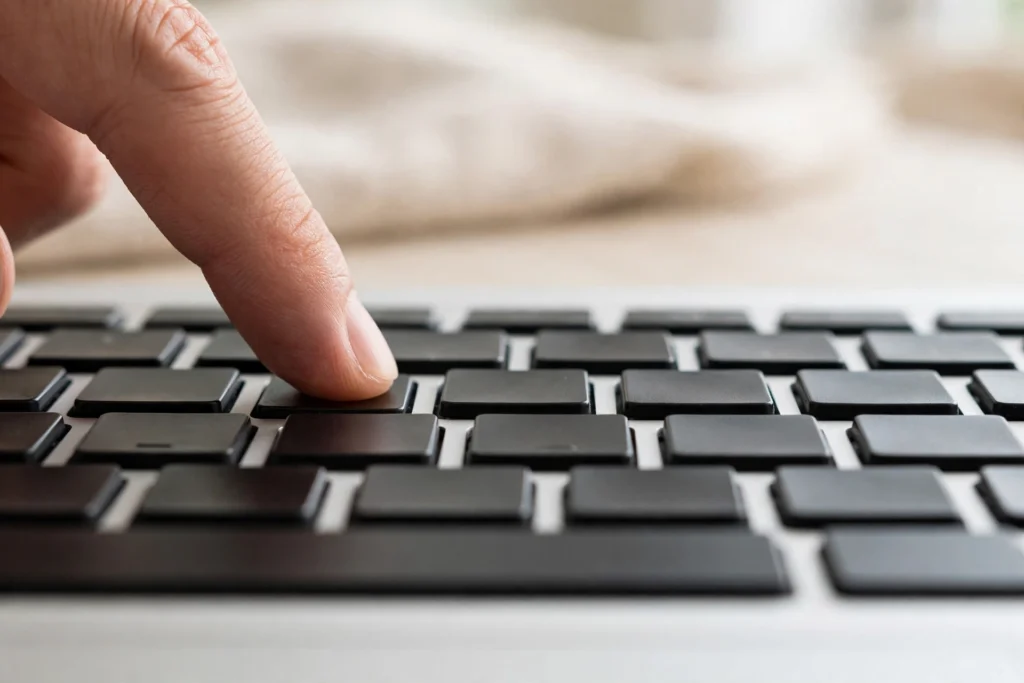
This is the fix most guides bury halfway down the page, yet it solves the problem more often than any other single step. Many laptops have a dedicated key that switches the touchpad on and off, and it is very easy to press by accident. If you have a touchpad disabled Fn key problem, this is almost certainly what happened: one stray key press, and the cursor stops responding completely.
Look along the F1 to F12 keys for a small touchpad symbol — usually a rectangle with a finger on it, sometimes with a line through it. On many laptops the toggle is F6, F7, or F9, but it varies by maker, so check the symbol rather than guessing. Some laptops also have a small on-off button in the corner of the touchpad itself.
Hold down Fn, usually at the bottom left of the keyboard, and press the touchpad key once. Wait a couple of seconds, then try the touchpad. If nothing changes, press the combination once more — pressing it twice in a row simply switches it off again. If your laptop has a function lock, try the touchpad key on its own without Fn. If the toggle works, note which key it is so you can avoid catching it again; if not, leave it switched on and move on.
Fix 2: Test With an External Mouse and Check Touchpad Settings
Plug in a USB mouse and confirm it moves the cursor. If it does, the fault is specific to the touchpad. If no mouse works either, the problem is wider — still work through the driver steps below, but be ready to consider a Windows repair or professional help sooner.
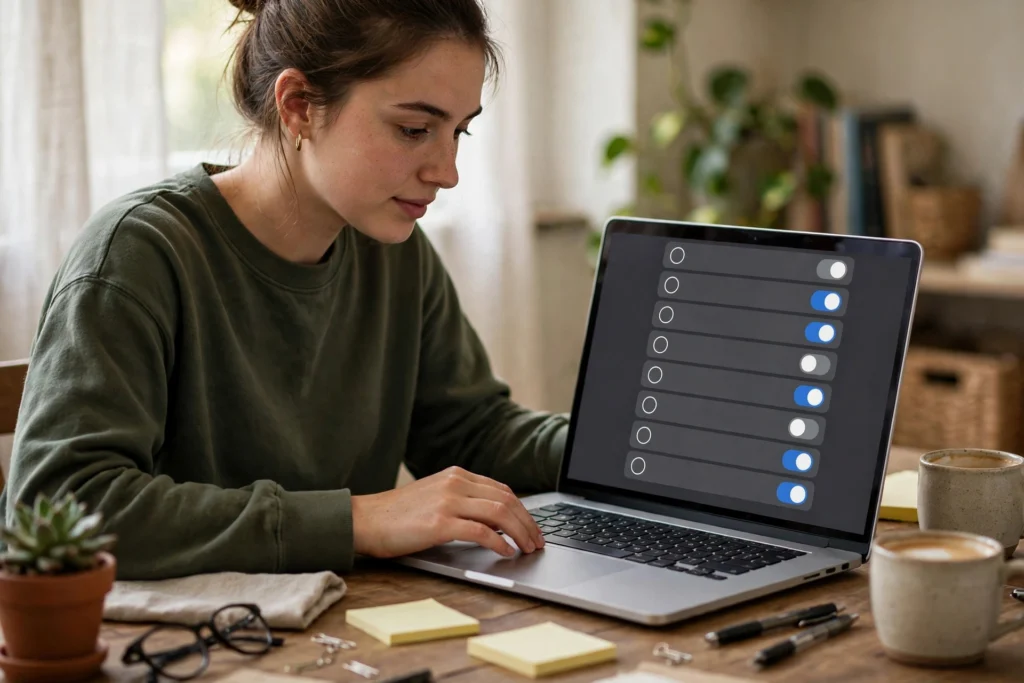
Next, open Windows Settings. Press the Windows key, type “Touchpad”, and open Touchpad settings. At the top of the page there is a main Touchpad switch — make sure it is set to On. This switch is sometimes turned off by a Windows update, a laptop utility, or an accidental change, and when it is off, the Fn toggle alone may not bring the touchpad back.
On the same page, look for “Leave touchpad on when a mouse is connected”. If this is off, Windows disables the touchpad automatically whenever a mouse is plugged in — which catches many people out while troubleshooting. Switch it on if you want both devices to work at once. Also check that taps are on if you tap to click, and that cursor speed is not set so low that movement feels like none at all. Restart, then test again.
Fix 3: Enable or Update the Driver in Device Manager
If the touchpad is switched on everywhere and still does nothing, the driver is the next suspect — the small piece of software that lets Windows talk to the touchpad hardware. When it is disabled, missing, or out of date, Windows may not recognise the touchpad at all.
Right-click the Start button and open Device Manager. Expand “Mice and other pointing devices” and look for an entry mentioning your touchpad, such as a precision touchpad, a Synaptics device, or an ELAN device. If you see a small down arrow on the icon, the device is disabled — right-click it and choose Enable device. If you see a yellow warning triangle, the driver has a problem and needs attention.
Here is the step many guides skip: also expand “Human Interface Devices” and look for “I2C HID Device”. On many modern laptops the touchpad connects through this device rather than appearing as a straightforward mouse. If it is disabled, has a warning symbol, or lacks a driver, the touchpad will not work whatever you do in Touchpad settings. Right-click it, choose Enable device if offered, and check its status.
To update the driver, right-click the touchpad entry, choose Update driver, then “Search automatically for drivers”. If Windows says the best driver is already installed, that only means it found nothing newer online — not that the driver is healthy. In that case, download the Windows 11 touchpad driver for your exact model from your laptop maker’s support website, install it, restart, and test again.
Fix 4: Clean Reinstall of the Touchpad Driver
When updating does not help, a touchpad driver reinstall often does: updating a broken driver can layer a new version over the same fault, while removing it completely and letting Windows install a fresh copy clears that fault out.
In Device Manager, right-click the touchpad entry and choose Uninstall device. If you see a checkbox for deleting the driver software, tick it — this is what makes the reinstall clean. Do the same for the I2C HID device if it showed a warning, uninstalling one device at a time. Do not uninstall anything you do not recognise.
Restart the laptop. Windows will detect the touchpad during startup and install a driver automatically, though this can take a minute or two. If it does not, download the Windows 11 touchpad driver for your model from your laptop maker’s support website, install it manually, and restart. Then check Touchpad settings again — a fresh driver can reset taps and gestures to their defaults — and test movement, tapping, and scrolling.
Fix 5: Fix Gestures and Scrolling Settings
Sometimes the touchpad technically works, but feels broken because its gestures have stopped responding. Touchpad scrolling not working is the classic case: the cursor moves and clicks work, but two-finger scrolling does nothing, or goes the wrong way.
Open Touchpad settings and scroll to “Scroll and zoom”. Make sure “Drag two fingers to scroll” is switched on, and check the scrolling direction — a change here can feel like scrolling is broken when it has simply been flipped. Below that, check the three-finger and four-finger gesture sections: make sure the gestures you expect, such as switching apps or showing the desktop, are assigned to actions rather than set to “Nothing”.
Also check “Taps”: if single-finger tap is off, taps will do nothing even though the touchpad is fine. Check sensitivity too — on “Low sensitivity”, light touches may not register. Try “Medium” or “High” sensitivity. If your laptop maker supplies its own touchpad utility, check it as well, since it can override Windows settings. Restart, then test each gesture.
Fix 6: Test in Safe Mode and Check the BIOS
If none of the software fixes above have worked, you need to find out whether the fault is in Windows or in the hardware. Safe Mode and the BIOS give you two clean test environments, and the results narrow the problem down fast.
To test in Safe Mode, hold Shift while clicking Restart from the Start menu, then choose Troubleshoot, Advanced options, Startup Settings, and Restart, and press the number for Safe Mode. Windows then loads only essential drivers and no startup programs. If the touchpad works there, a startup program or conflicting driver is interfering in normal Windows — disable non-essential startup apps one at a time in Task Manager, restarting between changes, until you find the culprit.
The BIOS check is the one competing guides most often leave out, so do not skip it. Restart and press the BIOS key during startup — commonly F2, F10, Del, or Esc; the startup screen usually names it. In the BIOS or UEFI setup screen, try the touchpad and check whether it is enabled in hardware settings. If it works here but not in Windows, the hardware is fine and the fault is software — return to Fix 4 and Fix 7. If it fails here too, with no setting disabling it, the fault is most likely hardware. Change only a clearly labelled touchpad setting, and if unsure, exit without saving.
Fix 7: Roll Back After a Windows Update
A touchpad stopped working after update is a pattern support forums see again and again: updates sometimes replace a working driver with a generic one, or break the I2C HID device. If yours failed within a day or two of an update, try this before assuming hardware failure.
First, try rolling back the driver itself. In Device Manager, right-click the touchpad entry, choose Properties, open the Driver tab, and look for “Roll Back Driver”. If the button is available, click it, choose a reason, and restart. This returns the driver to the version that was working before the update, and it is quicker and safer than removing the update itself.
If rollback is unavailable or does not help, remove the recent update: Settings, Windows Update, Update history, Uninstall updates — then restart and test, and pause updates for a week or two while the maker releases a fixed driver. Also check the maker’s support forums for your model: as noted in a Microsoft Answers thread on touchpad issues in Windows 11 and an HP support community thread on touchpads not registering taps, these failures often affect many owners of the same model, who may already have posted a working driver version.
When to See a Repair Shop
Take the laptop to a repair shop if the touchpad fails in the BIOS as well as in Windows, if it works only when you press down hard on the palm rest, if the touchpad feels raised, spongy, or uneven, or if the problem returns within days of every driver reinstall. These are signs of a loose ribbon cable, a worn touchpad module, or damage to the palm-rest assembly, and none of them can be fixed safely through settings.
Stop using the laptop and seek professional help promptly if the bottom case bulges, the touchpad lifts out of its frame, the keyboard feels raised, or the laptop rocks on a flat surface. These can be signs of a swollen battery pressing against the touchpad from inside — a safety issue, not just an inconvenience. Do not puncture, squeeze, or remove a swollen battery yourself, and do not keep charging the laptop while you wait for repair. If still under warranty, contact the maker first, since opening the case can void it. Similar logic applies elsewhere — see our guides on laptop keyboard keys not working, laptop black screen with the fan running, and a laptop fan making a loud noise.
Recommended Products
While you troubleshoot, a simple external mouse keeps the laptop usable, and it is worth keeping one as a spare afterwards. No special features are needed, so choose by comfort and size.
- Wireless mouse — a standard wireless mouse with a small USB receiver, useful for everyday use and for testing whether pointing works while the touchpad is being fixed.
- Wired USB mouse — a basic wired mouse that needs no batteries or pairing, handy as a reliable backup for troubleshooting and travel.
As an Amazon Associate, Technorra earns from qualifying purchases made through links on this page.
Frequently Asked Questions
Why did my laptop touchpad suddenly stop working?
Usually an accidental press of the Fn toggle key, the touchpad being switched off in Settings, a driver problem after an update, or a fault with the I2C HID device. Work through the toggle, settings, and driver checks in order — most sudd
en failures are one of these, not hardware failure.
How do I re-enable my touchpad in Windows 11?
Press the Windows key, type “Touchpad”, open Touchpad settings, and set the main Touchpad switch to On. Also switch on “Leave touchpad on when a mouse is connected” if needed. If it still does not respond, press the Fn toggle key, then check the driver in Device Manager.
Which Fn key enables the touchpad?
It varies by laptop maker, so look for the touchpad symbol — a rectangle with a finger on it — on the F1 to F12 keys. It is often F6, F7, or F9. Hold Fn and press that key once, wait a couple of seconds, and test the touchpad. Some laptops also have a small on-off button in the corner of the touchpad itself.
Do I need a driver for the touchpad?
Yes. Windows needs a touchpad driver, usually supplied by your laptop maker, to recognise the touchpad and support gestures such as tapping and two-finger scrolling. Windows can often install a basic driver automatically, but for full gesture support you should use the driver listed for your exact laptop model on the maker’s support website.


1 response